> ## Documentation Index
> Fetch the complete documentation index at: https://docs.wisepim.com/llms.txt
> Use this file to discover all available pages before exploring further.
# Change Unit of Measure
> Bulk switch units of measure across products. Convert the values automatically (kg to lb) or just relabel them, with the conversion factor worked out for you.
Switch the unit of measure (UOM) across many products at once. WisePIM works out the conversion factor for you, so you never look up rates by hand.
You can do this two ways:
* **Convert values:** recalculate the numbers, for example 100 kg becomes 220.46 lb.
* **Label only:** change the unit label and leave the numbers as they are.
## Change the unit of measure
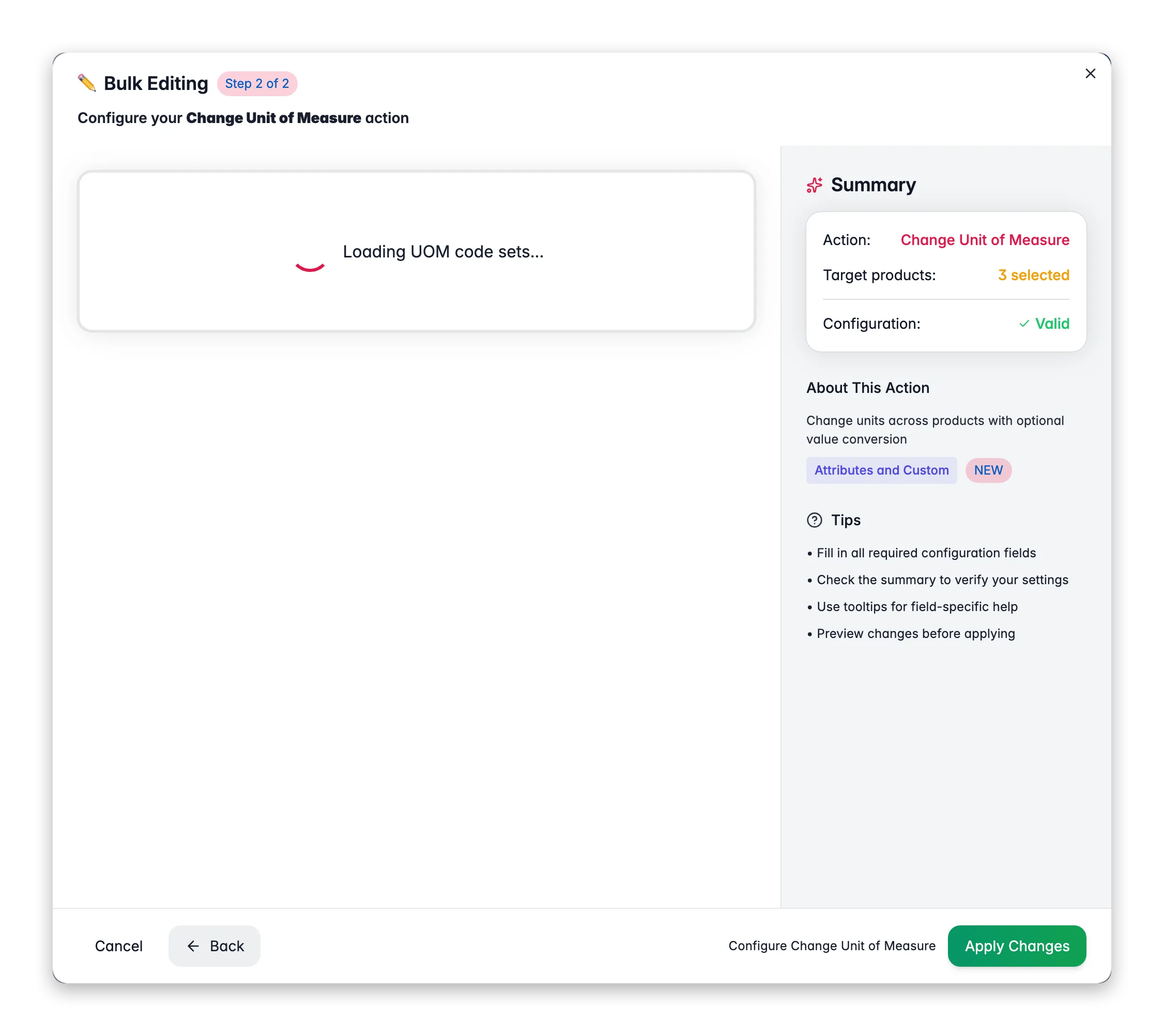
 Check the products you want to update. Or use filters and select all matching results.
Click **Bulk Edit**. Search for "Unit of Measure" or find it under **Attributes & Custom Fields**.
Choose the code set that holds the units you want to convert between. Each one shows its category and unit count.
Set the **From** unit (current) and the **To** unit (target).
Decide whether to convert the values or only change the label, then click **Apply**.
## Options
| Option | What it does | Default |
| -------------------------- | ----------------------------------------------------------------------------- | ------- |
| **UOM code set** | The unit system to use (for example Weight, Length) | None |
| **From unit** | The current unit to convert from | None |
| **To unit** | The target unit to convert to | None |
| **Convert values** | Applies the conversion factor to the actual numbers | On |
| **Label only** | Changes the unit label without converting values (when Convert values is off) | None |
| **Skip empty values** | Leaves products with no value untouched | On |
| **Round converted values** | Rounds the result after conversion | Off |
### Conversion preview
The preview shows an example conversion with the factor:
> 100 kg → 220.46 lb (×2.2046)
## When to use each mode
* Use **Convert values** (the default) when you actually switch unit systems. It recalculates the numbers with the conversion factor.
* Use **Label only** (turn off Convert values) when the numbers are already right but the unit label is wrong. This is common after an import that set the wrong unit.
## Related
Set a fixed value on a custom attribute across products.
Add, subtract, multiply, or divide numeric fields in bulk.
Set or adjust product weights across the catalog.
Browse every bulk action available in WisePIM.
Check the products you want to update. Or use filters and select all matching results.
Click **Bulk Edit**. Search for "Unit of Measure" or find it under **Attributes & Custom Fields**.
Choose the code set that holds the units you want to convert between. Each one shows its category and unit count.
Set the **From** unit (current) and the **To** unit (target).
Decide whether to convert the values or only change the label, then click **Apply**.
## Options
| Option | What it does | Default |
| -------------------------- | ----------------------------------------------------------------------------- | ------- |
| **UOM code set** | The unit system to use (for example Weight, Length) | None |
| **From unit** | The current unit to convert from | None |
| **To unit** | The target unit to convert to | None |
| **Convert values** | Applies the conversion factor to the actual numbers | On |
| **Label only** | Changes the unit label without converting values (when Convert values is off) | None |
| **Skip empty values** | Leaves products with no value untouched | On |
| **Round converted values** | Rounds the result after conversion | Off |
### Conversion preview
The preview shows an example conversion with the factor:
> 100 kg → 220.46 lb (×2.2046)
## When to use each mode
* Use **Convert values** (the default) when you actually switch unit systems. It recalculates the numbers with the conversion factor.
* Use **Label only** (turn off Convert values) when the numbers are already right but the unit label is wrong. This is common after an import that set the wrong unit.
## Related
Set a fixed value on a custom attribute across products.
Add, subtract, multiply, or divide numeric fields in bulk.
Set or adjust product weights across the catalog.
Browse every bulk action available in WisePIM.