> ## Documentation Index
> Fetch the complete documentation index at: https://docs.wisepim.com/llms.txt
> Use this file to discover all available pages before exploring further.
# Change Price
> Bulk adjust product prices by a percentage or fixed amount. Add markups or discounts with optional rounding and min/max guardrails.
Change prices across many products at once. Adjust by a percentage or a fixed euro amount, then add guardrails so prices stay in a safe range.
Use this for price increases, markdowns, or cost-based adjustments without editing products one by one.
## Change prices in bulk
 Check the products you want to reprice. Or use filters and select all matching results.
Click **Bulk Edit**. Search for "Change Price" or find it under **Pricing & Discounts**.
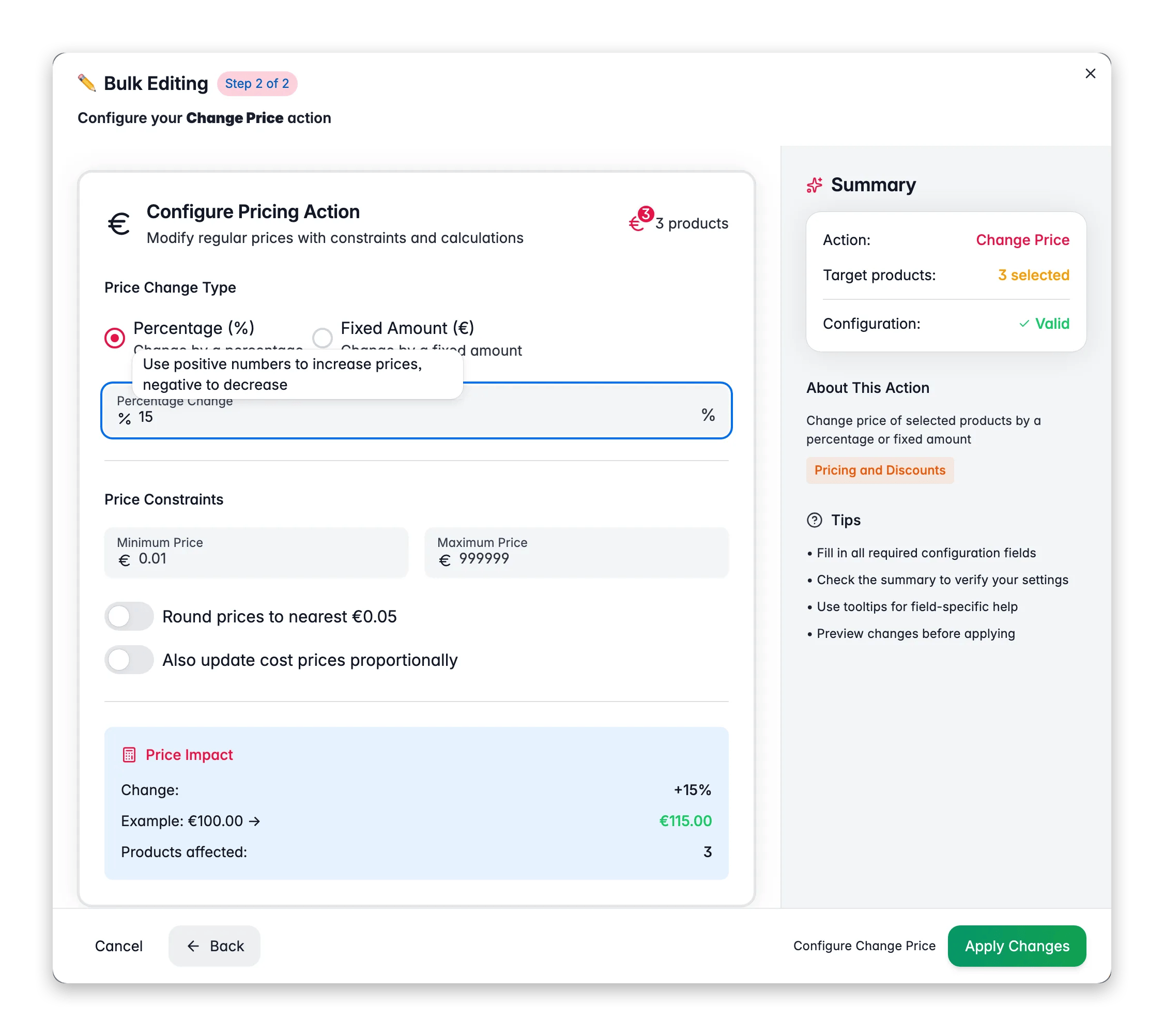
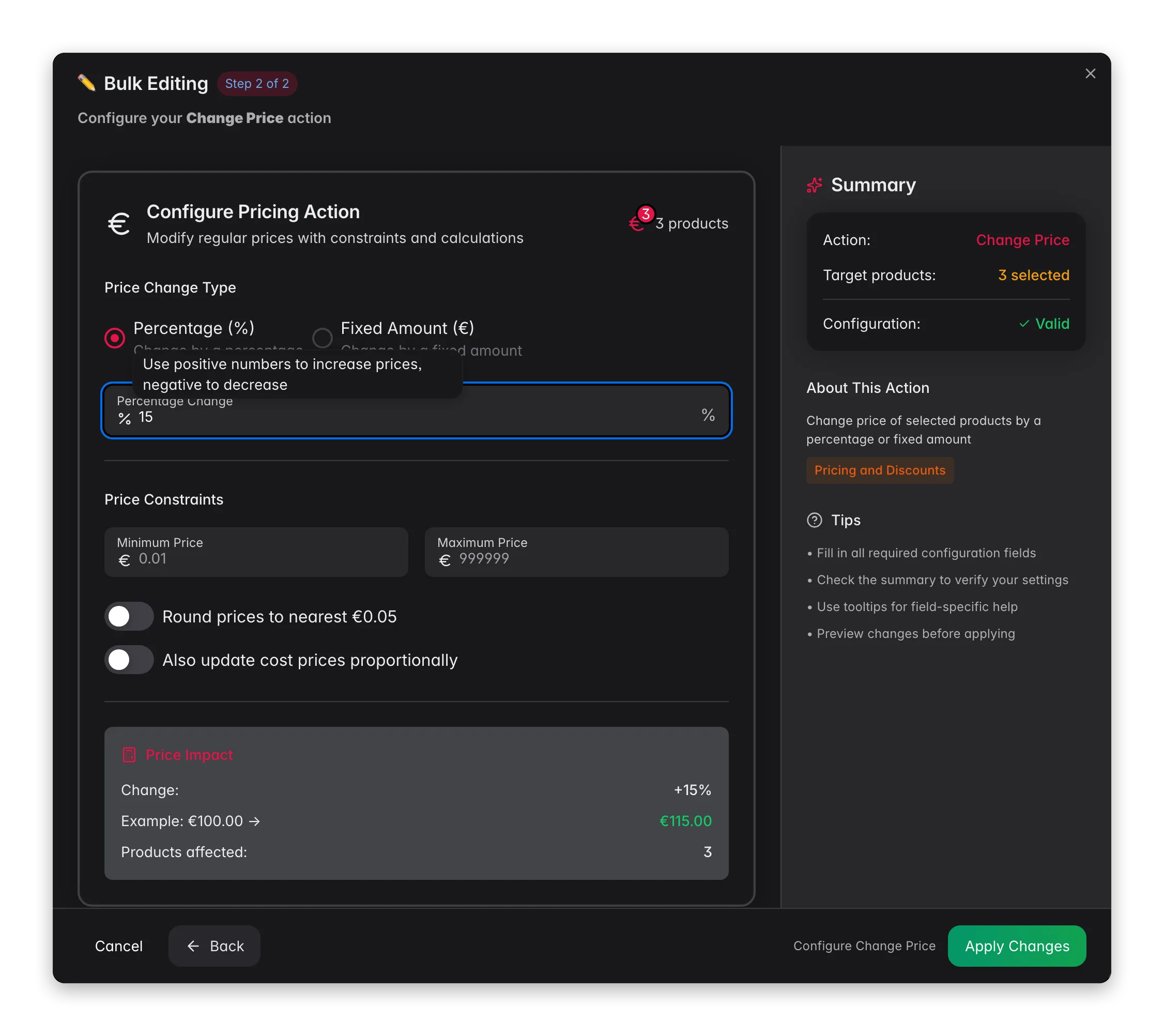
Pick **Percentage** to change by a % (for example +10% or -15%), or **Fixed Amount** to add or subtract a set euro amount.
Optionally set a minimum and maximum price, turn on rounding, and choose whether to update cost prices too.
Check the impact calculator, which shows what happens to a €100 product, then click **Apply**.
## Options
| Option | What it does | Default |
| ------------------------------------------ | ------------------------------------------------------------------------- | ------- |
| **Change type** | Percentage (%) or Fixed Amount (€) | None |
| **Value** | The percentage or amount to apply. Positive increases, negative decreases | None |
| **Minimum price** | Prices won't drop below this value | None |
| **Maximum price** | Prices won't rise above this value | None |
| **Round prices** | Rounds to the nearest €0.05 for cleaner pricing | Off |
| **Also update cost prices proportionally** | Applies the same change to cost prices so margins stay consistent | Off |
## Tips
* Use the **impact calculator** to check the change before you apply it. It shows the result on a €100 example product.
* Set a **minimum price** when applying discounts. This stops prices from dropping below your cost.
* Turn on **Also update cost prices proportionally** for catalog-wide changes. This keeps your margin calculations accurate.
## Related
Set cost prices or hit a target margin across products.
Apply a sale price with an optional start and end date.
Add tiered pricing based on quantity.
Browse every bulk action available in WisePIM.
Check the products you want to reprice. Or use filters and select all matching results.
Click **Bulk Edit**. Search for "Change Price" or find it under **Pricing & Discounts**.
Pick **Percentage** to change by a % (for example +10% or -15%), or **Fixed Amount** to add or subtract a set euro amount.
Optionally set a minimum and maximum price, turn on rounding, and choose whether to update cost prices too.
Check the impact calculator, which shows what happens to a €100 product, then click **Apply**.
## Options
| Option | What it does | Default |
| ------------------------------------------ | ------------------------------------------------------------------------- | ------- |
| **Change type** | Percentage (%) or Fixed Amount (€) | None |
| **Value** | The percentage or amount to apply. Positive increases, negative decreases | None |
| **Minimum price** | Prices won't drop below this value | None |
| **Maximum price** | Prices won't rise above this value | None |
| **Round prices** | Rounds to the nearest €0.05 for cleaner pricing | Off |
| **Also update cost prices proportionally** | Applies the same change to cost prices so margins stay consistent | Off |
## Tips
* Use the **impact calculator** to check the change before you apply it. It shows the result on a €100 example product.
* Set a **minimum price** when applying discounts. This stops prices from dropping below your cost.
* Turn on **Also update cost prices proportionally** for catalog-wide changes. This keeps your margin calculations accurate.
## Related
Set cost prices or hit a target margin across products.
Apply a sale price with an optional start and end date.
Add tiered pricing based on quantity.
Browse every bulk action available in WisePIM.