> ## Documentation Index
> Fetch the complete documentation index at: https://docs.wisepim.com/llms.txt
> Use this file to discover all available pages before exploring further.
# Append/Prepend Text
> Bulk add text to the start or end of product fields. Insert prefixes, suffixes, and dynamic variables like SKU, brand, or category in one pass.
Add the same text to the start or end of a field across many products at once. Use **prepend** to add text to the beginning, or **append** to add it to the end. You can mix in dynamic variables, so each product gets text built from its own data.
This is the fast way to apply brand prefixes, SEO tags, care instructions, or specs blocks to your whole catalog without editing products one by one.
## Add text to your products
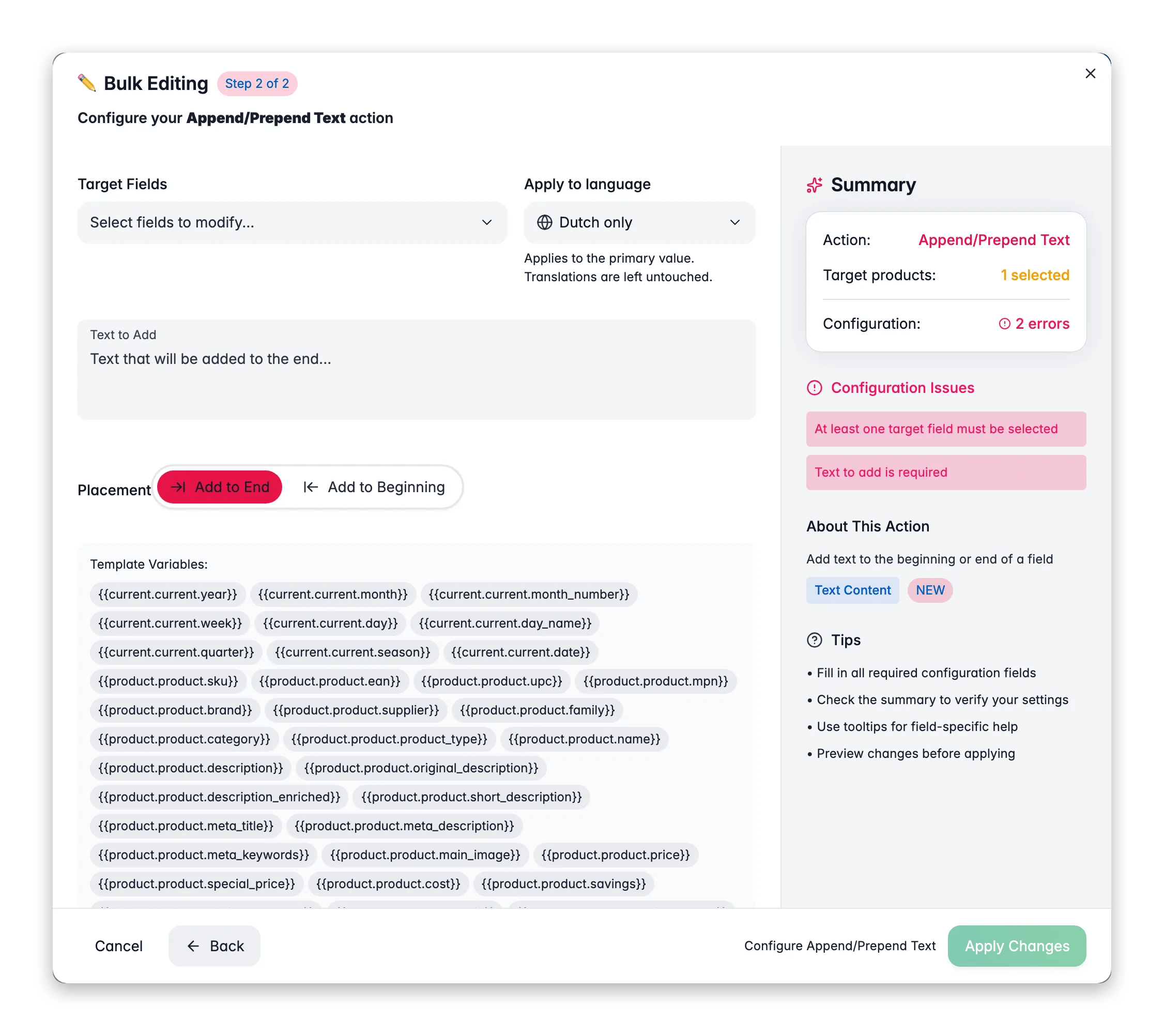
 Check the products you want to update. Or use filters and select all matching results.
Click **Bulk Edit**. Search for "Append/Prepend" or find it under **Text & Content**.
Pick **beginning** (prepend) or **end** (append) of the field.
Type the text to add. Add variables for values that change per product.
Select which fields to change, then click **Apply**.
## Options
| Option | What it does |
| ----------------- | ---------------------------------------------- |
| **Operation** | Add to the beginning (prepend) or end (append) |
| **Text** | The text to insert. Supports variables |
| **Target fields** | Which product fields to change |
## Personalize text with variables
The text input supports [Content Logic](/en/workflows/content-logic) variables. Each product gets text built from its own data, so `{brand}` becomes "Nike" for one product and "Adidas" for another.
There are two ways to add a variable:
* Type `{{` to open the autocomplete dropdown.
* Click a quick-insert chip below the input.
**Quick-insert chips:**
| Chip | Inserts |
| ------------ | --------------------- |
| `{sku}` | Product SKU |
| `{brand}` | Brand name |
| `{price}` | Product price |
| `{stock}` | Stock quantity |
| `{category}` | Primary category name |
You can also use any [Content Logic](/en/workflows/content-logic) variable with the `{{scope.key}}` syntax:
| Scope | Example variable | Resolves to |
| ---------- | ---------------------------------------------------------- | --------------------------------- |
| `product` | `{{product.name}}`, `{{product.sku}}`, `{{product.price}}` | Product-level data |
| `global` | `{{global.company_name}}`, `{{global.warranty_text}}` | Shared values across all products |
| `brand` | `{{brand.tagline}}`, `{{brand.origin_story}}` | Brand-specific content |
| `category` | `{{category.care_instructions}}` | Category-specific content |
Define your own global, brand, and category variables in [Content Logic](/en/workflows/content-logic), then reference them here.
## Examples
**Prepend a brand prefix to product names:**
```
{brand} -
```
> "Nike - " + "Air Max 90" → **"Nike - Air Max 90"**
**Append a promotional suffix to descriptions:**
```
\n\nOrder now at {{global.website_url}} - {{global.free_shipping_text}}
```
> Adds a call-to-action with your store URL and shipping message to every description.
**Prepend an SKU tag to SEO titles:**
```
[{{product.sku}}]
```
> "\[NK-AM90] " + "Air Max 90 Running Shoes" → **"\[NK-AM90] Air Max 90 Running Shoes"**
**Append category care instructions to short descriptions:**
```
\n\nCare: {{category.care_instructions}}
```
> Each product gets the care instructions for its category: "Machine wash cold" for apparel, "Wipe with dry cloth" for electronics.
**Append a standard specs block to descriptions:**
```
\n\nSpecifications:\n- Material: {{category.material}}\n- Weight: {{product.weight}} {{product.weight_unit}}\n- HS Code: {{product.hs_code}}\n- Country of Origin: {{product.country_of_origin}}
```
> Adds a consistent specifications footer to every description. Purchasing teams find the technical data in the same place every time.
**Append compliance info per brand:**
```
\n\n{{brand.compliance_text}}
```
> Each product gets its manufacturer's compliance statement: "ISO 9001:2015 certified. REACH compliant." for one brand, "CE marked. RoHS compliant. UL listed." for another. Define these once as [Content Logic](/en/workflows/content-logic) brand variables.
**Prepend MPN to product names for standardization:**
```
{{product.manufacturer_part_number}} -
```
> "6205-2RS-SKF - " + "Industrial Ball Bearing" → **"6205-2RS-SKF - Industrial Ball Bearing"**. Now every product is searchable by MPN in your catalog and downstream channels.
**Append ordering info to short descriptions:**
```
\n\nMOQ: {{category.moq}} units | Lead time: {{global.lead_time_text}} | SKU: {{product.sku}}
```
> "MOQ: 100 units | Lead time: 3-5 business days | SKU: SS-HB-M1050". Buyers get the key ordering details at a glance.
Combine static text with variables. For example, append `\n\nPart of the {{brand.tagline}} collection` to every description.
## Related
Swap text inside existing fields, not just at the start or end.
Overwrite a field with a fixed value across products.
Build the global, brand, and category variables you use here.
Browse every bulk action available in WisePIM.
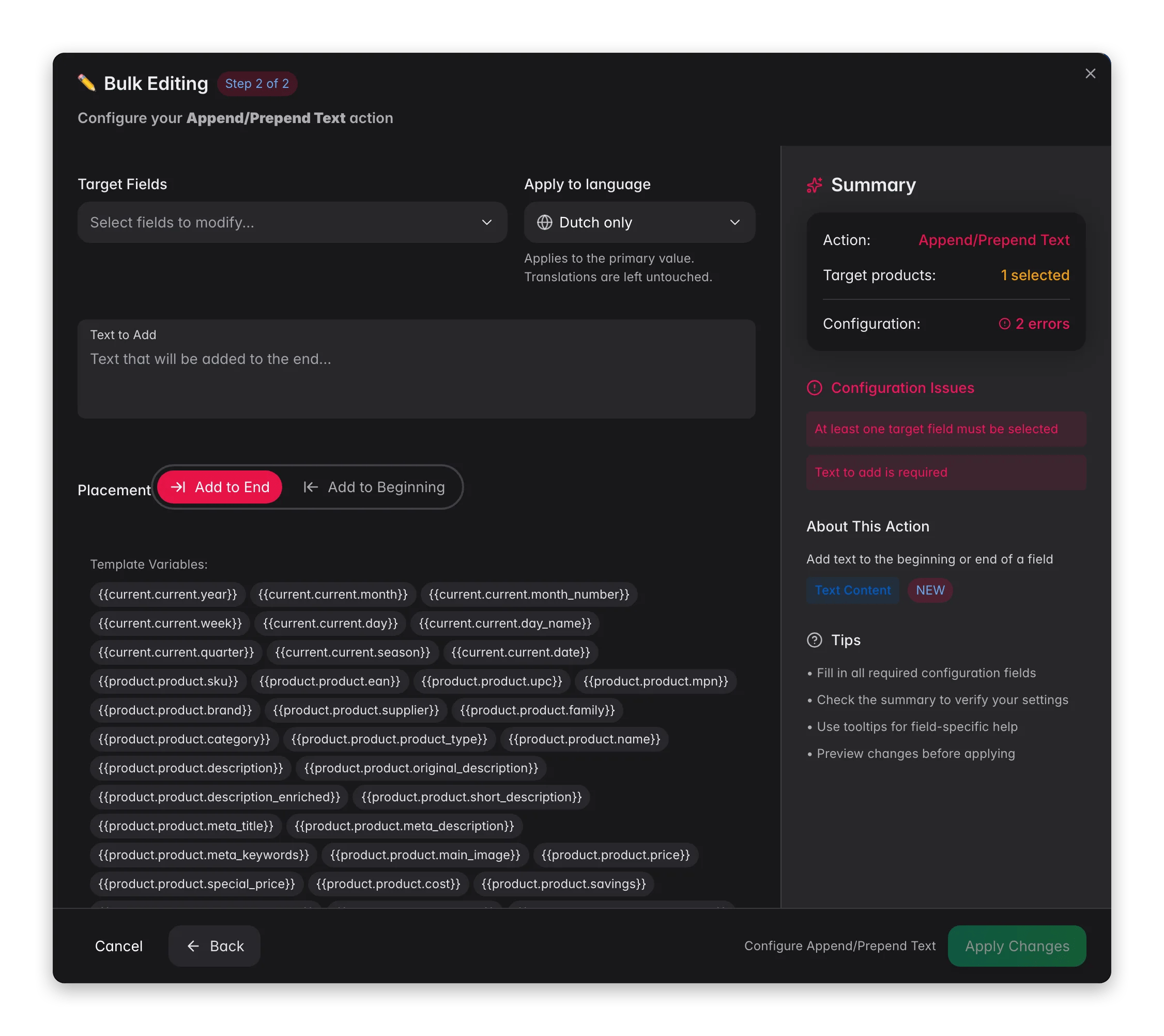
Check the products you want to update. Or use filters and select all matching results.
Click **Bulk Edit**. Search for "Append/Prepend" or find it under **Text & Content**.
Pick **beginning** (prepend) or **end** (append) of the field.
Type the text to add. Add variables for values that change per product.
Select which fields to change, then click **Apply**.
## Options
| Option | What it does |
| ----------------- | ---------------------------------------------- |
| **Operation** | Add to the beginning (prepend) or end (append) |
| **Text** | The text to insert. Supports variables |
| **Target fields** | Which product fields to change |
## Personalize text with variables
The text input supports [Content Logic](/en/workflows/content-logic) variables. Each product gets text built from its own data, so `{brand}` becomes "Nike" for one product and "Adidas" for another.
There are two ways to add a variable:
* Type `{{` to open the autocomplete dropdown.
* Click a quick-insert chip below the input.
**Quick-insert chips:**
| Chip | Inserts |
| ------------ | --------------------- |
| `{sku}` | Product SKU |
| `{brand}` | Brand name |
| `{price}` | Product price |
| `{stock}` | Stock quantity |
| `{category}` | Primary category name |
You can also use any [Content Logic](/en/workflows/content-logic) variable with the `{{scope.key}}` syntax:
| Scope | Example variable | Resolves to |
| ---------- | ---------------------------------------------------------- | --------------------------------- |
| `product` | `{{product.name}}`, `{{product.sku}}`, `{{product.price}}` | Product-level data |
| `global` | `{{global.company_name}}`, `{{global.warranty_text}}` | Shared values across all products |
| `brand` | `{{brand.tagline}}`, `{{brand.origin_story}}` | Brand-specific content |
| `category` | `{{category.care_instructions}}` | Category-specific content |
Define your own global, brand, and category variables in [Content Logic](/en/workflows/content-logic), then reference them here.
## Examples
**Prepend a brand prefix to product names:**
```
{brand} -
```
> "Nike - " + "Air Max 90" → **"Nike - Air Max 90"**
**Append a promotional suffix to descriptions:**
```
\n\nOrder now at {{global.website_url}} - {{global.free_shipping_text}}
```
> Adds a call-to-action with your store URL and shipping message to every description.
**Prepend an SKU tag to SEO titles:**
```
[{{product.sku}}]
```
> "\[NK-AM90] " + "Air Max 90 Running Shoes" → **"\[NK-AM90] Air Max 90 Running Shoes"**
**Append category care instructions to short descriptions:**
```
\n\nCare: {{category.care_instructions}}
```
> Each product gets the care instructions for its category: "Machine wash cold" for apparel, "Wipe with dry cloth" for electronics.
**Append a standard specs block to descriptions:**
```
\n\nSpecifications:\n- Material: {{category.material}}\n- Weight: {{product.weight}} {{product.weight_unit}}\n- HS Code: {{product.hs_code}}\n- Country of Origin: {{product.country_of_origin}}
```
> Adds a consistent specifications footer to every description. Purchasing teams find the technical data in the same place every time.
**Append compliance info per brand:**
```
\n\n{{brand.compliance_text}}
```
> Each product gets its manufacturer's compliance statement: "ISO 9001:2015 certified. REACH compliant." for one brand, "CE marked. RoHS compliant. UL listed." for another. Define these once as [Content Logic](/en/workflows/content-logic) brand variables.
**Prepend MPN to product names for standardization:**
```
{{product.manufacturer_part_number}} -
```
> "6205-2RS-SKF - " + "Industrial Ball Bearing" → **"6205-2RS-SKF - Industrial Ball Bearing"**. Now every product is searchable by MPN in your catalog and downstream channels.
**Append ordering info to short descriptions:**
```
\n\nMOQ: {{category.moq}} units | Lead time: {{global.lead_time_text}} | SKU: {{product.sku}}
```
> "MOQ: 100 units | Lead time: 3-5 business days | SKU: SS-HB-M1050". Buyers get the key ordering details at a glance.
Combine static text with variables. For example, append `\n\nPart of the {{brand.tagline}} collection` to every description.
## Related
Swap text inside existing fields, not just at the start or end.
Overwrite a field with a fixed value across products.
Build the global, brand, and category variables you use here.
Browse every bulk action available in WisePIM.