> ## Documentation Index
> Fetch the complete documentation index at: https://docs.wisepim.com/llms.txt
> Use this file to discover all available pages before exploring further.
# Bulk Editing
> Update prices, replace text, assign categories, and manage inventory across thousands of products at once. One change applies to your whole selection.
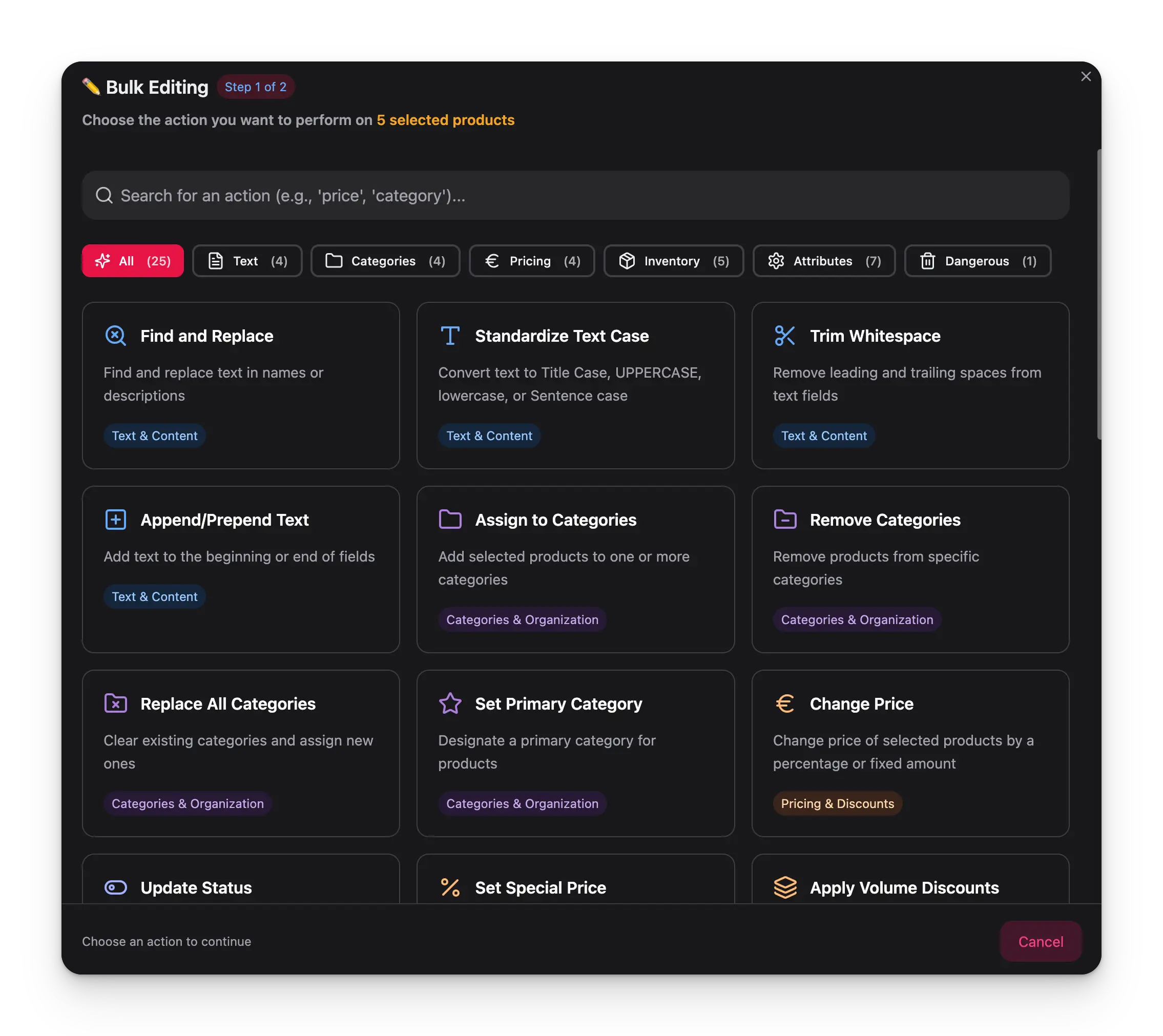 Editing products one by one wastes hours. Bulk editing lets you select many products and apply one change to all of them. Pick an action, set it up, and apply. Done.
## Apply a bulk action
Editing products one by one wastes hours. Bulk editing lets you select many products and apply one change to all of them. Pick an action, set it up, and apply. Done.
## Apply a bulk action
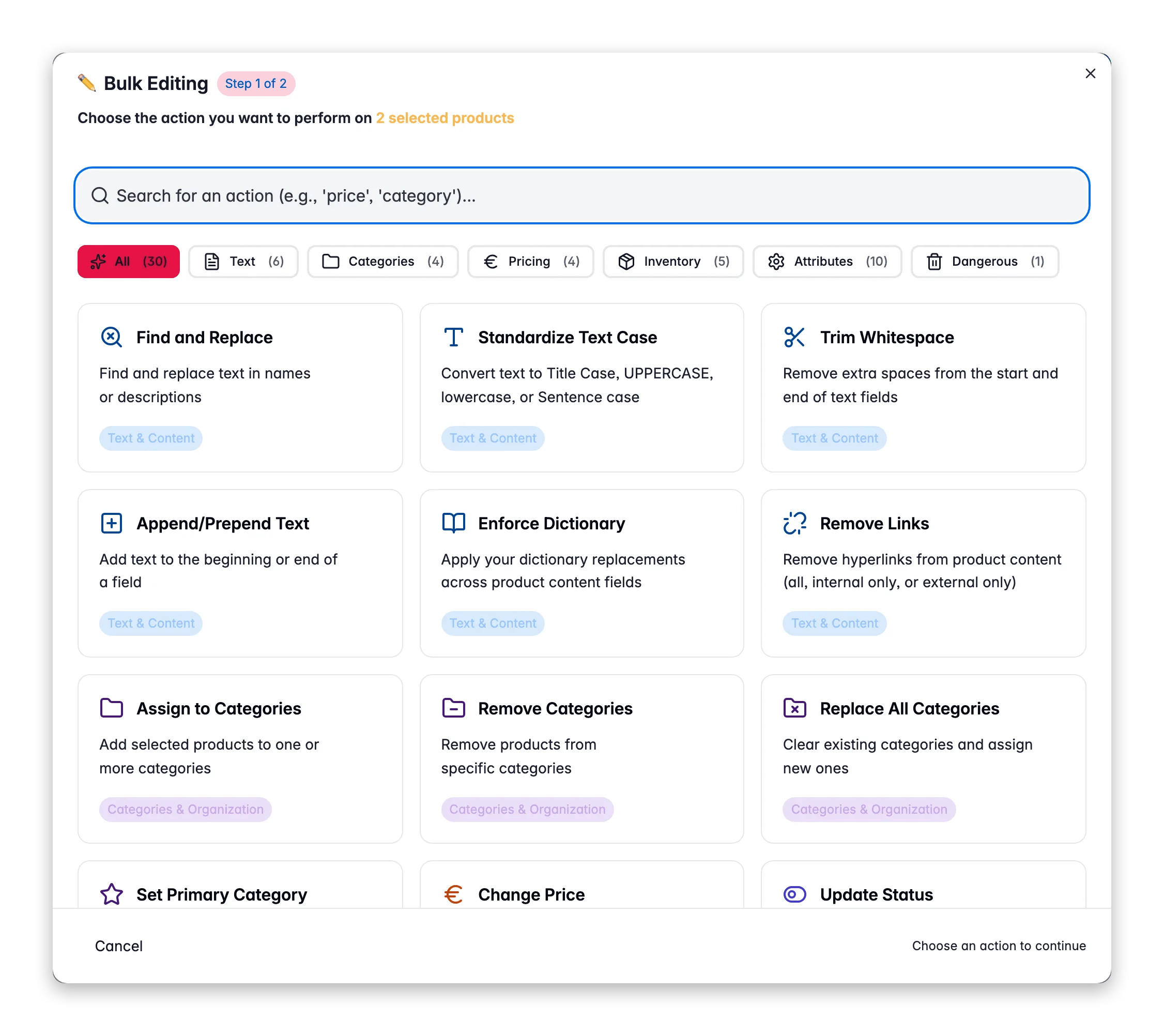
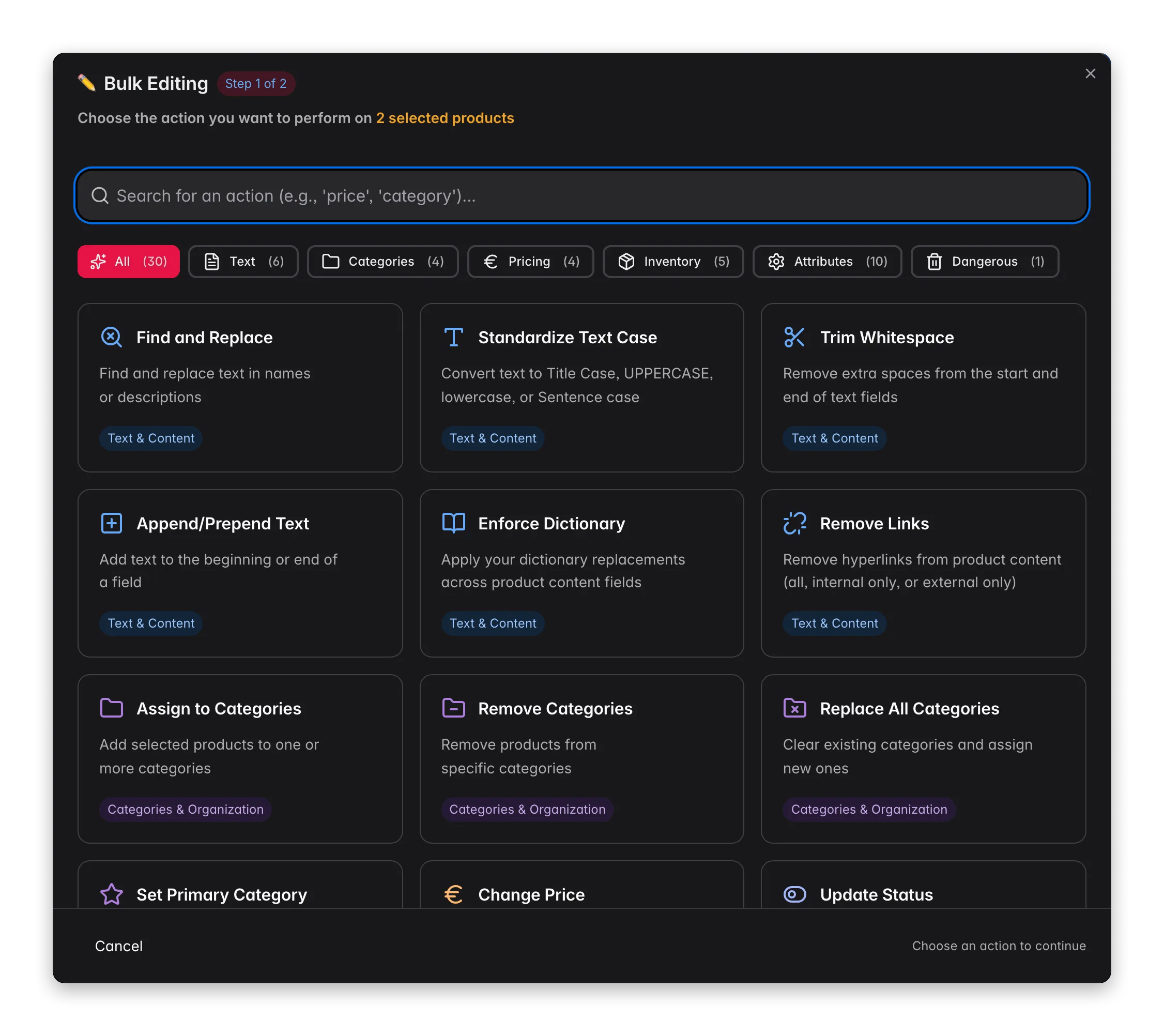 Check individual products, or use filters and select all matching results.
This opens the bulk editing modal.
Search by name, or browse the actions by category.
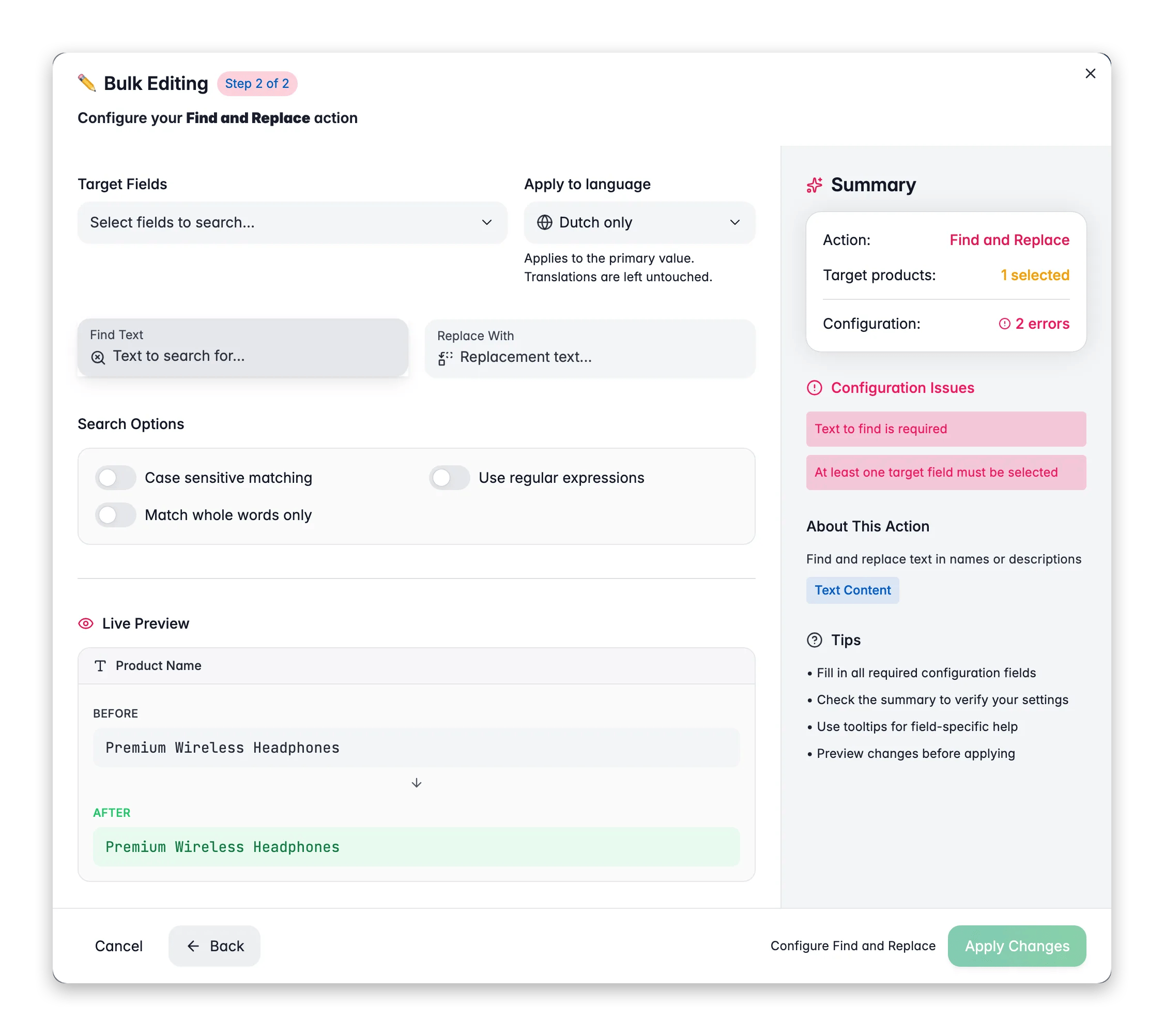
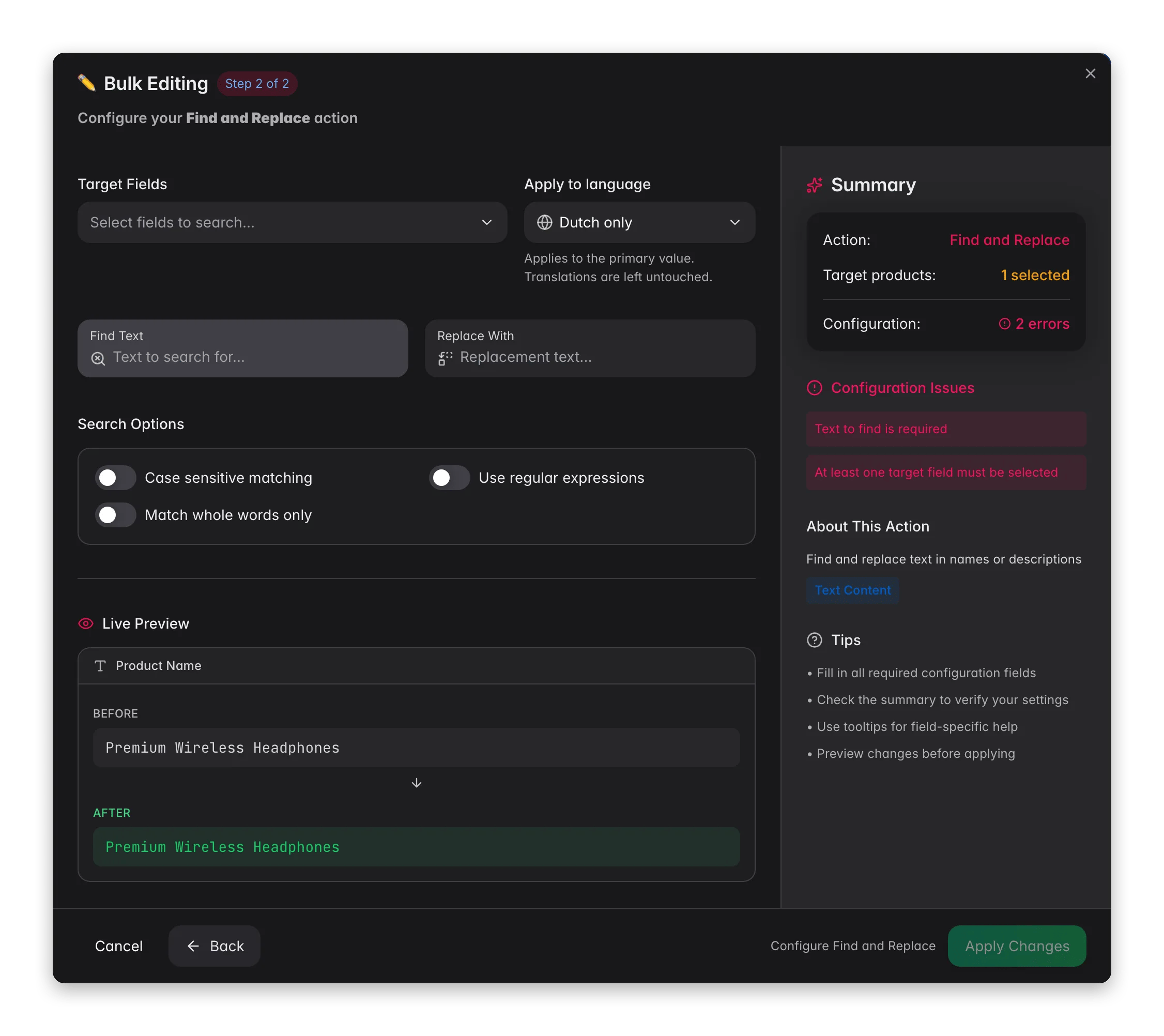
Set your parameters, then run the action.
You can apply a bulk action to the products you checked, or to every product that matches your current filters, even products on other pages.
## Available actions
WISEPIM ships with 30 bulk actions, grouped by what they change. Open any card for full details.
### Text and content
Search and replace text across product names, descriptions, or reviewed descriptions. Supports case-sensitive matching.
Convert text to Title Case, UPPERCASE, lowercase, or Sentence case across one or more fields.
Remove leading and trailing spaces from text fields. A quick cleanup for imported data.
Add text to the start or end of any text field across your selection.
Apply your approved terminology across product content so wording stays consistent.
Strip hyperlinks from descriptions and other content, all links or just internal or external.
Check individual products, or use filters and select all matching results.
This opens the bulk editing modal.
Search by name, or browse the actions by category.
Set your parameters, then run the action.
You can apply a bulk action to the products you checked, or to every product that matches your current filters, even products on other pages.
## Available actions
WISEPIM ships with 30 bulk actions, grouped by what they change. Open any card for full details.
### Text and content
Search and replace text across product names, descriptions, or reviewed descriptions. Supports case-sensitive matching.
Convert text to Title Case, UPPERCASE, lowercase, or Sentence case across one or more fields.
Remove leading and trailing spaces from text fields. A quick cleanup for imported data.
Add text to the start or end of any text field across your selection.
Apply your approved terminology across product content so wording stays consistent.
Strip hyperlinks from descriptions and other content, all links or just internal or external.
 ### Categories and organization
Add products to one or more categories without removing existing assignments.
Remove products from specific categories.
Clear existing category assignments and replace them with new ones.
Choose which category is the primary one for each product.
### Pricing and discounts
Adjust prices by percentage or fixed amount. Works for markups, discounts, and cost changes.
Set promotional prices with optional date ranges for flash sales and time-limited offers.
Assign or remove volume discount rules across your selection.
Set cost prices and calculate profit margins.
### Inventory and shipping
Set an exact stock quantity, or add to and subtract from current stock.
Mark products as in stock, out of stock, or on backorder.
Set product weight for shipping calculations.
Update length, width, and height for your products.
Update HS codes, country of origin, and shipping flags.
### Attributes and custom fields
Set the review status of products to Ready, Pending, or Needs Review.
Set a specific value for any product attribute across your selection.
Set any default product field to a specific value, or use a formula.
Run calculations on numeric attributes: add, subtract, multiply, divide, or set a minimum or maximum value.
Round, truncate, or do math on built-in numbers like price, weight, and stock.
Remove values from specific product attributes.
Change units across products, with optional value conversion.
Copy values from one field into another and keep the original.
Move values from one field to another and clear the source field.
Recalculate quality scores, completeness, and recommendations for your selection.
### Danger zone
Permanently delete selected products. This is irreversible, so you confirm before it runs.
Deletion cannot be undone. If you might need the data later, export it first.
## Tips for safe bulk edits
* **Start small.** Test an action on a handful of products first. Check the result before you apply it to your full catalog.
* **Filter first.** Narrow your product list with filters before you run an action, so you only change the products you mean to.
* **Watch the progress.** Large operations run in the background. Track them in the [Process Tracker](/en/other-features/process-tracker).
## Related
Filter, sort, and select products before you bulk edit them.
Use AI to fill in titles, descriptions, and attributes at scale.
Bring products into WISEPIM from CSV, Excel, or an integration.
Monitor background jobs and check the status of large bulk edits.
### Categories and organization
Add products to one or more categories without removing existing assignments.
Remove products from specific categories.
Clear existing category assignments and replace them with new ones.
Choose which category is the primary one for each product.
### Pricing and discounts
Adjust prices by percentage or fixed amount. Works for markups, discounts, and cost changes.
Set promotional prices with optional date ranges for flash sales and time-limited offers.
Assign or remove volume discount rules across your selection.
Set cost prices and calculate profit margins.
### Inventory and shipping
Set an exact stock quantity, or add to and subtract from current stock.
Mark products as in stock, out of stock, or on backorder.
Set product weight for shipping calculations.
Update length, width, and height for your products.
Update HS codes, country of origin, and shipping flags.
### Attributes and custom fields
Set the review status of products to Ready, Pending, or Needs Review.
Set a specific value for any product attribute across your selection.
Set any default product field to a specific value, or use a formula.
Run calculations on numeric attributes: add, subtract, multiply, divide, or set a minimum or maximum value.
Round, truncate, or do math on built-in numbers like price, weight, and stock.
Remove values from specific product attributes.
Change units across products, with optional value conversion.
Copy values from one field into another and keep the original.
Move values from one field to another and clear the source field.
Recalculate quality scores, completeness, and recommendations for your selection.
### Danger zone
Permanently delete selected products. This is irreversible, so you confirm before it runs.
Deletion cannot be undone. If you might need the data later, export it first.
## Tips for safe bulk edits
* **Start small.** Test an action on a handful of products first. Check the result before you apply it to your full catalog.
* **Filter first.** Narrow your product list with filters before you run an action, so you only change the products you mean to.
* **Watch the progress.** Large operations run in the background. Track them in the [Process Tracker](/en/other-features/process-tracker).
## Related
Filter, sort, and select products before you bulk edit them.
Use AI to fill in titles, descriptions, and attributes at scale.
Bring products into WISEPIM from CSV, Excel, or an integration.
Monitor background jobs and check the status of large bulk edits.