> ## Documentation Index
> Fetch the complete documentation index at: https://docs.wisepim.com/llms.txt
> Use this file to discover all available pages before exploring further.
# Automation Triggers
> Pick the right trigger to start your automation: on a schedule, on demand, from a webhook, after an import or export, on a product change, or on a quality change.
A trigger decides **when** your automation runs. Every automation starts with exactly one trigger.
You set up triggers in the [visual builder](/en/automations/builder). Click the trigger node on your canvas to open its settings panel. Each trigger type has its own settings.
## Pick a trigger for your goal
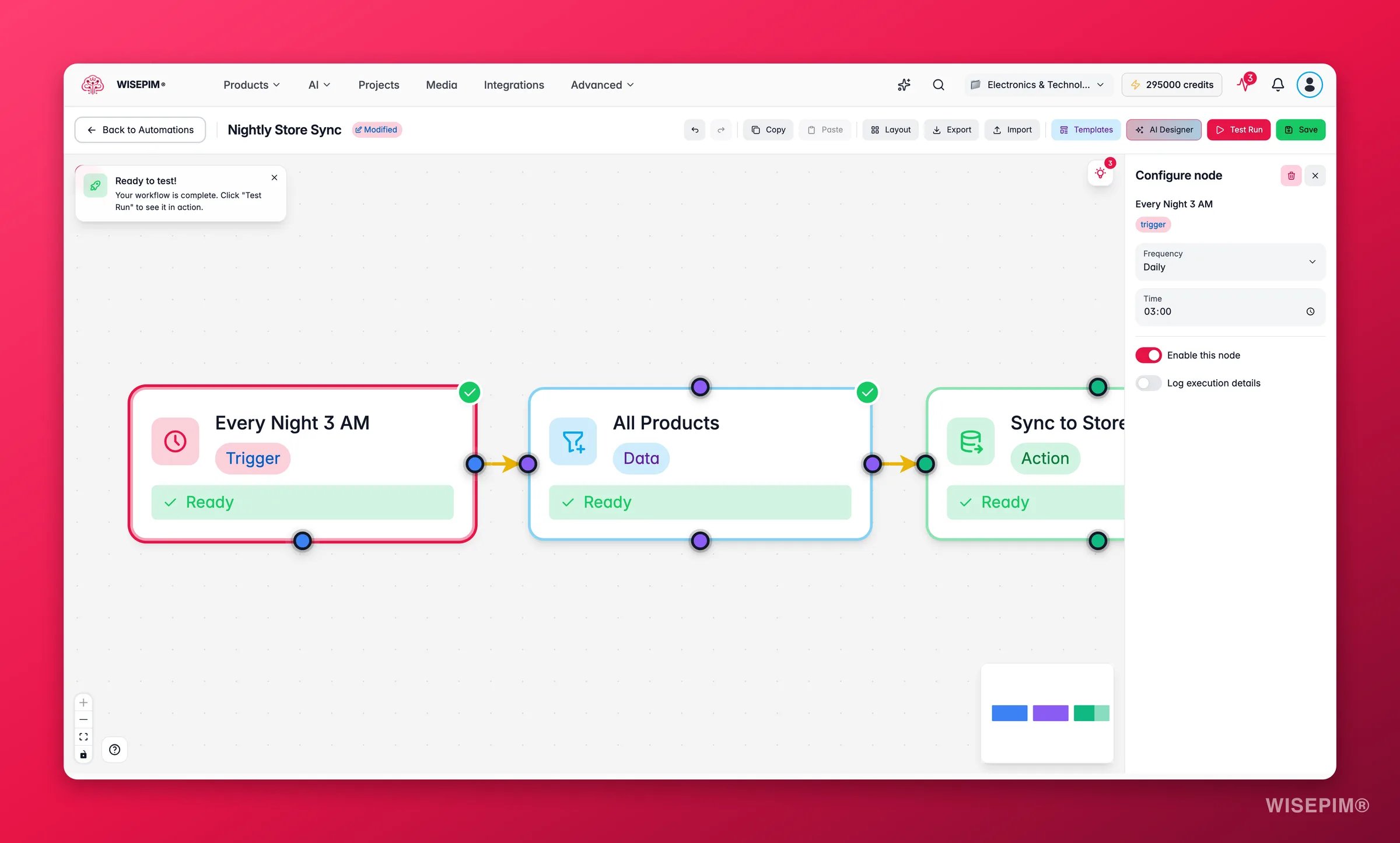
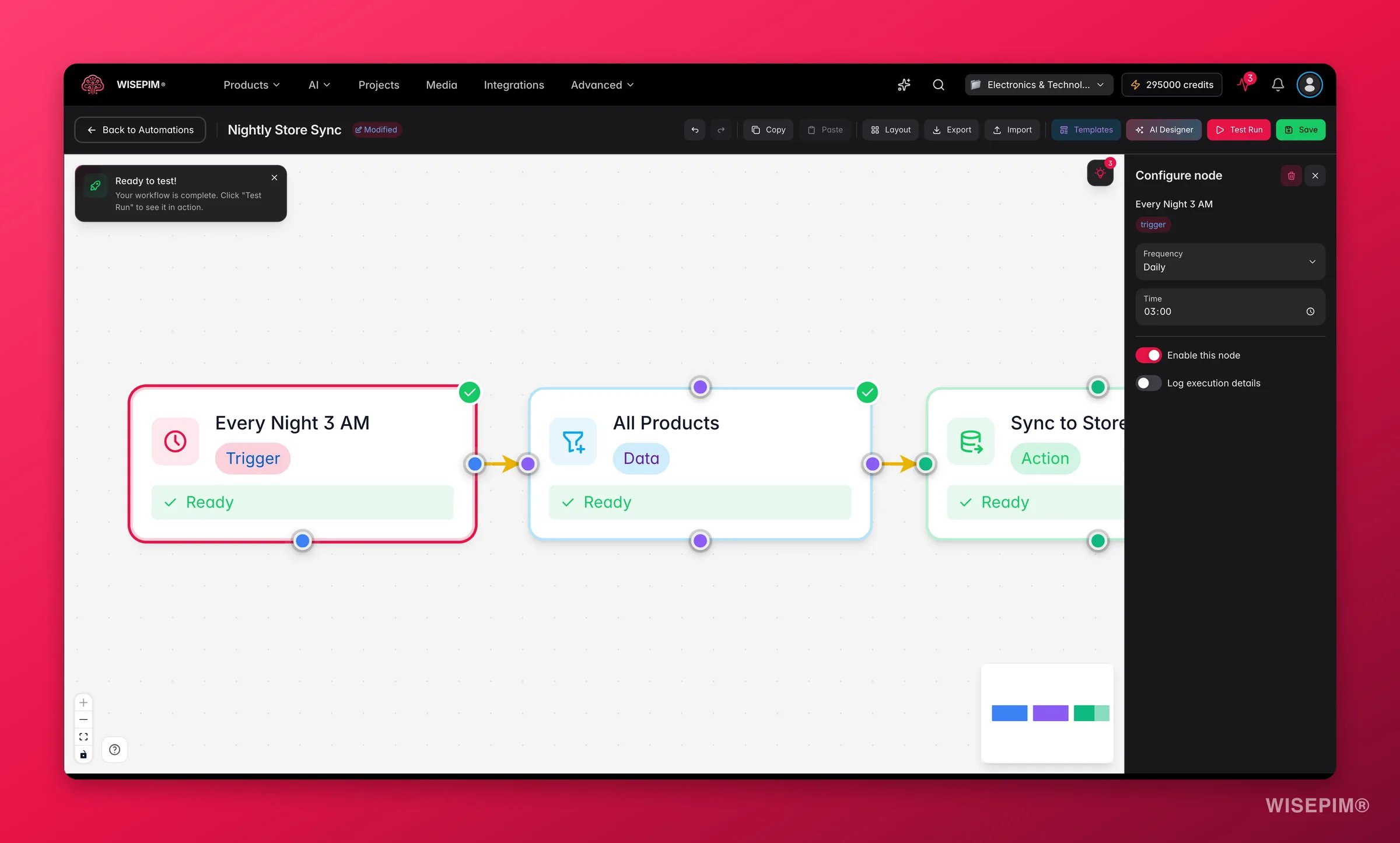 Start by choosing what should kick off your workflow. Use this table to find the right one fast.
| You want to | Use this trigger |
| -------------------------------------------------- | ------------------- |
| Run on a fixed schedule (nightly, weekly, monthly) | **Schedule** |
| Run on demand with one click | **Manual** |
| Start from an external system or app | **Webhook** |
| Clean up or enrich right after an import | **After Import** |
| Act when an export finishes | **After Export** |
| React the moment product data changes | **Product Updated** |
| Respond to a quality score going up or down | **Quality Changed** |
## Set up your trigger
Each trigger has a few settings. Expand the one you need.
Run your automation on a repeating schedule. Ideal for nightly syncs, weekly backups, and monthly reports.
| Setting | Description |
| ------------------- | --------------------------------------------------------------- |
| **Frequency** | Daily, weekly, monthly, or a custom interval |
| **Time** | The time of day to run (for example, 3:00 AM for nightly syncs) |
| **Day of week** | For weekly schedules, which day to run on |
| **Cron expression** | For advanced scheduling, enter a custom cron expression |
Run the automation on demand with a single click. No settings needed.
You can start a manual automation from:
* The **automations list**: click **Run Now**
* The **visual builder** toolbar while editing
* The **automation detail** page
Start your automation when an external system sends an HTTP request. Use this to connect WISEPIM with tools like Zapier, Make, or your own backend.
| Setting | Description |
| ------------------ | ----------------------------------------------------------------- |
| **Webhook URL** | Generated after you save. Copy this URL into your external system |
| **HTTP method** | The expected method (POST, GET, PUT) |
| **Authentication** | Optional secret token or API key to verify incoming requests |
Run the workflow when a product import finishes. Great for post-import cleanup, AI enrichment, and team notifications.
| Setting | Description |
| ---------------------- | -------------------------------------------------------------------------------------------- |
| **Import type filter** | Limit to a specific import source (CSV, Shopify, WooCommerce, Magento, Lightspeed, and more) |
With no filter set, the automation runs after every import.
Run the workflow when an export finishes. Use this to send confirmations, log exports, or start follow-up processes.
| Setting | Description |
| ---------------------- | ------------------------------------------------ |
| **Export type filter** | Limit to a specific export destination or format |
Fire the moment product data changes in WISEPIM. Use this to react in real time, for example to re-export updated products or notify your team.
| Setting | Description |
| ------------------ | ------------------------------------------------------------------------------------------------------ |
| **Change type** | Any change, or only changes to specific fields |
| **Watched fields** | When using specific fields, choose which ones to watch (for example title, price, description, status) |
Fire when a product's quality score changes, as scored by [Quality Guard](/en/quality-guard/overview). Use this to respond to quality gains or drops automatically.
| Setting | Description |
| ------------- | ----------------------------------------------------------------------------------------------------- |
| **Direction** | Increased, decreased, or any change |
| **Threshold** | Optional minimum score change to fire (for example, only when the score moves by more than 10 points) |
## Related
Build and configure your automation in the visual editor.
See every action your automation can run after the trigger.
Start by choosing what should kick off your workflow. Use this table to find the right one fast.
| You want to | Use this trigger |
| -------------------------------------------------- | ------------------- |
| Run on a fixed schedule (nightly, weekly, monthly) | **Schedule** |
| Run on demand with one click | **Manual** |
| Start from an external system or app | **Webhook** |
| Clean up or enrich right after an import | **After Import** |
| Act when an export finishes | **After Export** |
| React the moment product data changes | **Product Updated** |
| Respond to a quality score going up or down | **Quality Changed** |
## Set up your trigger
Each trigger has a few settings. Expand the one you need.
Run your automation on a repeating schedule. Ideal for nightly syncs, weekly backups, and monthly reports.
| Setting | Description |
| ------------------- | --------------------------------------------------------------- |
| **Frequency** | Daily, weekly, monthly, or a custom interval |
| **Time** | The time of day to run (for example, 3:00 AM for nightly syncs) |
| **Day of week** | For weekly schedules, which day to run on |
| **Cron expression** | For advanced scheduling, enter a custom cron expression |
Run the automation on demand with a single click. No settings needed.
You can start a manual automation from:
* The **automations list**: click **Run Now**
* The **visual builder** toolbar while editing
* The **automation detail** page
Start your automation when an external system sends an HTTP request. Use this to connect WISEPIM with tools like Zapier, Make, or your own backend.
| Setting | Description |
| ------------------ | ----------------------------------------------------------------- |
| **Webhook URL** | Generated after you save. Copy this URL into your external system |
| **HTTP method** | The expected method (POST, GET, PUT) |
| **Authentication** | Optional secret token or API key to verify incoming requests |
Run the workflow when a product import finishes. Great for post-import cleanup, AI enrichment, and team notifications.
| Setting | Description |
| ---------------------- | -------------------------------------------------------------------------------------------- |
| **Import type filter** | Limit to a specific import source (CSV, Shopify, WooCommerce, Magento, Lightspeed, and more) |
With no filter set, the automation runs after every import.
Run the workflow when an export finishes. Use this to send confirmations, log exports, or start follow-up processes.
| Setting | Description |
| ---------------------- | ------------------------------------------------ |
| **Export type filter** | Limit to a specific export destination or format |
Fire the moment product data changes in WISEPIM. Use this to react in real time, for example to re-export updated products or notify your team.
| Setting | Description |
| ------------------ | ------------------------------------------------------------------------------------------------------ |
| **Change type** | Any change, or only changes to specific fields |
| **Watched fields** | When using specific fields, choose which ones to watch (for example title, price, description, status) |
Fire when a product's quality score changes, as scored by [Quality Guard](/en/quality-guard/overview). Use this to respond to quality gains or drops automatically.
| Setting | Description |
| ------------- | ----------------------------------------------------------------------------------------------------- |
| **Direction** | Increased, decreased, or any change |
| **Threshold** | Optional minimum score change to fire (for example, only when the score moves by more than 10 points) |
## Related
Build and configure your automation in the visual editor.
See every action your automation can run after the trigger.