> ## Documentation Index
> Fetch the complete documentation index at: https://docs.wisepim.com/llms.txt
> Use this file to discover all available pages before exploring further.
# Automation Templates
> Start from a pre-built workflow for exports, data sync, AI enrichment, or cleanup. Apply a template and customize it in minutes.
Templates are ready-made automations you can use as a starting point. Find one that fits, apply it, and adjust it for your setup. It is the fastest way to get an automation running.
Every template comes with its nodes pre-configured and connected. After you apply one, you only adjust the settings for your own integrations (for example, which Shopify store to connect, or which AI prompt to use).
## Browse the library
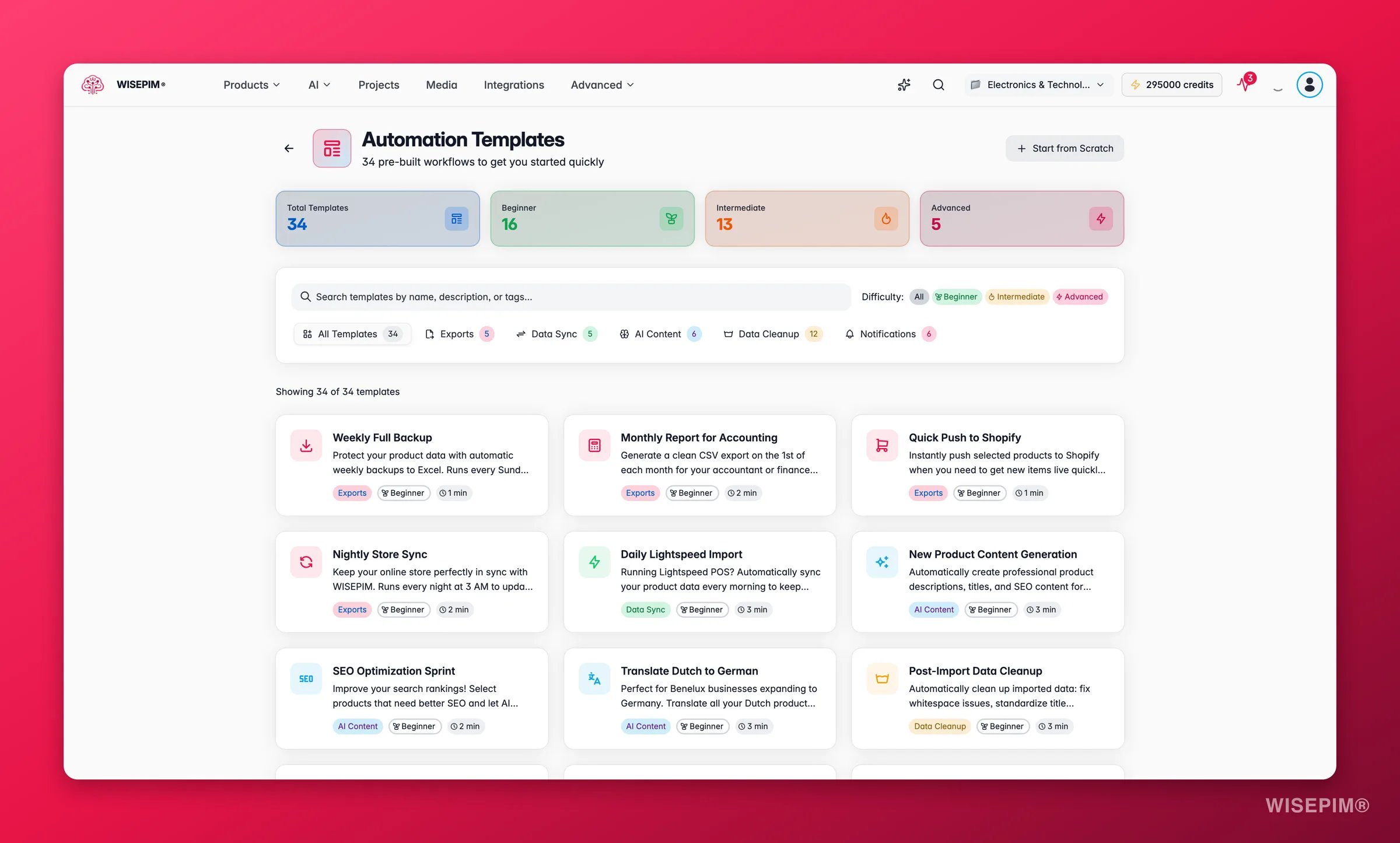
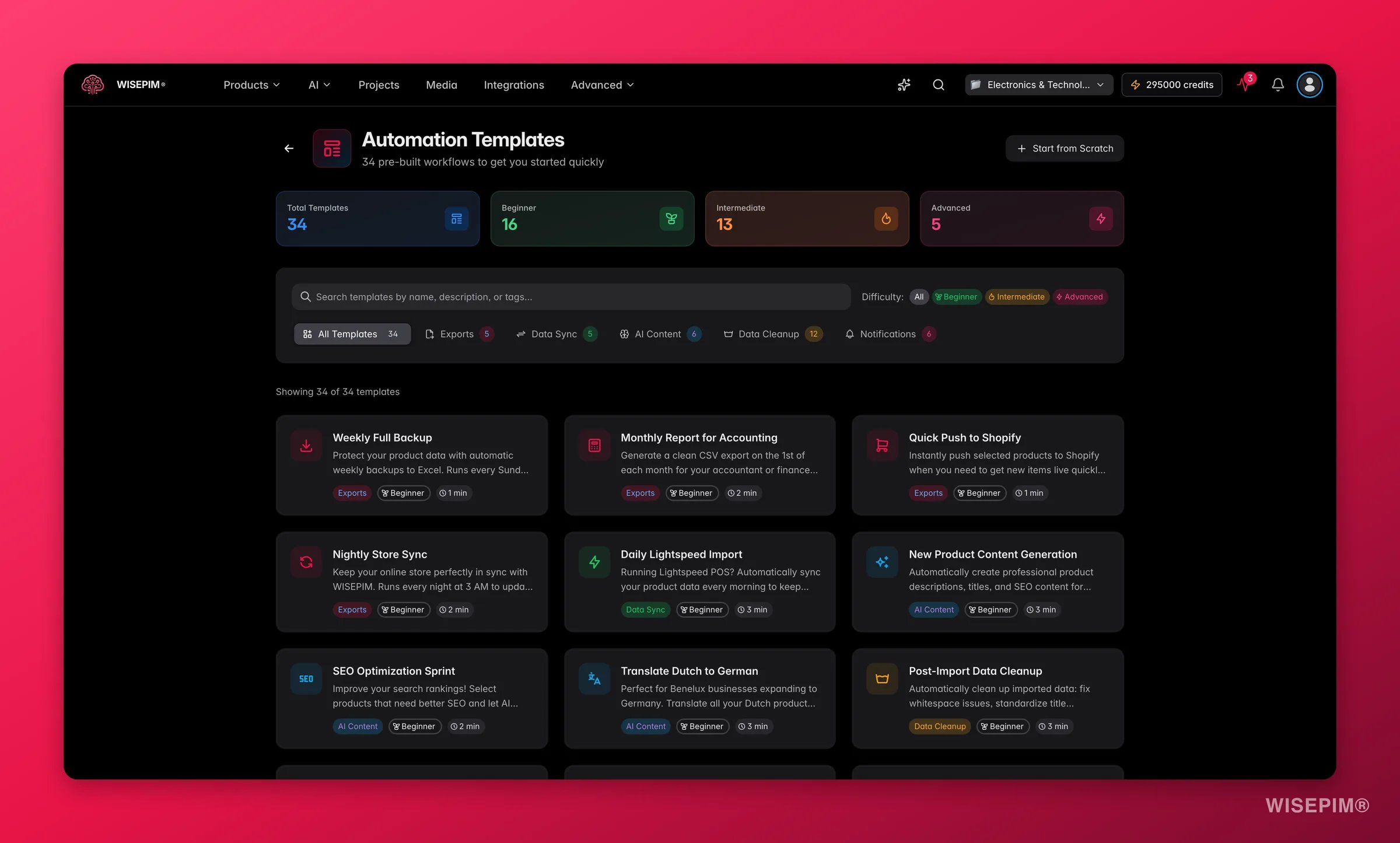 Go to **Automations** and click **Templates** to open the library.
### Search by keyword
Use the search bar to find templates by name, description, or tag. Search for "Shopify", for example, to see every template that uses Shopify.
### Filter by category
Templates are grouped into five categories. Click a category tab to filter the grid. Each tab shows how many templates it holds.
Backups, reports, and publishing to sales channels: weekly backups, monthly accounting reports, and multi-channel publishing.
Platform migrations and integrations: supplier imports, Magento-to-Shopify migrations, and two-way syncs.
Descriptions, translations, and SEO content: content for new products, SEO optimization, and multi-language translation.
Pricing, inventory, and data quality: sale setup, price changes, post-import cleanup, and bulk category assignment.
Alerts, reports, and integrations: import alerts, daily summaries, team standups, and webhook integrations.
### Filter by difficulty
Every template has a difficulty rating. Use it to pick a workflow that matches your experience.
| Difficulty | What to expect | Setup time |
| ---------------- | ----------------------------------------------------------------------- | ------------- |
| **Beginner** | Minimal setup, ready in minutes. Simple workflows of 2–3 nodes. | 1–3 minutes |
| **Intermediate** | Some setup, such as choosing integrations or adding filters. | 3–10 minutes |
| **Advanced** | Complex workflows with multiple branches, API calls, or detailed setup. | 10–15 minutes |
New to automations? Start with a beginner template to see how workflows fit together. You can add more later.
## Preview a template
Click any template card to expand it and see the details:
* **Workflow steps**: a visual preview of each node and how they connect, from trigger to final action
* **Tags**: keywords for what the template does and which integrations it uses
* **Estimated setup time**: how long it usually takes to configure
## Apply a template
Click a template card to expand it and review its workflow steps.
Click **Use This Template** at the bottom of the expanded card. This opens the [visual builder](/en/automations/builder) with the template loaded.
Click each node to review and adjust its settings. A green checkmark means a node is ready. An amber settings icon means it still needs attention.
Once every node is configured, name your automation and save it.
Applying a template creates a new automation. It never changes the original template, so you can reuse the same template to create different variations.
## Browse all templates
### Exports
Extract data, run backups, and publish to your sales channels.
| Template | Difficulty | What it does |
| --------------------------------- | ------------ | ---------------------------------------------------------------------------- |
| **Weekly Full Backup** | Beginner | Backs up all products to Excel every Sunday night. |
| **Monthly Report for Accounting** | Beginner | Exports a CSV on the 1st of each month and emails it to your finance team. |
| **Quick Push to Shopify** | Beginner | Pushes selected products to Shopify in one click, with a Slack confirmation. |
| **Nightly Store Sync** | Beginner | Exports all products every night at 3 AM to keep your store in sync. |
| **Publish to All Channels** | Intermediate | Pushes products to Shopify and WooCommerce at once with a single click. |
### Data Sync
Migrate between platforms and keep integrations in sync.
| Template | Difficulty | What it does |
| ------------------------------------ | ------------ | ------------------------------------------------------------------------------------------------ |
| **Supplier Import and Enrichment** | Intermediate | Imports a supplier CSV, cleans the text, generates descriptions with AI, and notifies your team. |
| **Magento to Shopify Migration** | Advanced | Full migration: import from Magento, refresh SEO content, export to Shopify. |
| **WooCommerce to Shopify Migration** | Intermediate | Imports from WooCommerce and exports to your new Shopify store. |
| **Daily Lightspeed Import** | Beginner | Syncs product data from Lightspeed POS every morning. |
| **Two-Way Shopify Sync** | Intermediate | Imports from Shopify, then exports any WISEPIM changes back. |
### AI Content
Use AI to generate and improve your product content.
| Template | Difficulty | What it does |
| --------------------------------------- | ------------ | -------------------------------------------------------------------------------------------- |
| **New Product Content Generation** | Beginner | After any import, generates titles, descriptions, and SEO meta for new products in parallel. |
| **SEO Optimization Sprint** | Beginner | Selects products and generates optimized SEO meta content. |
| **Translate for International Markets** | Intermediate | Translates product content to German, French, and Spanish. |
| **Translate Dutch to German** | Beginner | Translates all Dutch product content to German for DACH expansion. |
| **Smart Auto-Categorization** | Intermediate | Lets AI categorize new products automatically after import. |
| **Extract Product Attributes** | Intermediate | AI reads descriptions and pulls out structured attributes like size, color, and material. |
### Data Cleanup
Fix pricing, inventory, and data quality.
| Template | Difficulty | What it does |
| ------------------------------------ | ------------ | --------------------------------------------------------------------------------------- |
| **Black Friday Sale Setup** | Intermediate | Applies a 25% discount to selected products and reverts it automatically by date range. |
| **Annual Price Increase** | Intermediate | Applies a percentage price increase across all products. |
| **Calculate Prices from Cost** | Advanced | Sets a markup percentage and calculates selling prices from cost prices. |
| **Post-Import Data Cleanup** | Beginner | Fixes whitespace and standardizes title formatting after every import. |
| **Fix Brand Names in Titles** | Intermediate | Finds and replaces brand name variations with the correct spelling. |
| **Add Brand Prefix to Titles** | Beginner | Adds your brand name to the start of all product titles. |
| **Bulk Stock Update** | Intermediate | Sets new stock levels for many products after a stocktake. |
| **Mark Products Out of Stock** | Beginner | Marks discontinued products as out of stock in one go. |
| **Bulk Category Assignment** | Intermediate | Assigns many products to a category at once. |
| **Set Product Weights** | Intermediate | Sets shipping weights for products in bulk. |
| **Approve Products for Publishing** | Beginner | Marks reviewed products as "Ready" and notifies your team. |
| **Complete Product Launch Pipeline** | Advanced | End-to-end pipeline: import, clean, enrich, generate SEO, publish, and notify. |
### Notifications
Keep your team informed and connect to outside systems.
| Template | Difficulty | What it does |
| ------------------------------ | ---------- | --------------------------------------------------------------------- |
| **Import Complete Email** | Beginner | Emails you every time a product import finishes. |
| **Slack Import Alert** | Beginner | Posts to your Slack channel when imports complete. |
| **Daily Catalog Summary** | Beginner | Sends a morning email with your catalog counts and key stats. |
| **Weekly Slack Standup** | Beginner | Posts a Monday-morning Slack message to start the week. |
| **Webhook to External System** | Advanced | Triggers webhooks to Zapier, Make, or your own backend after imports. |
| **ERP Sync Notification** | Advanced | Notifies your ERP system via API when product data changes. |
## Customize a template
After you apply a template, you can change it freely in the [visual builder](/en/automations/builder): add or remove nodes, change settings, swap triggers, or add parallel branches. Templates are starting points. Shape them to fit your exact workflow.
Some templates use specific integrations (Shopify, WooCommerce, Lightspeed, and others). Connect the integration in your **[Settings](/en/settings/integrations)** before you use these templates, or point the nodes at a different integration.
## Related
Learn everything the visual automation builder can do.
Manage, monitor, and track all your automations from one dashboard.
Go to **Automations** and click **Templates** to open the library.
### Search by keyword
Use the search bar to find templates by name, description, or tag. Search for "Shopify", for example, to see every template that uses Shopify.
### Filter by category
Templates are grouped into five categories. Click a category tab to filter the grid. Each tab shows how many templates it holds.
Backups, reports, and publishing to sales channels: weekly backups, monthly accounting reports, and multi-channel publishing.
Platform migrations and integrations: supplier imports, Magento-to-Shopify migrations, and two-way syncs.
Descriptions, translations, and SEO content: content for new products, SEO optimization, and multi-language translation.
Pricing, inventory, and data quality: sale setup, price changes, post-import cleanup, and bulk category assignment.
Alerts, reports, and integrations: import alerts, daily summaries, team standups, and webhook integrations.
### Filter by difficulty
Every template has a difficulty rating. Use it to pick a workflow that matches your experience.
| Difficulty | What to expect | Setup time |
| ---------------- | ----------------------------------------------------------------------- | ------------- |
| **Beginner** | Minimal setup, ready in minutes. Simple workflows of 2–3 nodes. | 1–3 minutes |
| **Intermediate** | Some setup, such as choosing integrations or adding filters. | 3–10 minutes |
| **Advanced** | Complex workflows with multiple branches, API calls, or detailed setup. | 10–15 minutes |
New to automations? Start with a beginner template to see how workflows fit together. You can add more later.
## Preview a template
Click any template card to expand it and see the details:
* **Workflow steps**: a visual preview of each node and how they connect, from trigger to final action
* **Tags**: keywords for what the template does and which integrations it uses
* **Estimated setup time**: how long it usually takes to configure
## Apply a template
Click a template card to expand it and review its workflow steps.
Click **Use This Template** at the bottom of the expanded card. This opens the [visual builder](/en/automations/builder) with the template loaded.
Click each node to review and adjust its settings. A green checkmark means a node is ready. An amber settings icon means it still needs attention.
Once every node is configured, name your automation and save it.
Applying a template creates a new automation. It never changes the original template, so you can reuse the same template to create different variations.
## Browse all templates
### Exports
Extract data, run backups, and publish to your sales channels.
| Template | Difficulty | What it does |
| --------------------------------- | ------------ | ---------------------------------------------------------------------------- |
| **Weekly Full Backup** | Beginner | Backs up all products to Excel every Sunday night. |
| **Monthly Report for Accounting** | Beginner | Exports a CSV on the 1st of each month and emails it to your finance team. |
| **Quick Push to Shopify** | Beginner | Pushes selected products to Shopify in one click, with a Slack confirmation. |
| **Nightly Store Sync** | Beginner | Exports all products every night at 3 AM to keep your store in sync. |
| **Publish to All Channels** | Intermediate | Pushes products to Shopify and WooCommerce at once with a single click. |
### Data Sync
Migrate between platforms and keep integrations in sync.
| Template | Difficulty | What it does |
| ------------------------------------ | ------------ | ------------------------------------------------------------------------------------------------ |
| **Supplier Import and Enrichment** | Intermediate | Imports a supplier CSV, cleans the text, generates descriptions with AI, and notifies your team. |
| **Magento to Shopify Migration** | Advanced | Full migration: import from Magento, refresh SEO content, export to Shopify. |
| **WooCommerce to Shopify Migration** | Intermediate | Imports from WooCommerce and exports to your new Shopify store. |
| **Daily Lightspeed Import** | Beginner | Syncs product data from Lightspeed POS every morning. |
| **Two-Way Shopify Sync** | Intermediate | Imports from Shopify, then exports any WISEPIM changes back. |
### AI Content
Use AI to generate and improve your product content.
| Template | Difficulty | What it does |
| --------------------------------------- | ------------ | -------------------------------------------------------------------------------------------- |
| **New Product Content Generation** | Beginner | After any import, generates titles, descriptions, and SEO meta for new products in parallel. |
| **SEO Optimization Sprint** | Beginner | Selects products and generates optimized SEO meta content. |
| **Translate for International Markets** | Intermediate | Translates product content to German, French, and Spanish. |
| **Translate Dutch to German** | Beginner | Translates all Dutch product content to German for DACH expansion. |
| **Smart Auto-Categorization** | Intermediate | Lets AI categorize new products automatically after import. |
| **Extract Product Attributes** | Intermediate | AI reads descriptions and pulls out structured attributes like size, color, and material. |
### Data Cleanup
Fix pricing, inventory, and data quality.
| Template | Difficulty | What it does |
| ------------------------------------ | ------------ | --------------------------------------------------------------------------------------- |
| **Black Friday Sale Setup** | Intermediate | Applies a 25% discount to selected products and reverts it automatically by date range. |
| **Annual Price Increase** | Intermediate | Applies a percentage price increase across all products. |
| **Calculate Prices from Cost** | Advanced | Sets a markup percentage and calculates selling prices from cost prices. |
| **Post-Import Data Cleanup** | Beginner | Fixes whitespace and standardizes title formatting after every import. |
| **Fix Brand Names in Titles** | Intermediate | Finds and replaces brand name variations with the correct spelling. |
| **Add Brand Prefix to Titles** | Beginner | Adds your brand name to the start of all product titles. |
| **Bulk Stock Update** | Intermediate | Sets new stock levels for many products after a stocktake. |
| **Mark Products Out of Stock** | Beginner | Marks discontinued products as out of stock in one go. |
| **Bulk Category Assignment** | Intermediate | Assigns many products to a category at once. |
| **Set Product Weights** | Intermediate | Sets shipping weights for products in bulk. |
| **Approve Products for Publishing** | Beginner | Marks reviewed products as "Ready" and notifies your team. |
| **Complete Product Launch Pipeline** | Advanced | End-to-end pipeline: import, clean, enrich, generate SEO, publish, and notify. |
### Notifications
Keep your team informed and connect to outside systems.
| Template | Difficulty | What it does |
| ------------------------------ | ---------- | --------------------------------------------------------------------- |
| **Import Complete Email** | Beginner | Emails you every time a product import finishes. |
| **Slack Import Alert** | Beginner | Posts to your Slack channel when imports complete. |
| **Daily Catalog Summary** | Beginner | Sends a morning email with your catalog counts and key stats. |
| **Weekly Slack Standup** | Beginner | Posts a Monday-morning Slack message to start the week. |
| **Webhook to External System** | Advanced | Triggers webhooks to Zapier, Make, or your own backend after imports. |
| **ERP Sync Notification** | Advanced | Notifies your ERP system via API when product data changes. |
## Customize a template
After you apply a template, you can change it freely in the [visual builder](/en/automations/builder): add or remove nodes, change settings, swap triggers, or add parallel branches. Templates are starting points. Shape them to fit your exact workflow.
Some templates use specific integrations (Shopify, WooCommerce, Lightspeed, and others). Connect the integration in your **[Settings](/en/settings/integrations)** before you use these templates, or point the nodes at a different integration.
## Related
Learn everything the visual automation builder can do.
Manage, monitor, and track all your automations from one dashboard.