> ## Documentation Index
> Fetch the complete documentation index at: https://docs.wisepim.com/llms.txt
> Use this file to discover all available pages before exploring further.
# Automations Overview
> Build visual, no-code workflows that import, enrich, export, and sync product data on autopilot. Stop doing repetitive PIM tasks by hand.
Automations run your repetitive product tasks for you. Import, enrich, export, and sync product data on a schedule or on a trigger, all without writing code.
You build each automation in a [visual editor](/en/automations/builder) by connecting nodes on a canvas. No coding required.
## How an automation works
 Every automation follows the same simple pattern. A trigger starts it, then nodes do the work in order.
1. **Trigger**: starts the run on a schedule, a webhook, a manual click, or an event
2. **Data nodes**: pick and filter which products to process
3. **Action nodes**: import, export, enrich, edit, or notify
4. **Logic nodes**: branch, merge, and delay steps
## Node types
Pick the right node for each step. Here is what each type does.
Start a run with one of 7 triggers: Schedule, Manual, Webhook, After Import, After Export, Product Updated, and Quality Changed.
Do the work with 6 actions: Import, Export, AI Enrichment, Bulk Edit, API Request, and Notification.
Select products, filter by conditions, and read external files.
Branch on a condition, merge parallel paths, and delay steps.
## Track performance on the dashboard
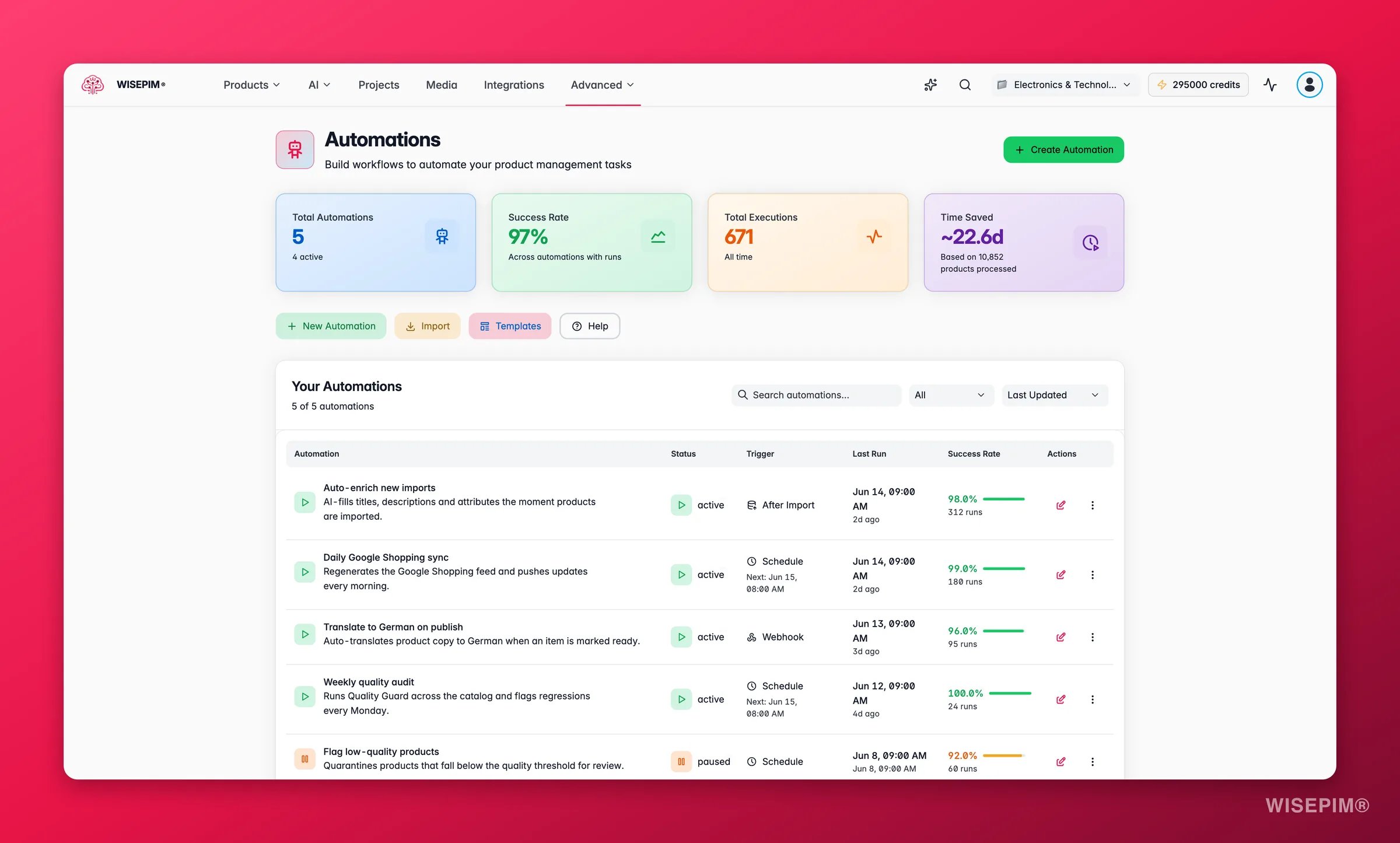
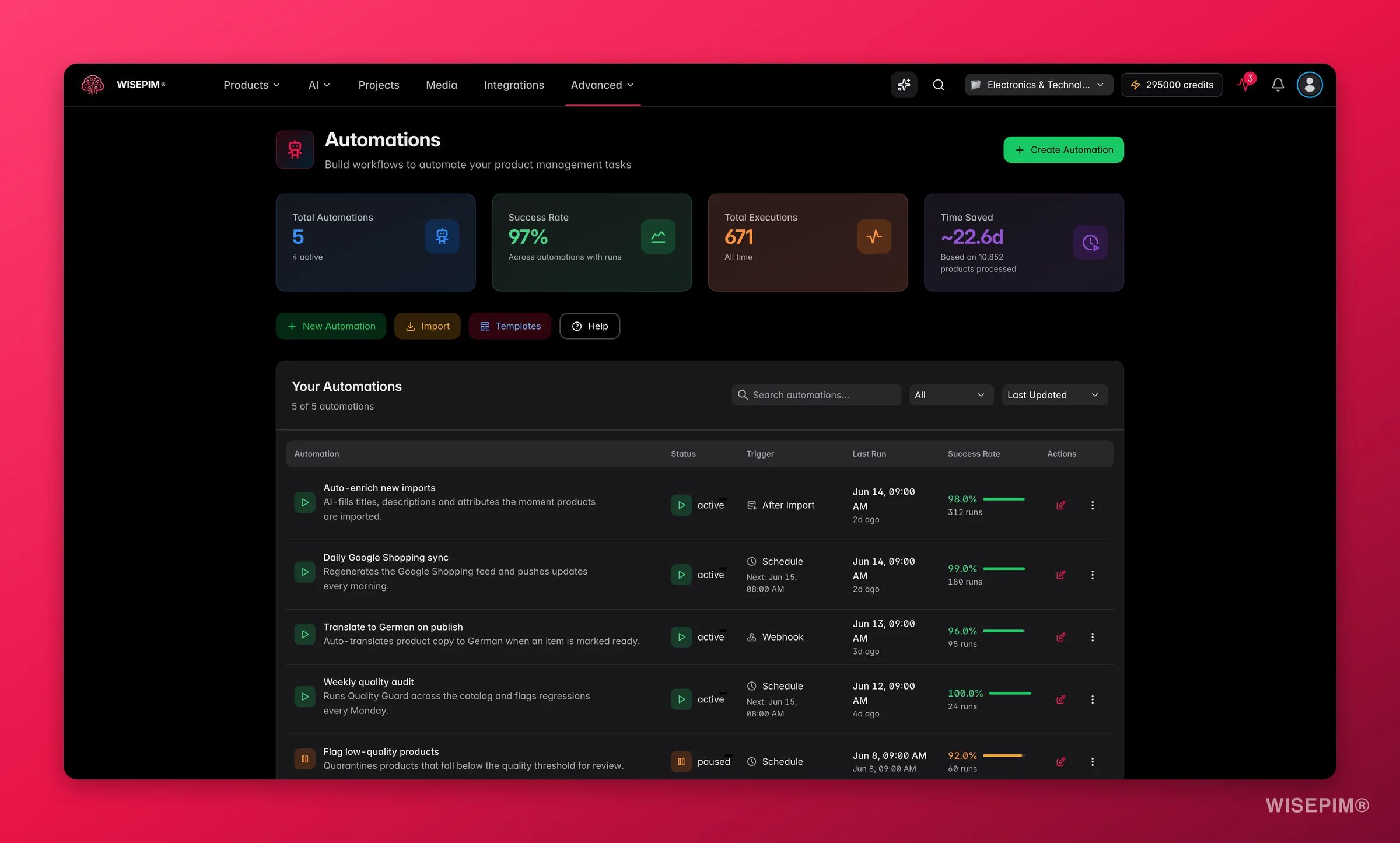
The automations page shows a live dashboard with four key metrics:
* **Total Automations**: how many workflows you have built, and how many are active now
* **Success Rate**: the average success rate across all runs
* **Total Executions**: how many times your automations have run this month
* **Time Saved**: an estimate based on the number of products processed
If an automation drops below an 80% success rate, open its configuration and run history to find the error.
## Manage your automations
The automations list shows every workflow in one table. Search, filter, and sort to find what you need.
### Find an automation
* **Search** by name or description
* **Filter by status** to see only active, paused, or draft automations
* **Sort** by last updated, name, status, last run, or success rate
### What each status means
| Status | Meaning |
| ---------- | ----------------------------------------------------------- |
| **Active** | The automation is live and runs according to its trigger. |
| **Paused** | The automation exists but will not run until you resume it. |
| **Draft** | The automation is still being built and is not active yet. |
| **Error** | The automation hit a problem during its last run. |
### Actions you can take
From the automations list, you can:
* **Edit**: open the automation in the [visual builder](/en/automations/builder)
* **Run Now**: trigger the automation immediately
* **Duplicate**: make a copy of an existing automation
* **View History**: see the execution history and logs
* **Export**: download as a JSON file to back up or share
* **Delete**: remove the automation for good
Deleting an automation is permanent and cannot be undone. Pause it instead if you might need it again.
## Related
Learn the drag-and-drop builder and connect your first nodes.
Start from a pre-built workflow and be live in minutes.
Every automation follows the same simple pattern. A trigger starts it, then nodes do the work in order.
1. **Trigger**: starts the run on a schedule, a webhook, a manual click, or an event
2. **Data nodes**: pick and filter which products to process
3. **Action nodes**: import, export, enrich, edit, or notify
4. **Logic nodes**: branch, merge, and delay steps
## Node types
Pick the right node for each step. Here is what each type does.
Start a run with one of 7 triggers: Schedule, Manual, Webhook, After Import, After Export, Product Updated, and Quality Changed.
Do the work with 6 actions: Import, Export, AI Enrichment, Bulk Edit, API Request, and Notification.
Select products, filter by conditions, and read external files.
Branch on a condition, merge parallel paths, and delay steps.
## Track performance on the dashboard
The automations page shows a live dashboard with four key metrics:
* **Total Automations**: how many workflows you have built, and how many are active now
* **Success Rate**: the average success rate across all runs
* **Total Executions**: how many times your automations have run this month
* **Time Saved**: an estimate based on the number of products processed
If an automation drops below an 80% success rate, open its configuration and run history to find the error.
## Manage your automations
The automations list shows every workflow in one table. Search, filter, and sort to find what you need.
### Find an automation
* **Search** by name or description
* **Filter by status** to see only active, paused, or draft automations
* **Sort** by last updated, name, status, last run, or success rate
### What each status means
| Status | Meaning |
| ---------- | ----------------------------------------------------------- |
| **Active** | The automation is live and runs according to its trigger. |
| **Paused** | The automation exists but will not run until you resume it. |
| **Draft** | The automation is still being built and is not active yet. |
| **Error** | The automation hit a problem during its last run. |
### Actions you can take
From the automations list, you can:
* **Edit**: open the automation in the [visual builder](/en/automations/builder)
* **Run Now**: trigger the automation immediately
* **Duplicate**: make a copy of an existing automation
* **View History**: see the execution history and logs
* **Export**: download as a JSON file to back up or share
* **Delete**: remove the automation for good
Deleting an automation is permanent and cannot be undone. Pause it instead if you might need it again.
## Related
Learn the drag-and-drop builder and connect your first nodes.
Start from a pre-built workflow and be live in minutes.