> ## Documentation Index
> Fetch the complete documentation index at: https://docs.wisepim.com/llms.txt
> Use this file to discover all available pages before exploring further.
# Data nodes
> Control which products flow through your automation. Pick a product set, narrow it with filters, or read data from a file so each run targets exactly the right products.
Data nodes decide which products your automation works on. Use them to pick a product set, narrow it down with filters, or pull in data from a file.
Place data nodes between your trigger and your actions. This controls exactly which products reach each step.
## Pick which products to process
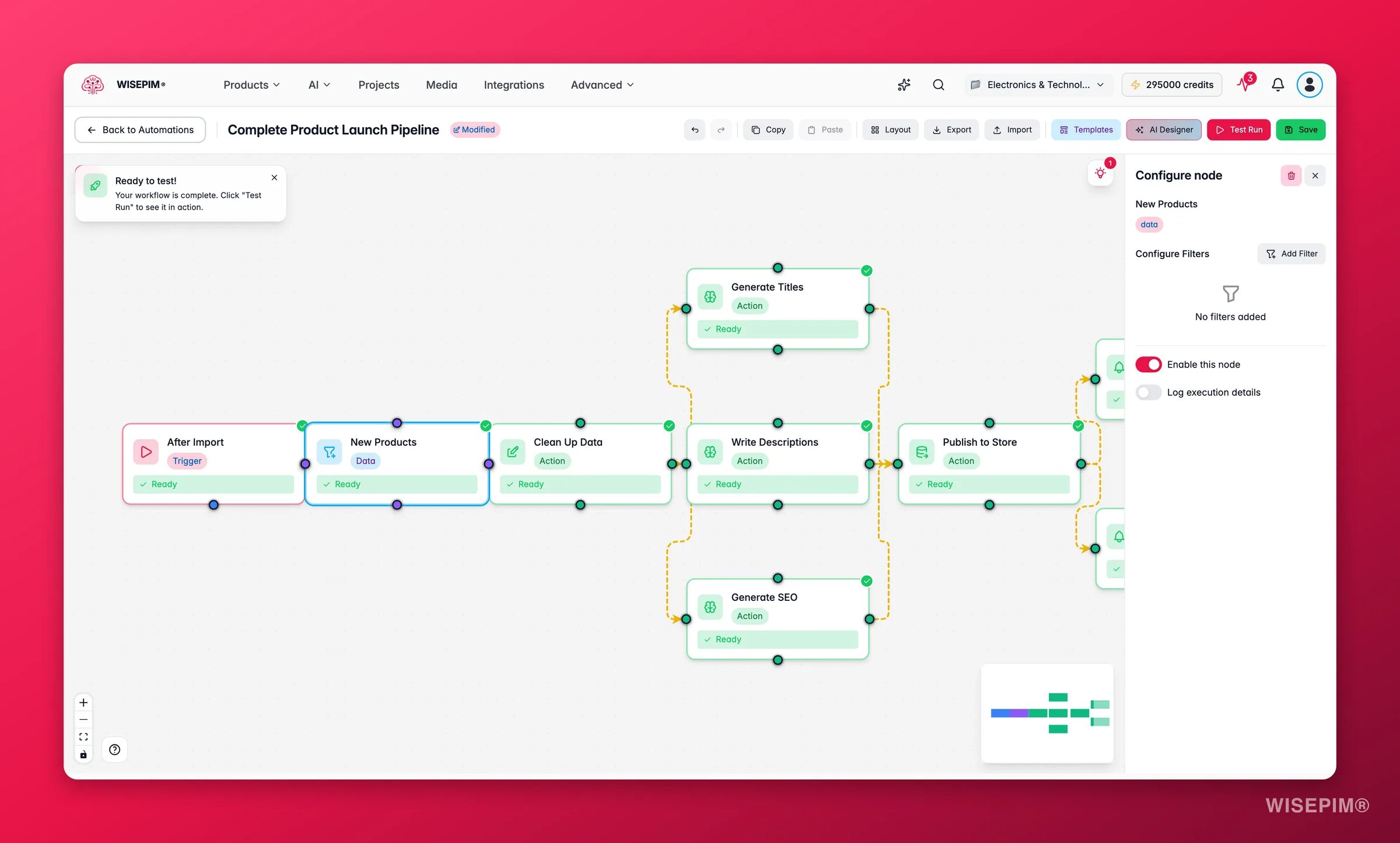
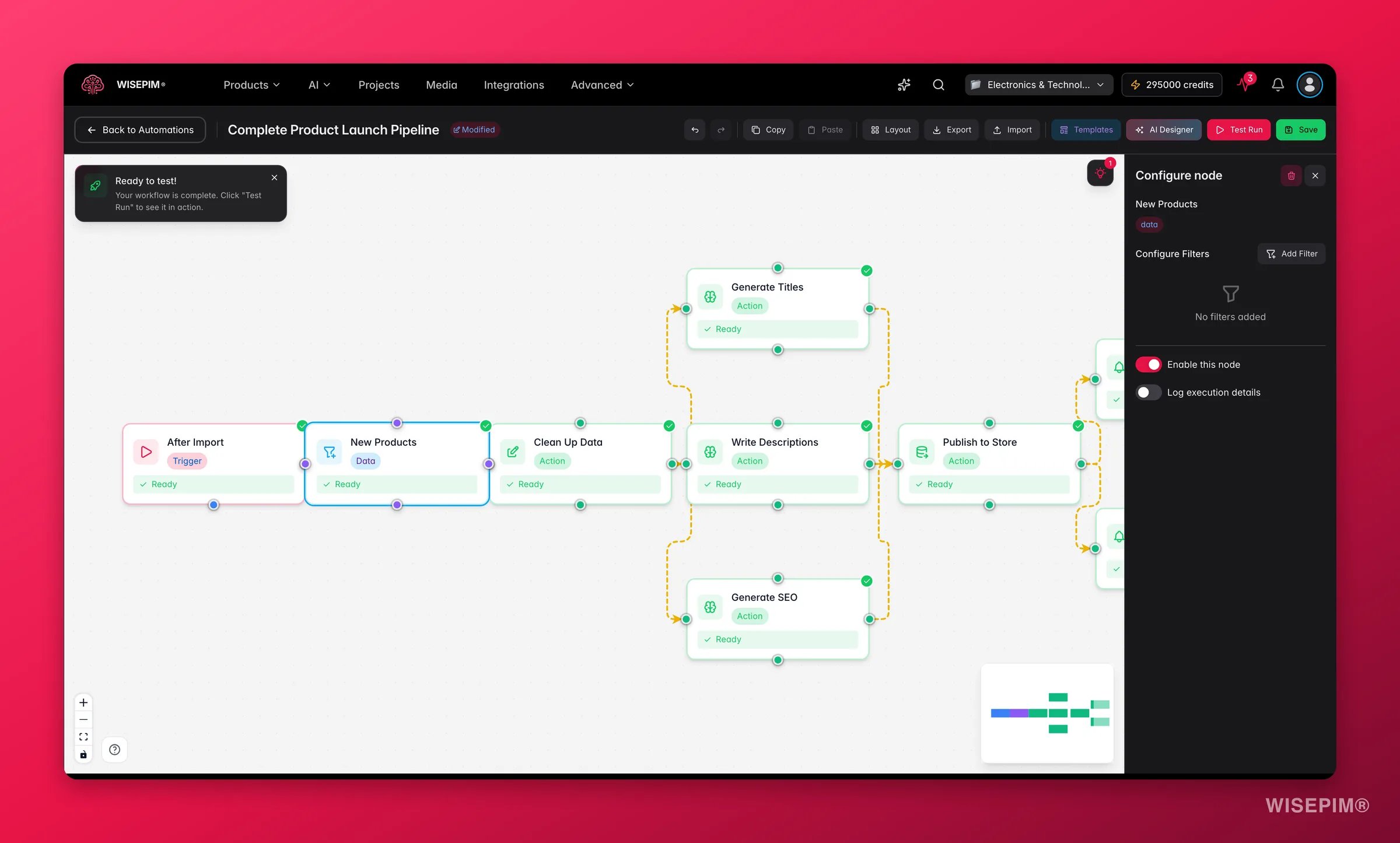 The Select Products node chooses which products the automation runs on. It is usually the first node after your trigger.
| Setting | What it does |
| --------------------- | --------------------------------------------------------------------------------------------------------- |
| **Filter conditions** | One or more conditions a product must match (for example, status is "Ready" or category is "Electronics") |
| **Condition logic** | Combine conditions with AND (all must match) or OR (any can match) |
| **Minimum matches** | Require a minimum number of matching products before the workflow continues |
Leave the filter conditions empty to select every product in your catalog.
## Narrow a set with filters
The Filter Products node trims a product set that is already moving through the workflow. Use it after a Select Products node or an import to cut the set down further.
| Setting | What it does |
| --------------------- | -------------------------------------------------------------- |
| **Filter conditions** | One or more conditions a product must match to stay in the set |
| **Condition logic** | Combine conditions with AND or OR |
Common ways to use it:
* Keep only imported products that are missing a description
* Narrow a set to one brand or price range
* Drop products that are already published
**Select Products vs. Filter Products:** Select Products builds a new set from your whole catalog. Filter Products narrows a set that is already flowing through the workflow.
## Pull in data from a file
The Read File node loads product data from a file stored in WISEPIM. Use it when your workflow needs to process a CSV, Excel, or JSON file.
| Setting | What it does |
| ------------------ | ---------------------------------------------------- |
| **File path** | Where the file lives in WISEPIM |
| **Format** | CSV, Excel, or JSON |
| **Column mapping** | Match each file column to a product field in WISEPIM |
## Related
Branch, merge, and pause the flow with if/then logic.
See every action your automations can run.
Drag, connect, and configure nodes on the canvas.
Decide what starts your automation and when.
The Select Products node chooses which products the automation runs on. It is usually the first node after your trigger.
| Setting | What it does |
| --------------------- | --------------------------------------------------------------------------------------------------------- |
| **Filter conditions** | One or more conditions a product must match (for example, status is "Ready" or category is "Electronics") |
| **Condition logic** | Combine conditions with AND (all must match) or OR (any can match) |
| **Minimum matches** | Require a minimum number of matching products before the workflow continues |
Leave the filter conditions empty to select every product in your catalog.
## Narrow a set with filters
The Filter Products node trims a product set that is already moving through the workflow. Use it after a Select Products node or an import to cut the set down further.
| Setting | What it does |
| --------------------- | -------------------------------------------------------------- |
| **Filter conditions** | One or more conditions a product must match to stay in the set |
| **Condition logic** | Combine conditions with AND or OR |
Common ways to use it:
* Keep only imported products that are missing a description
* Narrow a set to one brand or price range
* Drop products that are already published
**Select Products vs. Filter Products:** Select Products builds a new set from your whole catalog. Filter Products narrows a set that is already flowing through the workflow.
## Pull in data from a file
The Read File node loads product data from a file stored in WISEPIM. Use it when your workflow needs to process a CSV, Excel, or JSON file.
| Setting | What it does |
| ------------------ | ---------------------------------------------------- |
| **File path** | Where the file lives in WISEPIM |
| **Format** | CSV, Excel, or JSON |
| **Column mapping** | Match each file column to a product field in WISEPIM |
## Related
Branch, merge, and pause the flow with if/then logic.
See every action your automations can run.
Drag, connect, and configure nodes on the canvas.
Decide what starts your automation and when.