> ## Documentation Index
> Fetch the complete documentation index at: https://docs.wisepim.com/llms.txt
> Use this file to discover all available pages before exploring further.
# Integration Health
> Monitor sync reliability across every connected channel: last sync, success rate, error breakdown, and backlog, in one place.
The Integration Health report is the status board for your connections. It shows whether every channel is syncing reliably, when each last ran, and what is going wrong, so a broken sync never quietly costs you sales with stale prices or missing stock.
**What acting on it enables:** catch a failing sync before customers see outdated data, diagnose the root cause from the error message without digging through logs, and ensure your channel coverage is working as expected at all times.
This report reflects your connected channels and their sync history over the last 30 days. Connect your platforms under [Integrations](/en/integrations/supported-platforms) to populate it. The date-range selector is not available here, integration health is always shown for the rolling 30-day window.
## What you see
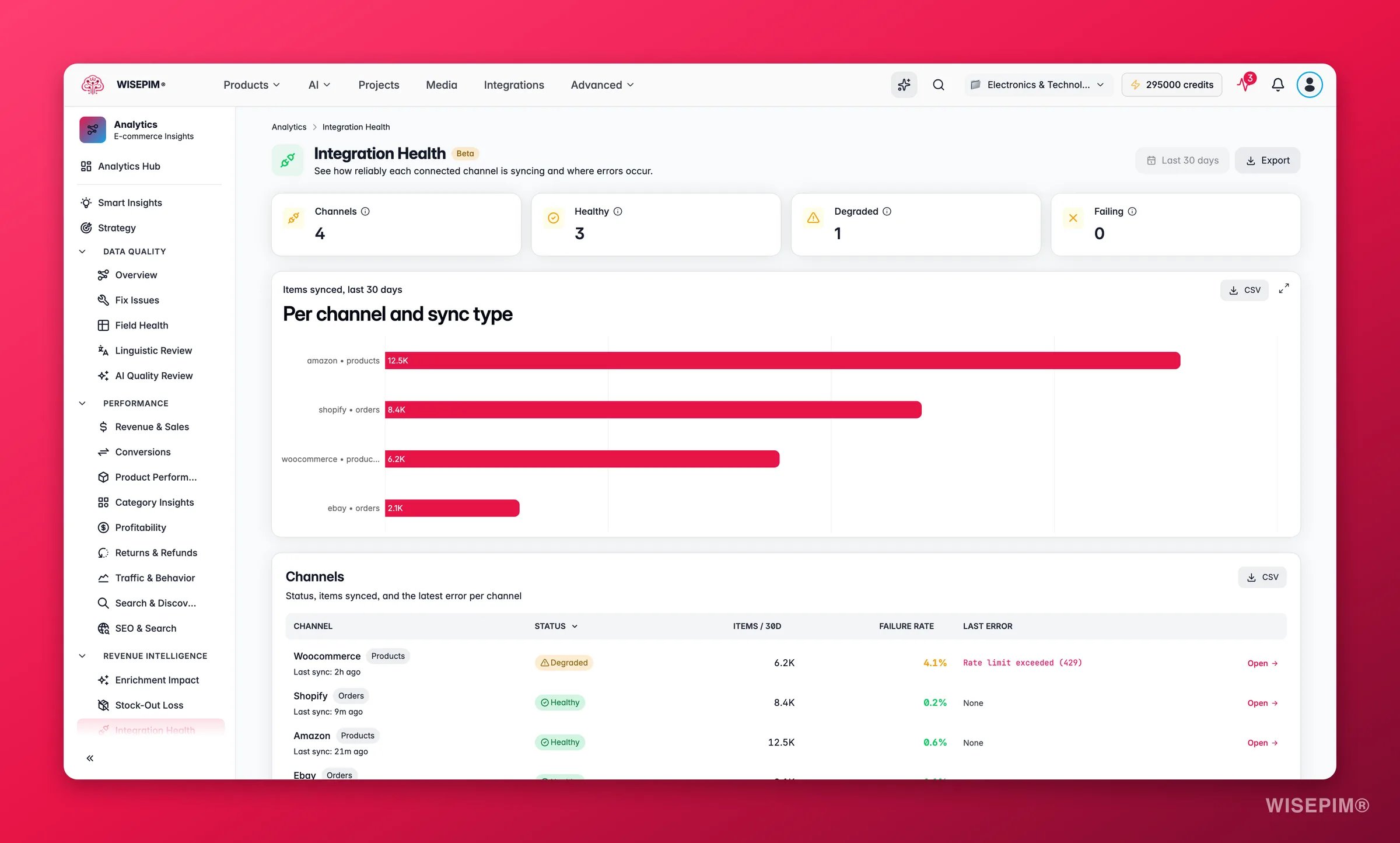
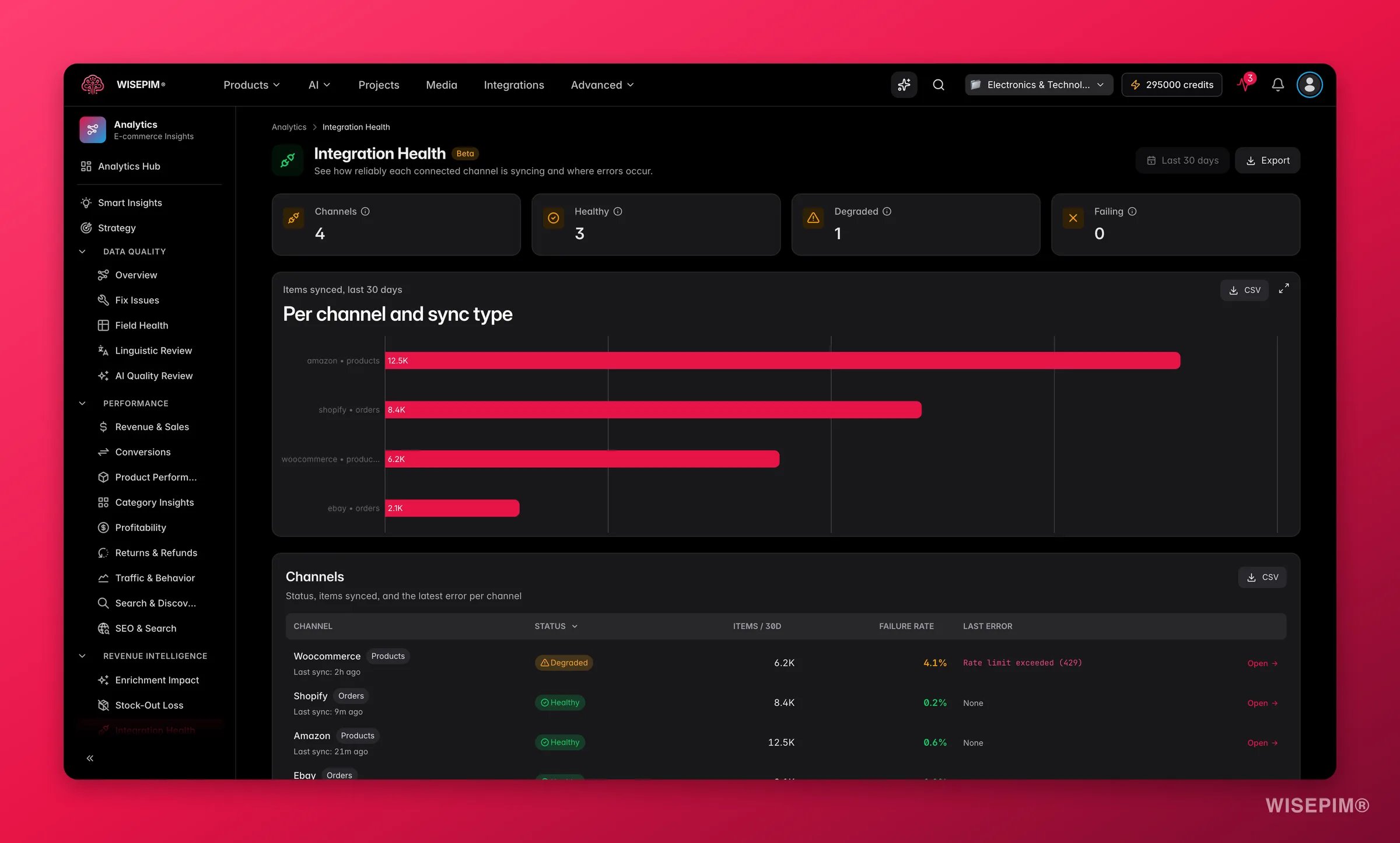 The four summary tiles at the top give an instant read on channel status across your account:
| Metric | What it tells you |
| ------------ | ----------------------------------------------------------------------------------------------- |
| **Channels** | Total number of connected integrations being monitored. |
| **Healthy** | Channels with a low failure rate, syncing reliably with no recent errors. |
| **Degraded** | Channels with occasional failures, still syncing but starting to show problems. |
| **Failing** | Channels with a high failure rate or no recent successful sync. These need immediate attention. |
### What good looks like
The per-channel failure rate is the key signal to watch. The report uses these thresholds to color the failure rate:
| Failure rate (30 days) | Signal |
| ---------------------- | ------------------------------------------------------------------------------------------------ |
| Under 3 % | Green, healthy sync, occasional transient errors are normal |
| 3 – 10 % | Warning (amber), investigate; errors are becoming frequent enough to cause data gaps |
| 10 %+ | Danger (red), syncs are failing at a rate that will cause stale or missing data on your channels |
**Items synced** is a secondary health check: a channel with a low item count relative to your catalog size may be syncing less data than expected, even if its failure rate is low.
A channel that has not synced recently, or a rising failure rate, usually means stale prices, stock, or content on your storefront. Customers see incorrect information and you may lose sales or receive orders you cannot fulfill. Treat a red or amber status as urgent.
## Per-channel detail table
The table shows every connected channel with:
* **Channel name and sync type**: import, export, or a specific data type (e.g., products, prices, stock).
* **Last sync**: shown as a relative timestamp ("2 hours ago", "3 days ago"). A last sync of "never" means the integration has not completed a run since it was connected.
* **Status chip**: Healthy, Degraded, or Failing, colored to match.
* **Items synced (30d)**: total records processed in the last 30 days. Use this to confirm syncs are moving the volume you expect.
* **Failure rate**: percentage of sync runs that produced an error. Color-coded by the thresholds above.
* **Last error**: the most recent error message, truncated. Hover to see the full message. This is the fastest way to diagnose what is wrong without logging into the platform.
The **Items synced by channel** bar chart ranks channels by volume, making it easy to see which integrations are your most active and which may not be pushing as much data as expected.
## Reading the results
* **One channel failing, others healthy**: the issue is isolated to that integration's credentials, configuration, or the destination platform. Start with the last error message and credential check.
* **Multiple channels degraded at the same time**: may indicate a network issue, a backend overload event, or a change in your catalog that caused widespread validation failures (e.g., a bulk import that added products with missing required fields).
* **Failure rate rising gradually**: token expiry is a common cause; many platforms rotate API keys on a fixed schedule. A gradual rise rather than a sudden spike is the typical pattern.
* **Items synced drops sharply**: a sync may have succeeded (low failure rate) but pushed fewer items than usual, which can happen if a filter changed or the product selection narrowed. Worth investigating even if status shows healthy.
## Act on what you find
Re-check the credentials for that integration and re-test the connection from the [Integrations](/en/integrations/supported-platforms) settings page. Expired tokens and rotated API keys are the most common cause of a sudden jump in failure rate. The last error message in the table usually confirms whether it is an authentication error (401/403) or a different type of failure. **Outcome:** restore a healthy sync and stop the channel accumulating stale data.
The channel is rejecting products that miss required fields, the last error message will usually name the offending field. Use [Quality Guard](/en/quality-guard/overview) to set channel rules that block non-compliant products before they sync, preventing the error from recurring. For a one-off fix, use bulk editing to fill the missing fields across the affected products. **Outcome:** eliminate recurring validation errors and keep the sync clean.
A stale last-sync timestamp means customers on that channel are seeing outdated product data. Check the [Process Tracker](/en/other-features/process-tracker) for a failed or stuck job, then re-trigger the sync manually from the integration settings page. If the problem recurs, schedule syncs more frequently with an [Automation](/en/automations/overview) and add a failure notification so you are alerted before the staleness compounds. **Outcome:** ensure channels stay up to date and customers see current prices and stock.
Review whether a product filter on the integration has changed, or whether a recent catalog change reduced the product selection. Open the integration settings under [Integrations](/en/integrations/supported-platforms) and verify the sync scope. If the filter is correct, the lower volume may reflect genuine catalog reduction rather than a sync problem. **Outcome:** confirm whether the drop is intentional or a misconfiguration.
## Related
Connect and manage your channels.
Stop non-compliant products before they sync.
Watch live import, export, and sync jobs.
Schedule reliable, off-peak syncs.
The four summary tiles at the top give an instant read on channel status across your account:
| Metric | What it tells you |
| ------------ | ----------------------------------------------------------------------------------------------- |
| **Channels** | Total number of connected integrations being monitored. |
| **Healthy** | Channels with a low failure rate, syncing reliably with no recent errors. |
| **Degraded** | Channels with occasional failures, still syncing but starting to show problems. |
| **Failing** | Channels with a high failure rate or no recent successful sync. These need immediate attention. |
### What good looks like
The per-channel failure rate is the key signal to watch. The report uses these thresholds to color the failure rate:
| Failure rate (30 days) | Signal |
| ---------------------- | ------------------------------------------------------------------------------------------------ |
| Under 3 % | Green, healthy sync, occasional transient errors are normal |
| 3 – 10 % | Warning (amber), investigate; errors are becoming frequent enough to cause data gaps |
| 10 %+ | Danger (red), syncs are failing at a rate that will cause stale or missing data on your channels |
**Items synced** is a secondary health check: a channel with a low item count relative to your catalog size may be syncing less data than expected, even if its failure rate is low.
A channel that has not synced recently, or a rising failure rate, usually means stale prices, stock, or content on your storefront. Customers see incorrect information and you may lose sales or receive orders you cannot fulfill. Treat a red or amber status as urgent.
## Per-channel detail table
The table shows every connected channel with:
* **Channel name and sync type**: import, export, or a specific data type (e.g., products, prices, stock).
* **Last sync**: shown as a relative timestamp ("2 hours ago", "3 days ago"). A last sync of "never" means the integration has not completed a run since it was connected.
* **Status chip**: Healthy, Degraded, or Failing, colored to match.
* **Items synced (30d)**: total records processed in the last 30 days. Use this to confirm syncs are moving the volume you expect.
* **Failure rate**: percentage of sync runs that produced an error. Color-coded by the thresholds above.
* **Last error**: the most recent error message, truncated. Hover to see the full message. This is the fastest way to diagnose what is wrong without logging into the platform.
The **Items synced by channel** bar chart ranks channels by volume, making it easy to see which integrations are your most active and which may not be pushing as much data as expected.
## Reading the results
* **One channel failing, others healthy**: the issue is isolated to that integration's credentials, configuration, or the destination platform. Start with the last error message and credential check.
* **Multiple channels degraded at the same time**: may indicate a network issue, a backend overload event, or a change in your catalog that caused widespread validation failures (e.g., a bulk import that added products with missing required fields).
* **Failure rate rising gradually**: token expiry is a common cause; many platforms rotate API keys on a fixed schedule. A gradual rise rather than a sudden spike is the typical pattern.
* **Items synced drops sharply**: a sync may have succeeded (low failure rate) but pushed fewer items than usual, which can happen if a filter changed or the product selection narrowed. Worth investigating even if status shows healthy.
## Act on what you find
Re-check the credentials for that integration and re-test the connection from the [Integrations](/en/integrations/supported-platforms) settings page. Expired tokens and rotated API keys are the most common cause of a sudden jump in failure rate. The last error message in the table usually confirms whether it is an authentication error (401/403) or a different type of failure. **Outcome:** restore a healthy sync and stop the channel accumulating stale data.
The channel is rejecting products that miss required fields, the last error message will usually name the offending field. Use [Quality Guard](/en/quality-guard/overview) to set channel rules that block non-compliant products before they sync, preventing the error from recurring. For a one-off fix, use bulk editing to fill the missing fields across the affected products. **Outcome:** eliminate recurring validation errors and keep the sync clean.
A stale last-sync timestamp means customers on that channel are seeing outdated product data. Check the [Process Tracker](/en/other-features/process-tracker) for a failed or stuck job, then re-trigger the sync manually from the integration settings page. If the problem recurs, schedule syncs more frequently with an [Automation](/en/automations/overview) and add a failure notification so you are alerted before the staleness compounds. **Outcome:** ensure channels stay up to date and customers see current prices and stock.
Review whether a product filter on the integration has changed, or whether a recent catalog change reduced the product selection. Open the integration settings under [Integrations](/en/integrations/supported-platforms) and verify the sync scope. If the filter is correct, the lower volume may reflect genuine catalog reduction rather than a sync problem. **Outcome:** confirm whether the drop is intentional or a misconfiguration.
## Related
Connect and manage your channels.
Stop non-compliant products before they sync.
Watch live import, export, and sync jobs.
Schedule reliable, off-peak syncs.