> ## Documentation Index
> Fetch the complete documentation index at: https://docs.wisepim.com/llms.txt
> Use this file to discover all available pages before exploring further.
# WISECHAT Analytics
> See what shoppers ask your storefront AI assistant: top questions, the gaps where it had no answer, the products it gets asked about, and how conversations trend.
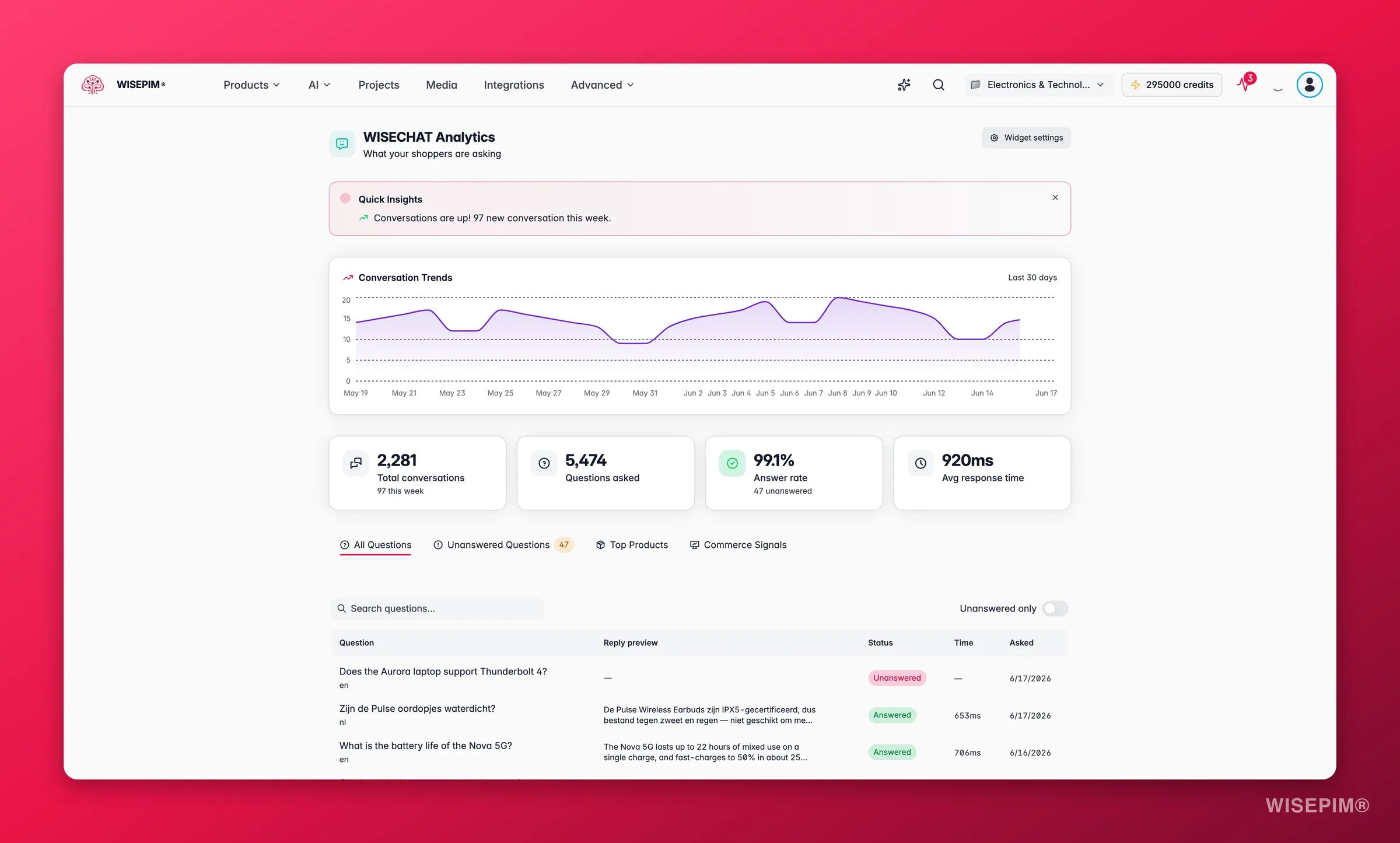
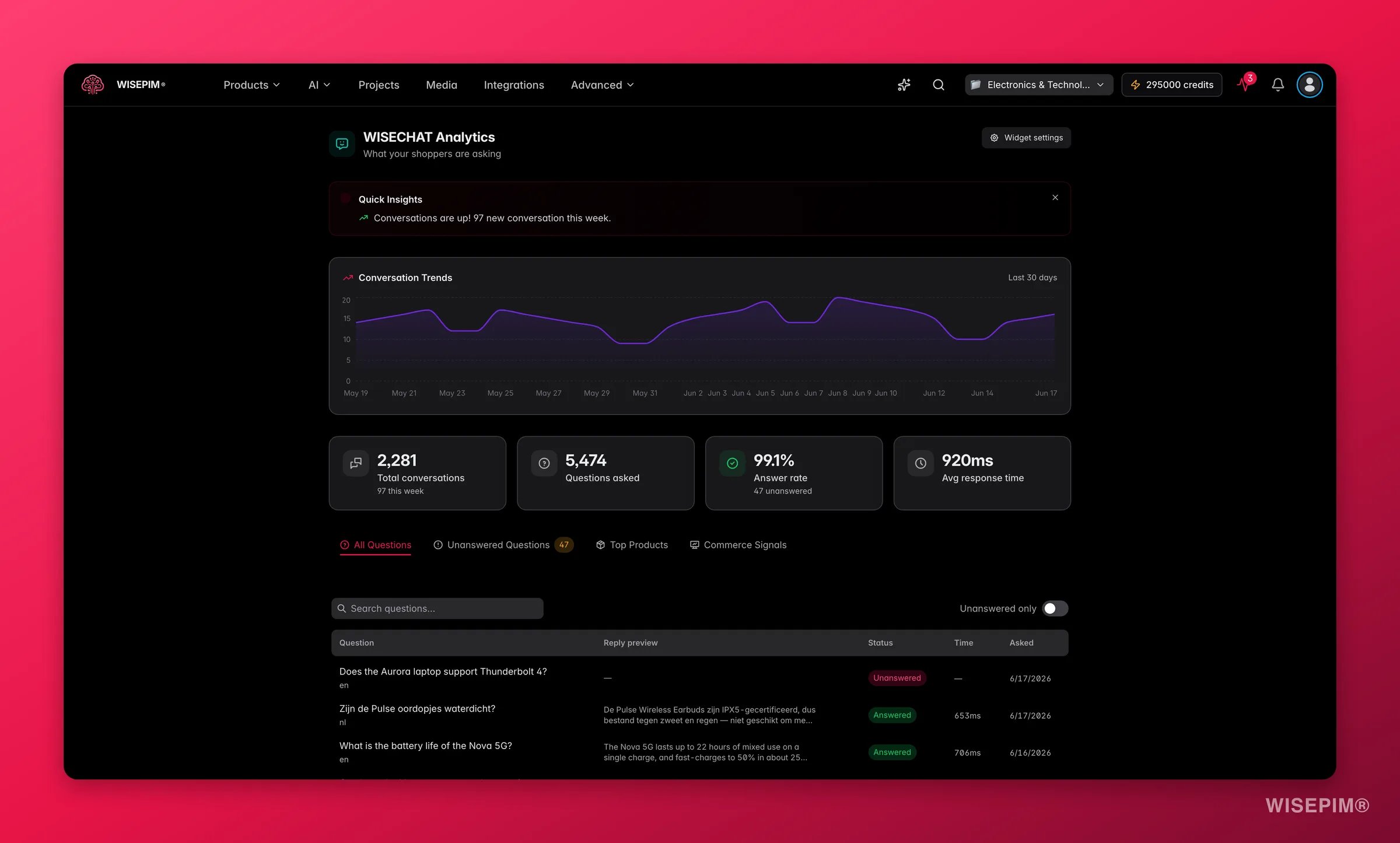 WISECHAT is the AI shopping assistant you embed on your storefront. This dashboard is where you see how it is doing: every question shoppers asked, where it had a good answer and where it did not, which products they ask about most, and how conversation volume is trending. It turns real customer questions into a to-do list for better product content.
**What acting on it enables:** answer the questions that actually lose sales, close the knowledge gaps the assistant keeps hitting, and learn what your shoppers care about straight from their own words.
This is the analytics view inside WISEPIM, not the widget itself. You need the WISECHAT widget installed and enabled on your storefront first (set it up in [WISECHAT settings](/en/settings/wise-chat)). Until it has handled a few conversations, the page shows a short "install and wait for your first conversation" checklist.
## The headline numbers
Four cards summarize the period:
| Metric | What it tells you |
| --------------------- | ------------------------------------------------------------------------------------------------------------------------------------------------- |
| **Conversations** | How many shoppers engaged the assistant, with this week's count. |
| **Questions asked** | Total questions across all conversations. |
| **Answer rate** | The share of questions the assistant answered confidently. Green is healthy (≥ 90%), amber is worth attention, red means it is failing too often. |
| **Avg response time** | How quickly the assistant replies. |
A conversation-trend chart plots daily volume, so you can tie spikes to launches, campaigns, or seasonal demand.
## What you can dig into
A searchable, paginated table of every question, the assistant's reply, whether it was answered, and how fast. Filter to "unanswered only" to go straight to the problems.
The unanswered questions, most recent first. Each one is a chance to improve: **Add to Knowledge** writes an answer the assistant will use next time, and **Find related product** searches your catalog for the product the question is about.
The products shoppers ask about most, ranked by mention count. Click through to open the product and strengthen its content while it has attention.
## Reading the results
* **A high answer rate with a long unanswered list** still matters: even a handful of repeated unanswered questions points to one missing piece of content (a size guide, a compatibility note, a returns policy).
* **The same question appearing repeatedly** in Knowledge Gaps is the clearest signal of all. It is a specific thing your shoppers want to know and your listings do not say.
* **A product near the top of Top Products with thin content** is a priority: shoppers are interested, so every improvement compounds.
* **A volume spike in the trend chart** is a moment to make sure the assistant is well-fed, because more shoppers are relying on it.
## Act on what you find
Open Knowledge Gaps, click **Add to Knowledge**, and write a clear answer. The assistant uses it immediately, so the next shopper who asks gets a confident reply. **Outcome:** your answer rate climbs and a recurring drop-off point closes.
From Top Products, open the product and enrich the fields shoppers are asking about (specs, compatibility, what's in the box). Use [Enriching Products](/en/essentials/enriching-products) to do it fast. **Outcome:** the assistant can answer from the listing itself, and the same content improves the product page for everyone.
Use **Find related product** to jump to the matching product, then add the missing detail or link it into the knowledge base. **Outcome:** the assistant connects shopper intent to the right product instead of giving a generic reply.
A falling answer rate usually means new questions the assistant has not been taught yet (often after a product launch or a campaign). Work through the Knowledge Gaps list and feed the recurring ones back in. **Outcome:** the assistant keeps pace with what shoppers are actually asking.
## Related
Install the widget, set its tone, and manage what it can access.
The answers and facts the assistant draws on.
The in-app assistant for your own catalog work.
Turn shopper questions into richer product content.
WISECHAT is the AI shopping assistant you embed on your storefront. This dashboard is where you see how it is doing: every question shoppers asked, where it had a good answer and where it did not, which products they ask about most, and how conversation volume is trending. It turns real customer questions into a to-do list for better product content.
**What acting on it enables:** answer the questions that actually lose sales, close the knowledge gaps the assistant keeps hitting, and learn what your shoppers care about straight from their own words.
This is the analytics view inside WISEPIM, not the widget itself. You need the WISECHAT widget installed and enabled on your storefront first (set it up in [WISECHAT settings](/en/settings/wise-chat)). Until it has handled a few conversations, the page shows a short "install and wait for your first conversation" checklist.
## The headline numbers
Four cards summarize the period:
| Metric | What it tells you |
| --------------------- | ------------------------------------------------------------------------------------------------------------------------------------------------- |
| **Conversations** | How many shoppers engaged the assistant, with this week's count. |
| **Questions asked** | Total questions across all conversations. |
| **Answer rate** | The share of questions the assistant answered confidently. Green is healthy (≥ 90%), amber is worth attention, red means it is failing too often. |
| **Avg response time** | How quickly the assistant replies. |
A conversation-trend chart plots daily volume, so you can tie spikes to launches, campaigns, or seasonal demand.
## What you can dig into
A searchable, paginated table of every question, the assistant's reply, whether it was answered, and how fast. Filter to "unanswered only" to go straight to the problems.
The unanswered questions, most recent first. Each one is a chance to improve: **Add to Knowledge** writes an answer the assistant will use next time, and **Find related product** searches your catalog for the product the question is about.
The products shoppers ask about most, ranked by mention count. Click through to open the product and strengthen its content while it has attention.
## Reading the results
* **A high answer rate with a long unanswered list** still matters: even a handful of repeated unanswered questions points to one missing piece of content (a size guide, a compatibility note, a returns policy).
* **The same question appearing repeatedly** in Knowledge Gaps is the clearest signal of all. It is a specific thing your shoppers want to know and your listings do not say.
* **A product near the top of Top Products with thin content** is a priority: shoppers are interested, so every improvement compounds.
* **A volume spike in the trend chart** is a moment to make sure the assistant is well-fed, because more shoppers are relying on it.
## Act on what you find
Open Knowledge Gaps, click **Add to Knowledge**, and write a clear answer. The assistant uses it immediately, so the next shopper who asks gets a confident reply. **Outcome:** your answer rate climbs and a recurring drop-off point closes.
From Top Products, open the product and enrich the fields shoppers are asking about (specs, compatibility, what's in the box). Use [Enriching Products](/en/essentials/enriching-products) to do it fast. **Outcome:** the assistant can answer from the listing itself, and the same content improves the product page for everyone.
Use **Find related product** to jump to the matching product, then add the missing detail or link it into the knowledge base. **Outcome:** the assistant connects shopper intent to the right product instead of giving a generic reply.
A falling answer rate usually means new questions the assistant has not been taught yet (often after a product launch or a campaign). Work through the Knowledge Gaps list and feed the recurring ones back in. **Outcome:** the assistant keeps pace with what shoppers are actually asking.
## Related
Install the widget, set its tone, and manage what it can access.
The answers and facts the assistant draws on.
The in-app assistant for your own catalog work.
Turn shopper questions into richer product content.