> ## Documentation Index
> Fetch the complete documentation index at: https://docs.wisepim.com/llms.txt
> Use this file to discover all available pages before exploring further.
# Search Intent
> Use real Google Search Console data to understand how shoppers find each product, then rewrite descriptions to match that intent, turning impressions that do not convert into clicks that do.
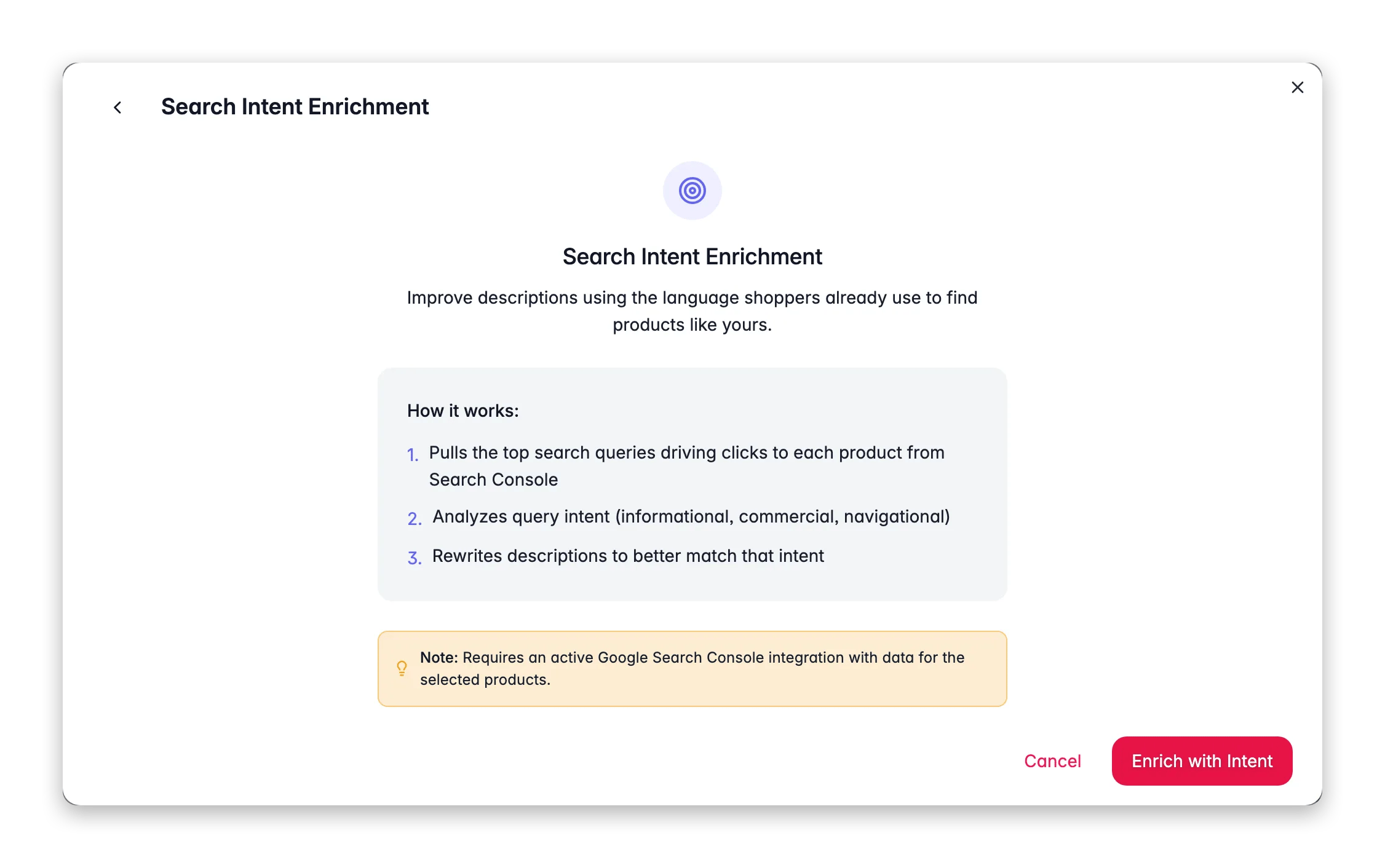
 Search Intent analyzes the real queries people use to find each product in Google, classifies the intent behind those queries, and rewrites the product description to match what searchers are actually looking for. A product ranking for "best noise-cancelling headphones under 200 euros" should read like a buying guide, not a spec sheet. Search Intent makes that happen automatically, at scale.
**What it enables:** improve CTR on products that are already ranking but not converting, align your copy with real search behavior instead of guesswork, and lift organic traffic to products with high impression share but low click-through.
Search Intent requires a connected and synced **Google Search Console** integration. The AI reads per-product query data directly from your GSC account. Without the integration, Search Intent is not available. Connect it in [Integrations](/en/integrations/supported-platforms).
## How it works
For each product, WISEPIM fetches the top search queries that drove impressions and clicks over the past 90 days from your Google Search Console account.
The AI classifies the dominant intent behind those queries:
* **Informational**: shoppers want to learn (e.g., "what is a standing desk")
* **Commercial**: shoppers are comparing options (e.g., "best standing desks 2024")
* **Transactional**: shoppers are ready to buy (e.g., "buy electric standing desk")
The AI rewrites the product description to lead with the content format that matches the dominant intent. An informational-intent product gets educational framing. A commercial-intent product gets comparison language and key differentiators. A transactional-intent product gets direct, confident buy-focused copy.
## When to use it
The strongest candidates for Search Intent enrichment are products that:
* Have **high impressions but low CTR** (more than 100 impressions per month, less than 2% CTR in GSC)
* Already rank on **page 1 or 2** for relevant queries but are not converting
* Have descriptions that were written for internal use or supplier-style spec listings rather than search-driven buyer copy
You can find these products in [SEO Analytics](/en/analytics/seo), filter for high impressions and sort by CTR ascending. Those are your highest-upside candidates.
## How to run Search Intent
Check [Integrations](/en/integrations/supported-platforms) to make sure Google Search Console is connected and has synced recent data.
Choose the products you want to optimize. Focus on high-impression, low-CTR products for the biggest return.
Click **Enrich with AI** in the toolbar.
Select **Search Intent** from the enrichment type grid. No prompt configuration is needed.
Click **Start Enrichment**. The run processes in the background. Track progress in the [Process Tracker](/en/other-features/process-tracker).
## What good results look like
* Descriptions open with the content format that matches the query intent (educational prose for informational, side-by-side differentiators for commercial, confident direct copy for transactional).
* Key search terms from the top GSC queries appear naturally in the copy.
* The content still reads like it was written for a human buyer, not stuffed with keywords.
Review a sample of 5–10 products after the first run. Compare the rewritten descriptions against the original GSC queries and check whether the copy now feels aligned with what those queries imply the shopper wants.
## Measuring the impact
Check GSC data 4–6 weeks after running Search Intent to see whether CTR has improved for the updated products. Use [SEO Analytics](/en/analytics/seo) to compare impressions, clicks, and position before and after. Products that moved from below 2% to above 3% CTR at the same average position represent a direct Search Intent win.
## Act on what you find
If a product has no query data in Search Console (very new, very niche, or never ranked), Search Intent cannot run for it, there is no intent signal to act on. Focus Search Intent runs on products that already have some organic presence. **Outcome:** every product in the run has real query data to work from.
Check whether the intent classification matched what you would expect. A transactional rewrite on a product whose main traffic is informational may have shifted the copy away from what ranked it in the first place. Re-run with the original copy restored, or use the Descriptions enrichment with a custom prompt to find a middle ground. **Outcome:** description that satisfies both the ranking query and the buyer's intent.
Search Intent acts on the dominant intent across all queries. For fine-grained control over a specific query you are targeting, use the [Prompt Lab](/en/essentials/prompt-lab) to craft a description prompt that incorporates that query, then run it via the Descriptions enrichment type. **Outcome:** description tailored to a single high-priority keyword.
Run Search Intent first to align descriptions with real search behavior, then run [Internal Linking](/en/ai/internal-linking) to connect those optimized pages to each other. Together they improve both the relevance signal and the internal link equity for each product. **Outcome:** a catalog where intent-matched copy and internal links reinforce each other.
## Related
Find high-impression, low-CTR products, your best candidates for Search Intent.
Connect intent-matched pages to each other to spread link equity.
Overview of all 14 enrichment types.
Ask the AI copilot to surface high-impression, low-CTR products for you.
Search Intent analyzes the real queries people use to find each product in Google, classifies the intent behind those queries, and rewrites the product description to match what searchers are actually looking for. A product ranking for "best noise-cancelling headphones under 200 euros" should read like a buying guide, not a spec sheet. Search Intent makes that happen automatically, at scale.
**What it enables:** improve CTR on products that are already ranking but not converting, align your copy with real search behavior instead of guesswork, and lift organic traffic to products with high impression share but low click-through.
Search Intent requires a connected and synced **Google Search Console** integration. The AI reads per-product query data directly from your GSC account. Without the integration, Search Intent is not available. Connect it in [Integrations](/en/integrations/supported-platforms).
## How it works
For each product, WISEPIM fetches the top search queries that drove impressions and clicks over the past 90 days from your Google Search Console account.
The AI classifies the dominant intent behind those queries:
* **Informational**: shoppers want to learn (e.g., "what is a standing desk")
* **Commercial**: shoppers are comparing options (e.g., "best standing desks 2024")
* **Transactional**: shoppers are ready to buy (e.g., "buy electric standing desk")
The AI rewrites the product description to lead with the content format that matches the dominant intent. An informational-intent product gets educational framing. A commercial-intent product gets comparison language and key differentiators. A transactional-intent product gets direct, confident buy-focused copy.
## When to use it
The strongest candidates for Search Intent enrichment are products that:
* Have **high impressions but low CTR** (more than 100 impressions per month, less than 2% CTR in GSC)
* Already rank on **page 1 or 2** for relevant queries but are not converting
* Have descriptions that were written for internal use or supplier-style spec listings rather than search-driven buyer copy
You can find these products in [SEO Analytics](/en/analytics/seo), filter for high impressions and sort by CTR ascending. Those are your highest-upside candidates.
## How to run Search Intent
Check [Integrations](/en/integrations/supported-platforms) to make sure Google Search Console is connected and has synced recent data.
Choose the products you want to optimize. Focus on high-impression, low-CTR products for the biggest return.
Click **Enrich with AI** in the toolbar.
Select **Search Intent** from the enrichment type grid. No prompt configuration is needed.
Click **Start Enrichment**. The run processes in the background. Track progress in the [Process Tracker](/en/other-features/process-tracker).
## What good results look like
* Descriptions open with the content format that matches the query intent (educational prose for informational, side-by-side differentiators for commercial, confident direct copy for transactional).
* Key search terms from the top GSC queries appear naturally in the copy.
* The content still reads like it was written for a human buyer, not stuffed with keywords.
Review a sample of 5–10 products after the first run. Compare the rewritten descriptions against the original GSC queries and check whether the copy now feels aligned with what those queries imply the shopper wants.
## Measuring the impact
Check GSC data 4–6 weeks after running Search Intent to see whether CTR has improved for the updated products. Use [SEO Analytics](/en/analytics/seo) to compare impressions, clicks, and position before and after. Products that moved from below 2% to above 3% CTR at the same average position represent a direct Search Intent win.
## Act on what you find
If a product has no query data in Search Console (very new, very niche, or never ranked), Search Intent cannot run for it, there is no intent signal to act on. Focus Search Intent runs on products that already have some organic presence. **Outcome:** every product in the run has real query data to work from.
Check whether the intent classification matched what you would expect. A transactional rewrite on a product whose main traffic is informational may have shifted the copy away from what ranked it in the first place. Re-run with the original copy restored, or use the Descriptions enrichment with a custom prompt to find a middle ground. **Outcome:** description that satisfies both the ranking query and the buyer's intent.
Search Intent acts on the dominant intent across all queries. For fine-grained control over a specific query you are targeting, use the [Prompt Lab](/en/essentials/prompt-lab) to craft a description prompt that incorporates that query, then run it via the Descriptions enrichment type. **Outcome:** description tailored to a single high-priority keyword.
Run Search Intent first to align descriptions with real search behavior, then run [Internal Linking](/en/ai/internal-linking) to connect those optimized pages to each other. Together they improve both the relevance signal and the internal link equity for each product. **Outcome:** a catalog where intent-matched copy and internal links reinforce each other.
## Related
Find high-impression, low-CTR products, your best candidates for Search Intent.
Connect intent-matched pages to each other to spread link equity.
Overview of all 14 enrichment types.
Ask the AI copilot to surface high-impression, low-CTR products for you.