> ## Documentation Index
> Fetch the complete documentation index at: https://docs.wisepim.com/llms.txt
> Use this file to discover all available pages before exploring further.
# AI Categorization
> Automatically assign products to your existing category tree with AI, with a confidence threshold you control, so nothing lands in the wrong place.
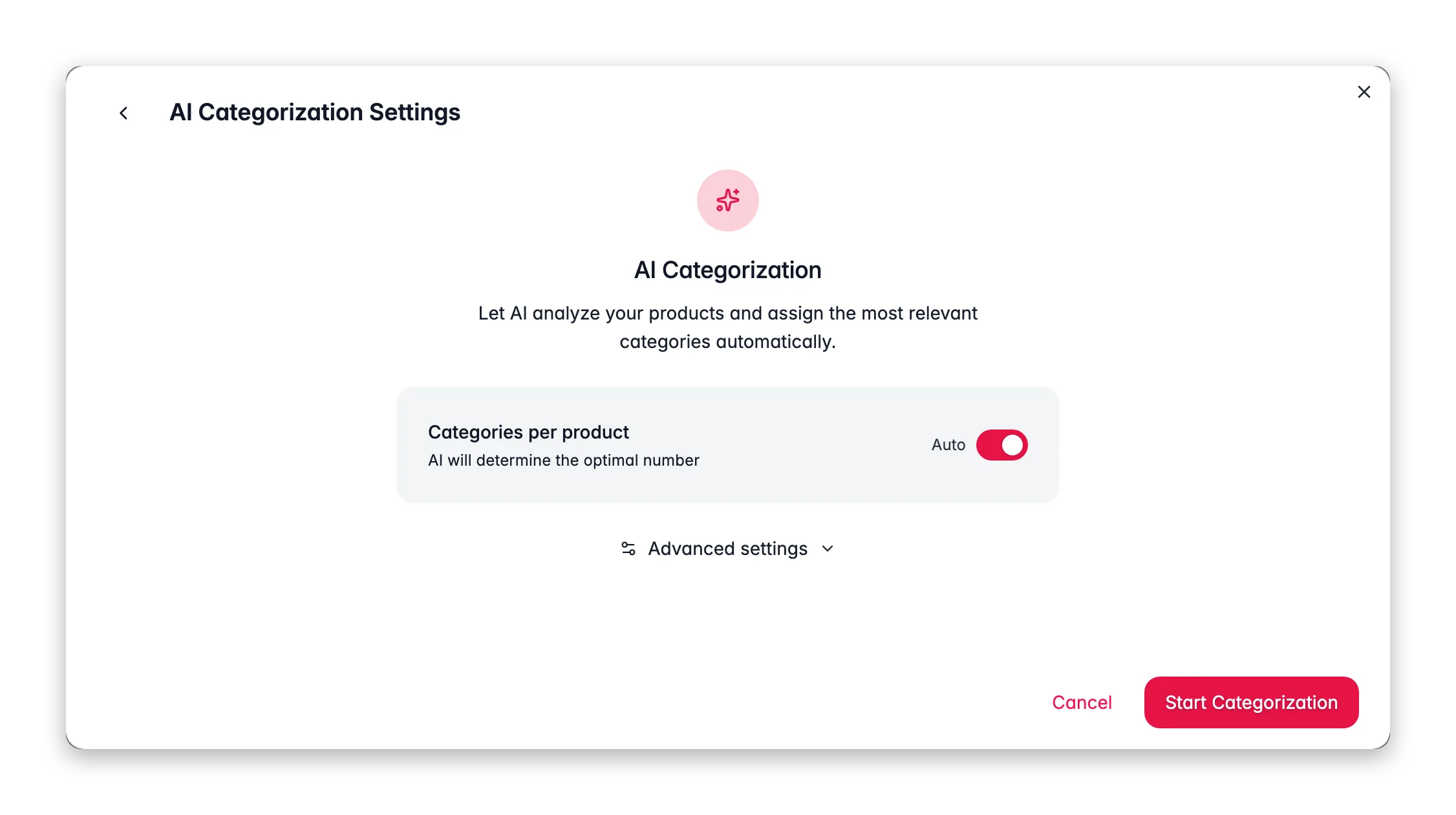
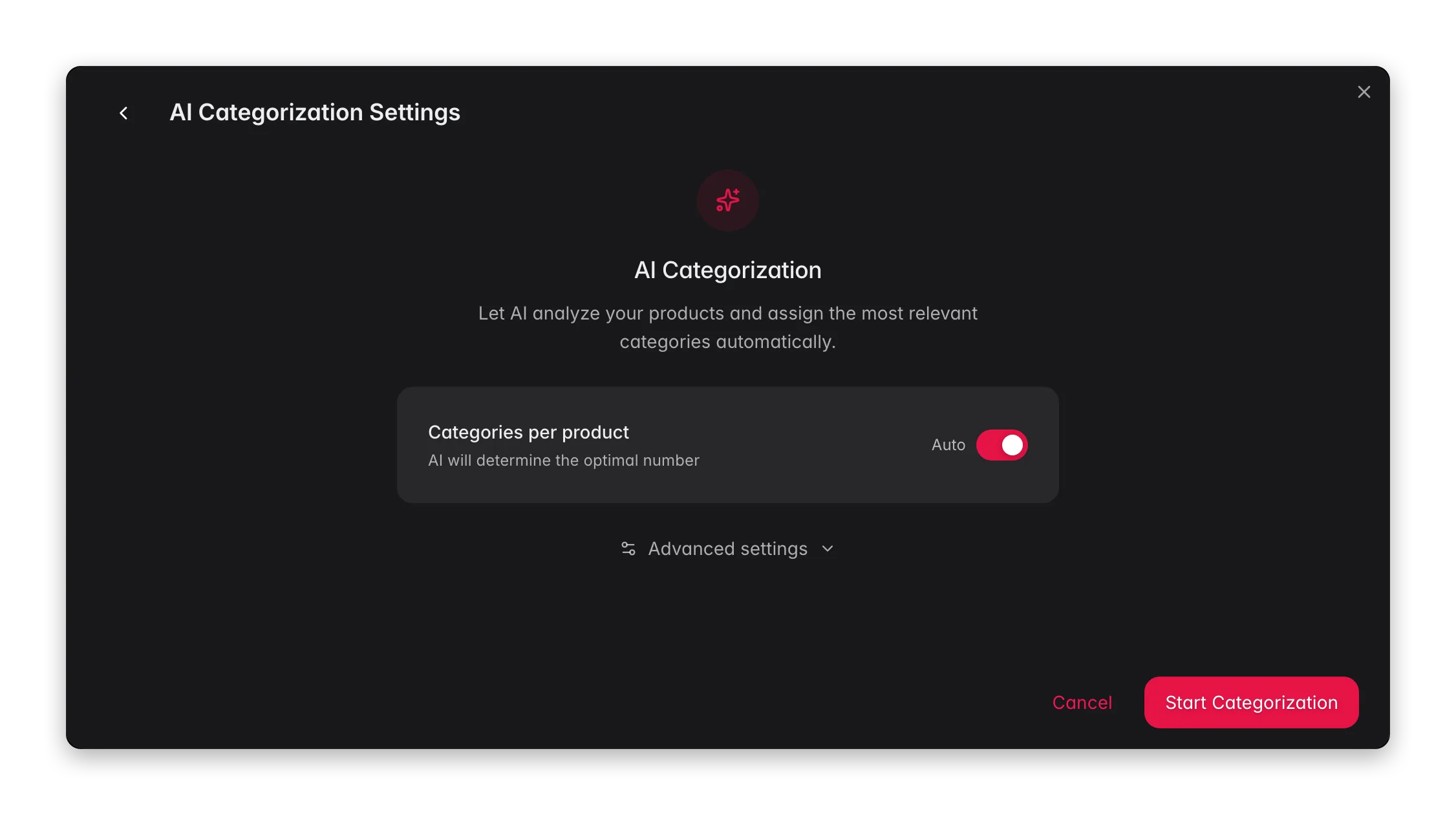 AI Categorization reads each product's content and assigns it to the right categories in **your existing category tree**. It does not invent categories, it places products into the structure you already have, and it only commits an assignment when its confidence clears the threshold you set.
**What it enables:** categorize a freshly imported catalog in minutes instead of days, keep categories consistent as you add products, and fix the uncategorized "Other" bucket that quietly hurts navigation and merchandising.
AI Categorization is **promptless**, it needs no prompt from your library. It costs **1 credit per product**. It assigns your existing categories and never creates new ones.
## When to use it
* **After an import** where products arrive with no category, or a flat supplier category that doesn't match yours.
* **To clear the "Uncategorized" bucket** that builds up over time.
* **When category assignment is inconsistent**, similar products scattered across different branches.
* **As an [Automation](/en/automations/overview) step**, so new products are categorized the moment they're created.
## How to run it
Check products individually, or filter (for example, "uncategorized") and select all matching results.
Click **Enrich with AI** in the toolbar.
Pick **AI Categorization** as the enrichment type.
Adjust the confidence threshold and how many categories each product can receive (see below).
Click **Start Enrichment** and track it in the [Process Tracker](/en/other-features/process-tracker).
## Configuration options
### Confidence threshold
The AI scores how sure it is about each category match. It only assigns a category when that score clears your threshold.
* **Default: 75%.** A balanced setting that assigns confidently in most catalogs.
* **Range: 0–100%, in 5% steps.** Raise it for accuracy, lower it for coverage.
* **Higher threshold** = fewer assignments, but the ones made are more reliable. Products it isn't sure about are left for you to place manually.
* **Lower threshold** = broader coverage, but review the edge cases.
Start at the **default 75%** for a first pass. Then lower the threshold to 60–65% and run again on whatever is still uncategorized, you get the safe, confident assignments first, and only review the genuinely ambiguous products.
### Category count per product
* **Auto-assign (recommended):** the AI decides how many categories fit each product, some belong in one, some in several.
* **Manual maximum:** turn auto-assign off and set a cap of **1–10** categories per product. Use this when your merchandising rules limit how many categories a product may appear in.
## What good looks like
* **The uncategorized count drops sharply** after the first run at the default threshold.
* **Assignments match your merchandising logic**, products appear where shoppers would look for them.
* **A small, reviewable remainder** stays uncategorized, the genuinely ambiguous products, which you place by hand or by lowering the threshold.
## Act on what you find
Your threshold may be too high for this catalog, or your category names may be ambiguous. Lower the threshold to 60–65% and re-run on the remainder, and consider clarifying vague category names. **Outcome:** higher coverage without sacrificing the confident first-pass assignments.
A misplacement usually traces back to thin product content, the AI had little to go on. Enrich the [title](/en/ai/titles), [description](/en/ai/descriptions), and [attributes](/en/ai/attributes) first, then re-categorize. **Outcome:** accurate placement driven by richer product data.
Turn off auto-assign and set a manual maximum (for example, 2–3). **Outcome:** category counts that match your merchandising rules.
Add AI Categorization as a step in an [Automation](/en/automations/overview) triggered on product creation or import. **Outcome:** new products are categorized the moment they enter the catalog, with no manual run.
## Measure the impact
Better categorization improves navigation and the relevance of category-level merchandising. Review structure and category health in [Category Insights](/en/analytics/category-insights), and watch how category pages perform in [Search & Discovery](/en/analytics/search-discovery).
## Related
Analyze category structure, health, and revenue.
Extract the specs that help the AI categorize accurately.
Categorize new products automatically on import.
Overview of all 14 enrichment types.
AI Categorization reads each product's content and assigns it to the right categories in **your existing category tree**. It does not invent categories, it places products into the structure you already have, and it only commits an assignment when its confidence clears the threshold you set.
**What it enables:** categorize a freshly imported catalog in minutes instead of days, keep categories consistent as you add products, and fix the uncategorized "Other" bucket that quietly hurts navigation and merchandising.
AI Categorization is **promptless**, it needs no prompt from your library. It costs **1 credit per product**. It assigns your existing categories and never creates new ones.
## When to use it
* **After an import** where products arrive with no category, or a flat supplier category that doesn't match yours.
* **To clear the "Uncategorized" bucket** that builds up over time.
* **When category assignment is inconsistent**, similar products scattered across different branches.
* **As an [Automation](/en/automations/overview) step**, so new products are categorized the moment they're created.
## How to run it
Check products individually, or filter (for example, "uncategorized") and select all matching results.
Click **Enrich with AI** in the toolbar.
Pick **AI Categorization** as the enrichment type.
Adjust the confidence threshold and how many categories each product can receive (see below).
Click **Start Enrichment** and track it in the [Process Tracker](/en/other-features/process-tracker).
## Configuration options
### Confidence threshold
The AI scores how sure it is about each category match. It only assigns a category when that score clears your threshold.
* **Default: 75%.** A balanced setting that assigns confidently in most catalogs.
* **Range: 0–100%, in 5% steps.** Raise it for accuracy, lower it for coverage.
* **Higher threshold** = fewer assignments, but the ones made are more reliable. Products it isn't sure about are left for you to place manually.
* **Lower threshold** = broader coverage, but review the edge cases.
Start at the **default 75%** for a first pass. Then lower the threshold to 60–65% and run again on whatever is still uncategorized, you get the safe, confident assignments first, and only review the genuinely ambiguous products.
### Category count per product
* **Auto-assign (recommended):** the AI decides how many categories fit each product, some belong in one, some in several.
* **Manual maximum:** turn auto-assign off and set a cap of **1–10** categories per product. Use this when your merchandising rules limit how many categories a product may appear in.
## What good looks like
* **The uncategorized count drops sharply** after the first run at the default threshold.
* **Assignments match your merchandising logic**, products appear where shoppers would look for them.
* **A small, reviewable remainder** stays uncategorized, the genuinely ambiguous products, which you place by hand or by lowering the threshold.
## Act on what you find
Your threshold may be too high for this catalog, or your category names may be ambiguous. Lower the threshold to 60–65% and re-run on the remainder, and consider clarifying vague category names. **Outcome:** higher coverage without sacrificing the confident first-pass assignments.
A misplacement usually traces back to thin product content, the AI had little to go on. Enrich the [title](/en/ai/titles), [description](/en/ai/descriptions), and [attributes](/en/ai/attributes) first, then re-categorize. **Outcome:** accurate placement driven by richer product data.
Turn off auto-assign and set a manual maximum (for example, 2–3). **Outcome:** category counts that match your merchandising rules.
Add AI Categorization as a step in an [Automation](/en/automations/overview) triggered on product creation or import. **Outcome:** new products are categorized the moment they enter the catalog, with no manual run.
## Measure the impact
Better categorization improves navigation and the relevance of category-level merchandising. Review structure and category health in [Category Insights](/en/analytics/category-insights), and watch how category pages perform in [Search & Discovery](/en/analytics/search-discovery).
## Related
Analyze category structure, health, and revenue.
Extract the specs that help the AI categorize accurately.
Categorize new products automatically on import.
Overview of all 14 enrichment types.