> ## Documentation Index
> Fetch the complete documentation index at: https://docs.wisepim.com/llms.txt
> Use this file to discover all available pages before exploring further.
# Auto-Fill Missing Data
> Find every content gap across your selected products and fill all of them in one run, titles, descriptions, short descriptions, SEO metadata, and attributes, using your project default prompts.
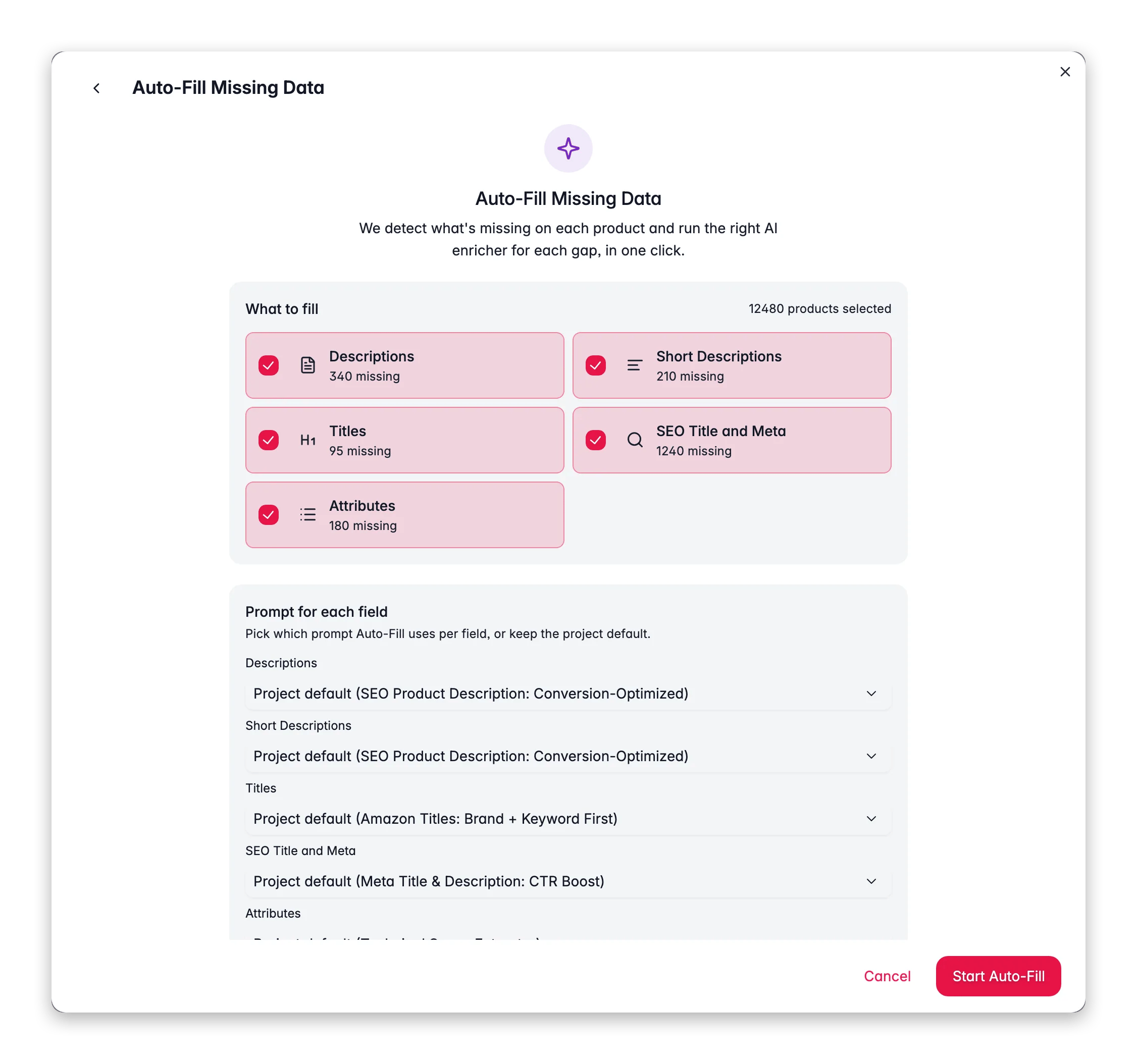
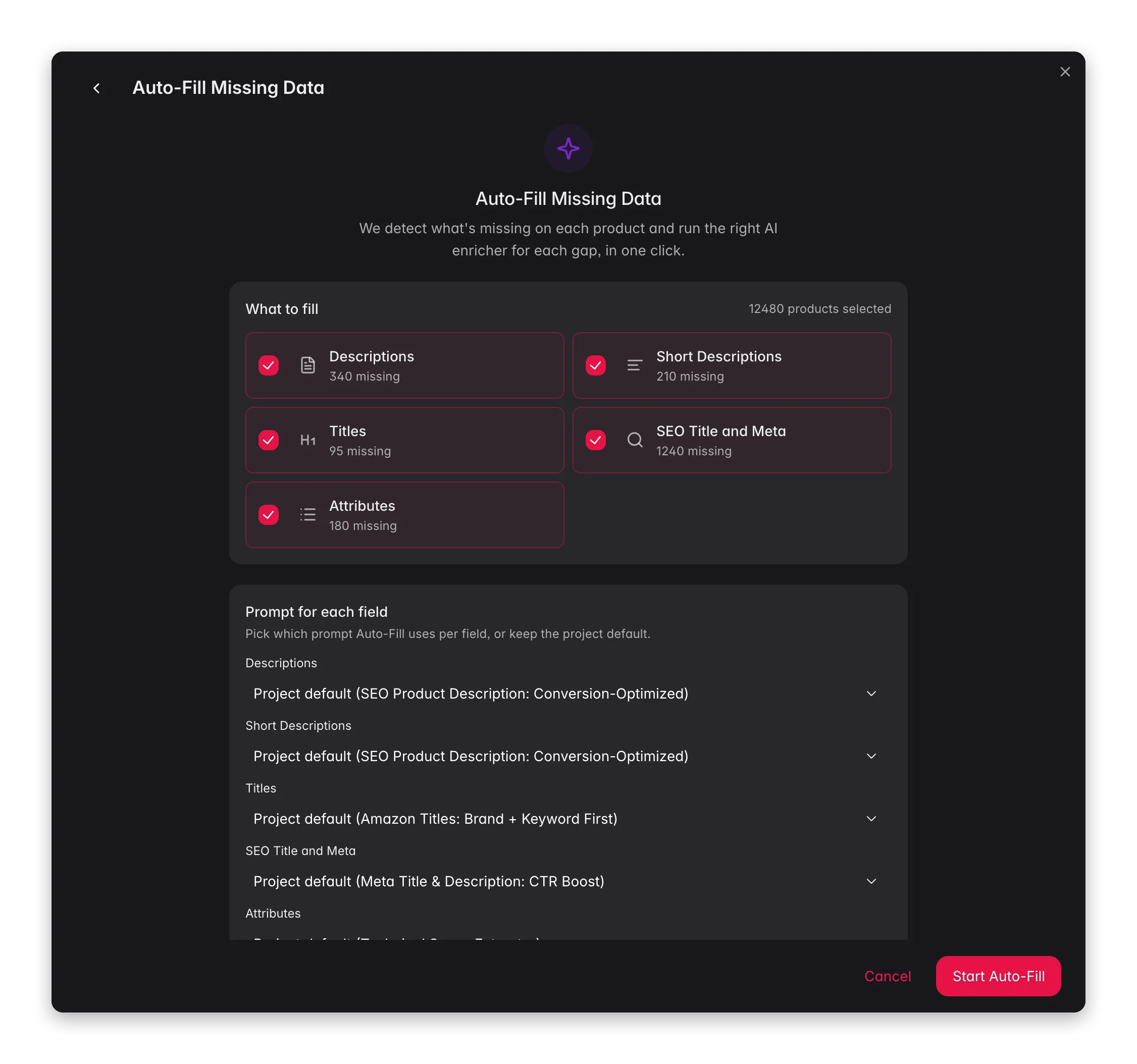 Auto-Fill analyzes each product you select, finds every missing content field, and fills them all in one background job using your project's default prompts. Instead of running five separate enrichments for titles, descriptions, short descriptions, SEO meta, and attributes, you run one, and only the fields that are actually empty get filled.
**What it enables:** onboard a batch of new products and have all content generated before your next coffee. Run it after any import to turn skeleton records into fully written listings.
Auto-Fill reads your defaults from **Settings → Enrich Prompts**. If no default is set for a gap type, that type is skipped. Set your defaults first and Auto-Fill will handle the rest.
## The five gap types
| Gap type | What it fills | Default prompt source |
| ---------------------- | ------------------------------- | ---------------------------- |
| **Descriptions** | Full product description | Description default |
| **Short Descriptions** | Concise product summary | Description default (shared) |
| **Titles** | Product name / title | Titles default |
| **SEO Title & Meta** | Meta title and meta description | SEO default |
| **Attributes** | Extracted structured specs | Attributes default |
Each product is analyzed individually. A product that already has a description but is missing a title only receives a title, it is not re-enriched for fields that already have content.
## Set up your defaults first
Auto-Fill works best when all four default prompts are configured. Go to [Settings → Enrich Prompts](/en/settings/enrich-defaults) and pick a prompt for each type.
Auto-Fill analyzes each product you select, finds every missing content field, and fills them all in one background job using your project's default prompts. Instead of running five separate enrichments for titles, descriptions, short descriptions, SEO meta, and attributes, you run one, and only the fields that are actually empty get filled.
**What it enables:** onboard a batch of new products and have all content generated before your next coffee. Run it after any import to turn skeleton records into fully written listings.
Auto-Fill reads your defaults from **Settings → Enrich Prompts**. If no default is set for a gap type, that type is skipped. Set your defaults first and Auto-Fill will handle the rest.
## The five gap types
| Gap type | What it fills | Default prompt source |
| ---------------------- | ------------------------------- | ---------------------------- |
| **Descriptions** | Full product description | Description default |
| **Short Descriptions** | Concise product summary | Description default (shared) |
| **Titles** | Product name / title | Titles default |
| **SEO Title & Meta** | Meta title and meta description | SEO default |
| **Attributes** | Extracted structured specs | Attributes default |
Each product is analyzed individually. A product that already has a description but is missing a title only receives a title, it is not re-enriched for fields that already have content.
## Set up your defaults first
Auto-Fill works best when all four default prompts are configured. Go to [Settings → Enrich Prompts](/en/settings/enrich-defaults) and pick a prompt for each type.
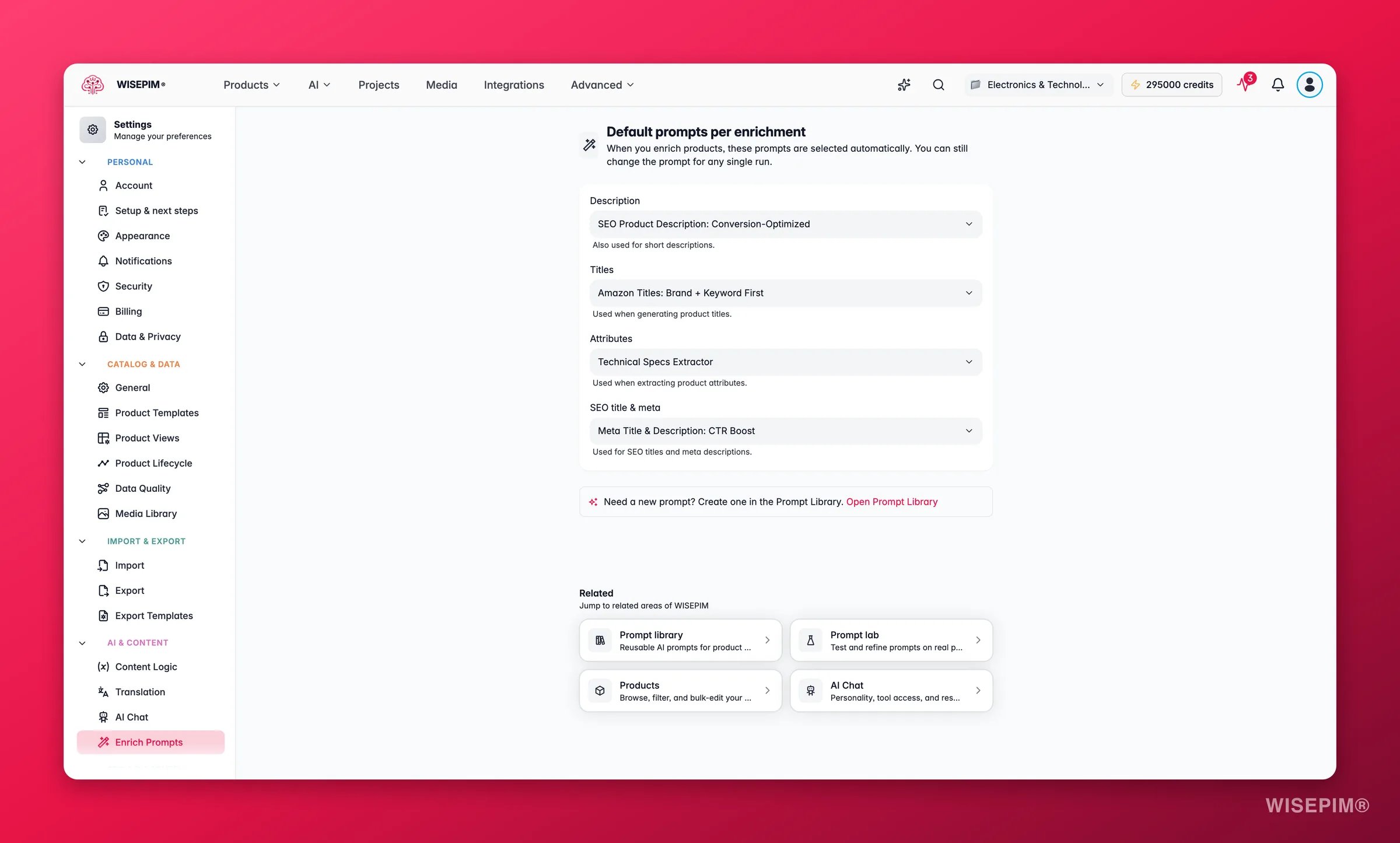
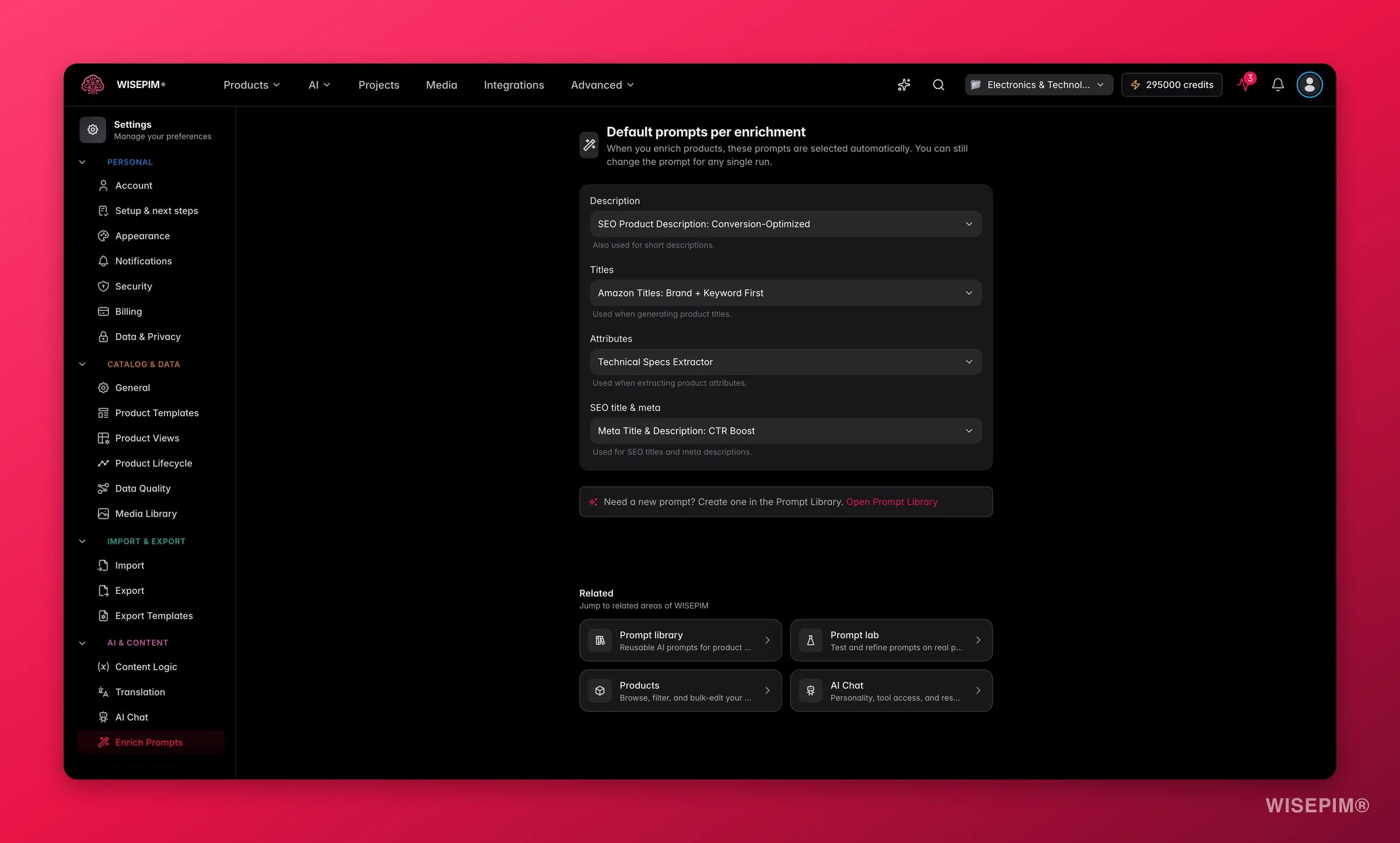 If you do not have prompts yet, create them in the [Prompt Library](/en/essentials/prompt-library) first, or use the AI Prompt Wizard to generate one.
## How to run Auto-Fill
Check the products you want to fill. You can select individual rows, apply filters and select all matching results, or select your entire catalog.
Click **Enrich with AI** in the toolbar.
Select **Auto-Fill Missing Data**: the first option in the modal.
Review the gap types, adjust prompt overrides if needed, and set the overwrite threshold if you want to regenerate low-quality content too.
Click **Start Enrichment**. The job runs in the background. Track progress in the [Process Tracker](/en/other-features/process-tracker).
## Configuration options
### Gap type selection
All five gap types are enabled by default. Uncheck any you want to skip on this run. A gap type shows as disabled (greyed out) if no default prompt is set for it and you have not picked a prompt override for it, set a default or choose an override to include it.
### Prompt overrides per type
Each gap type has a dropdown where you can override the project default for this one run. Choose **Project default** to use the default from Settings → Enrich Prompts, or pick any matching prompt from your library. Use overrides when you want to test a different prompt without changing the project default.
### Overwrite threshold
By default, Auto-Fill only fills fields that are **completely empty**. If you turn on the overwrite threshold, Auto-Fill also regenerates existing content whose quality score is below the percentage you set.
* **Off (default):** fill empty fields only.
* **On:** fill empty fields AND regenerate any field with a quality score below the threshold (0–100%, adjustable in 5% steps).
The overwrite threshold is useful after improving your prompts, you can use it to upgrade old low-quality content alongside new gaps in the same run.
Start with the overwrite threshold off on your first run to fill obvious gaps safely. Once you have confirmed the output quality, enable it at a low threshold (30–40%) to gradually upgrade weaker content.
## What happens during the run
Auto-Fill submits one enrichment task per product. Each task:
1. Checks which of the selected gap types are actually missing (or below the overwrite threshold) for that product.
2. Runs only the enrichers needed, no wasted credits on fields that already have content.
3. Writes the generated content into the appropriate reviewed/enriched fields.
The run appears in the [Process Tracker](/en/other-features/process-tracker) so you can see how many products have been processed and how many are still queued.
## Act on what you find
A greyed-out gap type has no default prompt and no override selected for this run. Go to [Settings → Enrich Prompts](/en/settings/enrich-defaults) to set a default, or pick a prompt from the override dropdown directly in the Auto-Fill panel. **Outcome:** all five gap types enabled so nothing is skipped.
Run Auto-Fill immediately after the import to turn skeleton records into fully written listings. Select the newly imported products (filter by import date or "no description" status), open the Enrich modal, and start Auto-Fill. **Outcome:** new products are ready to review and publish without any manual writing.
Enable the overwrite threshold and set it to the quality score below which you want to regenerate. Start low (30%) and review a sample before running it on your full catalog. **Outcome:** weaker content is systematically replaced with your current best-practice prompts.
Check whether the products with weaker output have less source data (shorter existing descriptions, fewer attributes, no images). Auto-Fill works from what is already in the product record. Products with richer source data will produce better AI output. Improve source data first, then re-run. **Outcome:** consistent quality across the catalog.
Use the per-type prompt override in the Auto-Fill panel. This overrides the project default for this run only and does not change your Settings → Enrich Prompts configuration. **Outcome:** run a test prompt on a specific field without affecting the global default.
## Related
Set the default prompts Auto-Fill uses for each content type.
Overview of all 14 enrichment types and how to run them.
Create and manage the prompts used by Auto-Fill and all other enrichment types.
Monitor Auto-Fill progress and review results when the run completes.
If you do not have prompts yet, create them in the [Prompt Library](/en/essentials/prompt-library) first, or use the AI Prompt Wizard to generate one.
## How to run Auto-Fill
Check the products you want to fill. You can select individual rows, apply filters and select all matching results, or select your entire catalog.
Click **Enrich with AI** in the toolbar.
Select **Auto-Fill Missing Data**: the first option in the modal.
Review the gap types, adjust prompt overrides if needed, and set the overwrite threshold if you want to regenerate low-quality content too.
Click **Start Enrichment**. The job runs in the background. Track progress in the [Process Tracker](/en/other-features/process-tracker).
## Configuration options
### Gap type selection
All five gap types are enabled by default. Uncheck any you want to skip on this run. A gap type shows as disabled (greyed out) if no default prompt is set for it and you have not picked a prompt override for it, set a default or choose an override to include it.
### Prompt overrides per type
Each gap type has a dropdown where you can override the project default for this one run. Choose **Project default** to use the default from Settings → Enrich Prompts, or pick any matching prompt from your library. Use overrides when you want to test a different prompt without changing the project default.
### Overwrite threshold
By default, Auto-Fill only fills fields that are **completely empty**. If you turn on the overwrite threshold, Auto-Fill also regenerates existing content whose quality score is below the percentage you set.
* **Off (default):** fill empty fields only.
* **On:** fill empty fields AND regenerate any field with a quality score below the threshold (0–100%, adjustable in 5% steps).
The overwrite threshold is useful after improving your prompts, you can use it to upgrade old low-quality content alongside new gaps in the same run.
Start with the overwrite threshold off on your first run to fill obvious gaps safely. Once you have confirmed the output quality, enable it at a low threshold (30–40%) to gradually upgrade weaker content.
## What happens during the run
Auto-Fill submits one enrichment task per product. Each task:
1. Checks which of the selected gap types are actually missing (or below the overwrite threshold) for that product.
2. Runs only the enrichers needed, no wasted credits on fields that already have content.
3. Writes the generated content into the appropriate reviewed/enriched fields.
The run appears in the [Process Tracker](/en/other-features/process-tracker) so you can see how many products have been processed and how many are still queued.
## Act on what you find
A greyed-out gap type has no default prompt and no override selected for this run. Go to [Settings → Enrich Prompts](/en/settings/enrich-defaults) to set a default, or pick a prompt from the override dropdown directly in the Auto-Fill panel. **Outcome:** all five gap types enabled so nothing is skipped.
Run Auto-Fill immediately after the import to turn skeleton records into fully written listings. Select the newly imported products (filter by import date or "no description" status), open the Enrich modal, and start Auto-Fill. **Outcome:** new products are ready to review and publish without any manual writing.
Enable the overwrite threshold and set it to the quality score below which you want to regenerate. Start low (30%) and review a sample before running it on your full catalog. **Outcome:** weaker content is systematically replaced with your current best-practice prompts.
Check whether the products with weaker output have less source data (shorter existing descriptions, fewer attributes, no images). Auto-Fill works from what is already in the product record. Products with richer source data will produce better AI output. Improve source data first, then re-run. **Outcome:** consistent quality across the catalog.
Use the per-type prompt override in the Auto-Fill panel. This overrides the project default for this run only and does not change your Settings → Enrich Prompts configuration. **Outcome:** run a test prompt on a specific field without affecting the global default.
## Related
Set the default prompts Auto-Fill uses for each content type.
Overview of all 14 enrichment types and how to run them.
Create and manage the prompts used by Auto-Fill and all other enrichment types.
Monitor Auto-Fill progress and review results when the run completes.