> ## Documentation Index
> Fetch the complete documentation index at: https://docs.wisepim.com/llms.txt
> Use this file to discover all available pages before exploring further.
# Shopware-Integration
> Verbinde deinen Shopware 6-Shop mit WISEPIM. Erstelle eine Integration, füge den Access Key und das Secret in WISEPIM hinzu und beginne, deinen Katalog zu synchronisieren.
Verbinde deinen Shopware 6-Shop mit WISEPIM, um deinen gesamten Katalog an einem Ort zu verwalten. Sobald die Verbindung steht, kannst du Produkte importieren, sie mit AI anreichern und die verbesserten Inhalte zurück an Shopware senden.
Die Einrichtung erfolgt in zwei Schritten: Erstelle eine Integration in deinem Shopware-Adminbereich und füge deren Zugangsdaten anschließend in WISEPIM hinzu.
Du brauchst Admin-Zugriff auf deinen Shopware 6-Shop und ein WISEPIM-Konto mit einem aktiven Projekt. WISEPIM verbindet sich über die Shopware Admin API.
## Erstelle eine Integration in Shopware
 Shopware stellt eine Client ID und ein Secret aus, wenn du eine Integration erstellst.
Melde dich in deinem Shopware-Adminbereich an. Gehe zu **Settings** > **System** > **Integrations**.
Klicke auf **Add integration**, nenne sie WISEPIM und gewähre ihr Administratorrechte (oder eine Rolle, die Produkte lesen und schreiben kann).
Shopware zeigt dir eine **Access key ID** und einen **Secret access key**. Kopiere beide. Das Secret wird nur einmal angezeigt.
Klicke auf **Save**, um die Integration aktiv zu halten.
## Füge deine Zugangsdaten in WISEPIM hinzu
Gib die Werte aus Shopware ein, um die Verbindung abzuschließen.
Melde dich bei WISEPIM an und gehe zu **Einstellungen** > **Integrationen**.
Suche und klicke auf die **Shopware**-Integrationskachel.
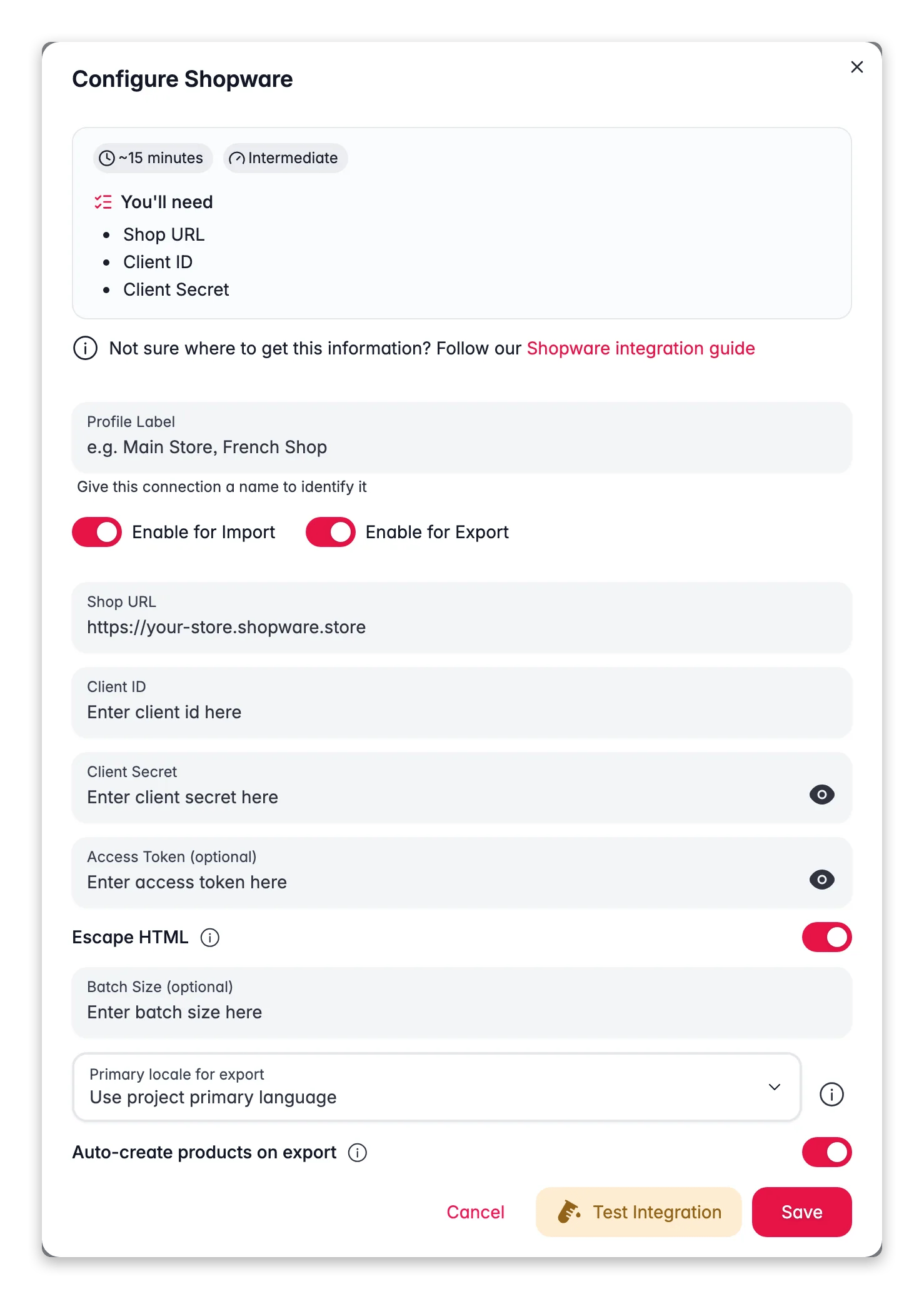
Fülle die folgenden Felder aus:
* **Shop URL**: die URL deines Shopware-Shops, inklusive `https://` (zum Beispiel `https://your-store.shopware.store`)
* **Client ID**: die Access key ID aus Shopware
* **Client Secret**: der Secret access key aus Shopware
Klicke auf **Verbindung testen**, um zu prüfen, ob deine Zugangsdaten funktionieren.
Wenn der Test erfolgreich ist, klicke auf **Speichern**.
Dein Shopware-Shop ist jetzt verbunden. Du kannst mit dem Importieren von Produkten beginnen.
Dein Client Secret gibt vollen Zugriff auf deinen Shop über die Admin API. Teile es niemals öffentlich und übertrage es nicht in eine Versionskontrolle. Wenn du glaubst, dass es offengelegt wurde, lösche die Integration in Shopware und erstelle eine neue.
## Fehlerbehebung
Prüfe zuerst deine Shop-URL. Sie muss korrekt sein und mit `https://` beginnen. Bestätige danach, dass du die Access key ID und den Secret access key exakt kopiert hast, ohne zusätzliche Leerzeichen.
Öffne die Integration in Shopware und bestätige, dass sie eine Rolle hat, die Produkte lesen und schreiben kann. Eine Nur-Lese-Rolle blockiert Exporte zurück in deinen Shop.
## Verwandte Themen
Hole deinen Katalog aus Shopware nach WISEPIM.
Verbessere Titel, Beschreibungen und SEO mit AI.
Sende die verbesserten Inhalte zurück an Shopware.
Sieh dir jede Plattform an, mit der WISEPIM sich verbindet.
Shopware stellt eine Client ID und ein Secret aus, wenn du eine Integration erstellst.
Melde dich in deinem Shopware-Adminbereich an. Gehe zu **Settings** > **System** > **Integrations**.
Klicke auf **Add integration**, nenne sie WISEPIM und gewähre ihr Administratorrechte (oder eine Rolle, die Produkte lesen und schreiben kann).
Shopware zeigt dir eine **Access key ID** und einen **Secret access key**. Kopiere beide. Das Secret wird nur einmal angezeigt.
Klicke auf **Save**, um die Integration aktiv zu halten.
## Füge deine Zugangsdaten in WISEPIM hinzu
Gib die Werte aus Shopware ein, um die Verbindung abzuschließen.
Melde dich bei WISEPIM an und gehe zu **Einstellungen** > **Integrationen**.
Suche und klicke auf die **Shopware**-Integrationskachel.
Fülle die folgenden Felder aus:
* **Shop URL**: die URL deines Shopware-Shops, inklusive `https://` (zum Beispiel `https://your-store.shopware.store`)
* **Client ID**: die Access key ID aus Shopware
* **Client Secret**: der Secret access key aus Shopware
Klicke auf **Verbindung testen**, um zu prüfen, ob deine Zugangsdaten funktionieren.
Wenn der Test erfolgreich ist, klicke auf **Speichern**.
Dein Shopware-Shop ist jetzt verbunden. Du kannst mit dem Importieren von Produkten beginnen.
Dein Client Secret gibt vollen Zugriff auf deinen Shop über die Admin API. Teile es niemals öffentlich und übertrage es nicht in eine Versionskontrolle. Wenn du glaubst, dass es offengelegt wurde, lösche die Integration in Shopware und erstelle eine neue.
## Fehlerbehebung
Prüfe zuerst deine Shop-URL. Sie muss korrekt sein und mit `https://` beginnen. Bestätige danach, dass du die Access key ID und den Secret access key exakt kopiert hast, ohne zusätzliche Leerzeichen.
Öffne die Integration in Shopware und bestätige, dass sie eine Rolle hat, die Produkte lesen und schreiben kann. Eine Nur-Lese-Rolle blockiert Exporte zurück in deinen Shop.
## Verwandte Themen
Hole deinen Katalog aus Shopware nach WISEPIM.
Verbessere Titel, Beschreibungen und SEO mit AI.
Sende die verbesserten Inhalte zurück an Shopware.
Sieh dir jede Plattform an, mit der WISEPIM sich verbindet.