> ## Documentation Index
> Fetch the complete documentation index at: https://docs.wisepim.com/llms.txt
> Use this file to discover all available pages before exploring further.
# Shopify-Integration
> Verbinde deinen Shopify-Shop in wenigen Minuten mit WISEPIM. Erstelle eine Custom App, lege die Zugriffsrechte fest und importiere deine Produkte, um sie zu verbessern und zu übersetzen.
Verbinde deinen Shopify-Shop mit WISEPIM, um deine Produkte zu importieren, sie mit AI zu verbessern und in deine Zielsprache zu übersetzen. Die Einrichtung dauert nur wenige Minuten.
Um Shopify zu verbinden, erstellst du eine Custom App in deinem Shopify-Admin und fügst deren API-Schlüssel und Secret in WISEPIM ein. Das machst du nur einmal.
## Eine Custom App in Shopify erstellen
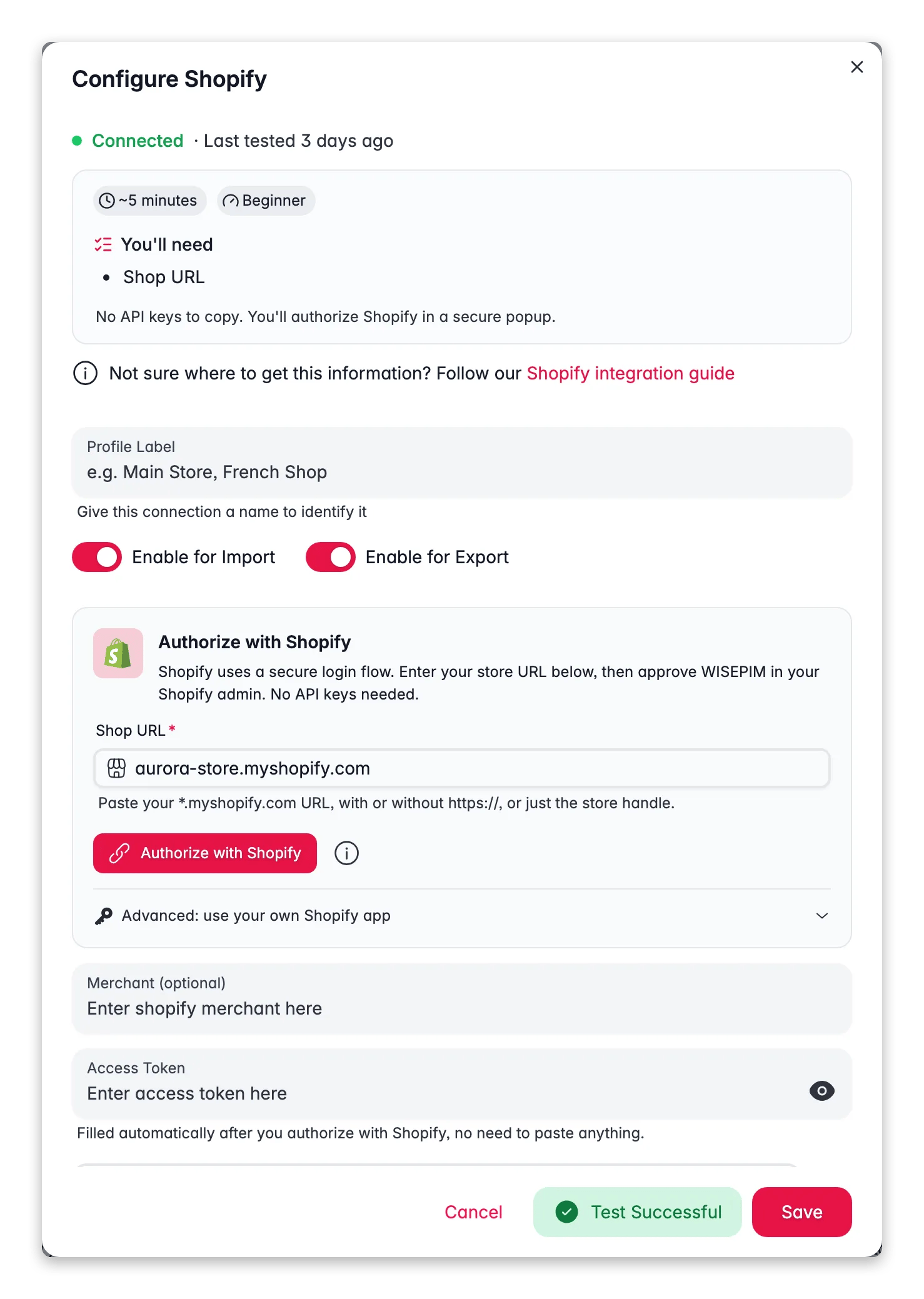
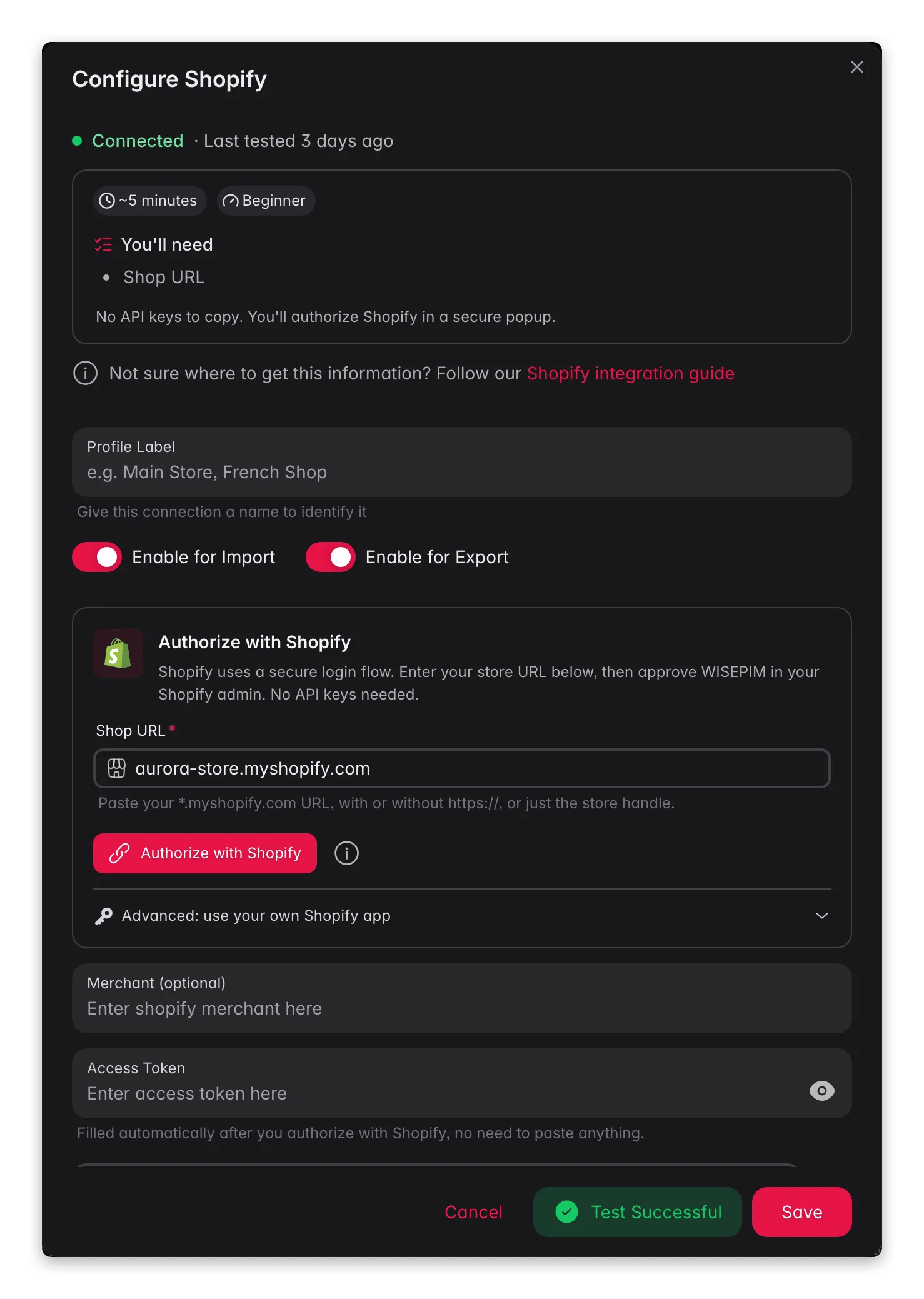 Erstelle zuerst API-Zugangsdaten in deinem Shopify-Admin.
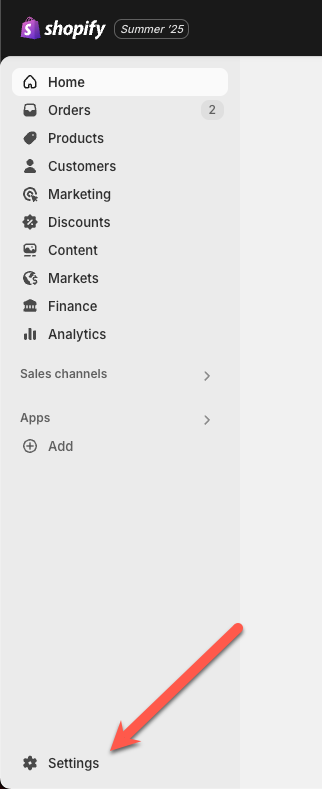
Melde dich in deinem Shopify-Admin an und öffne die **Einstellungen**.
Erstelle zuerst API-Zugangsdaten in deinem Shopify-Admin.
Melde dich in deinem Shopify-Admin an und öffne die **Einstellungen**.
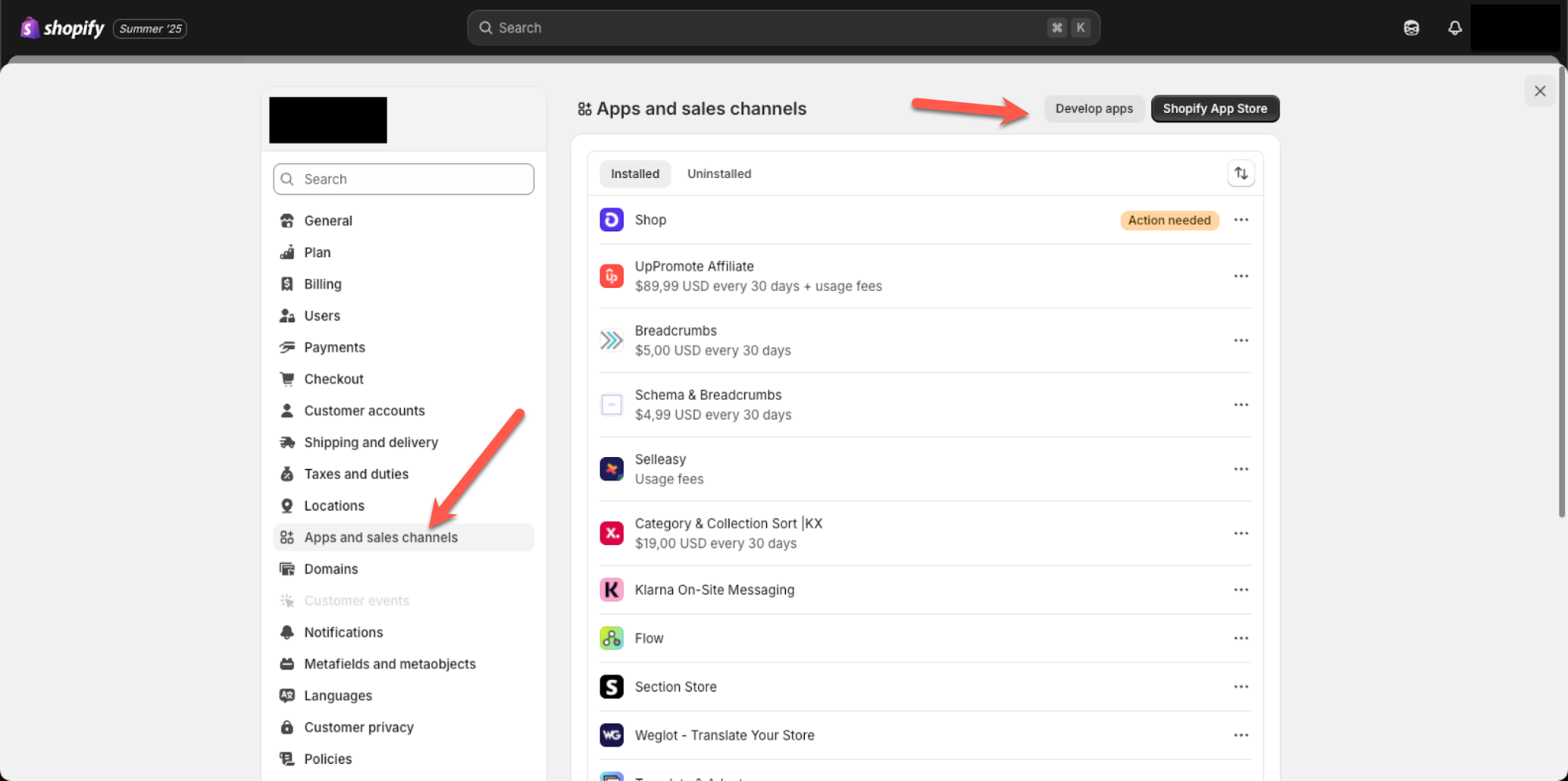
 Öffne **Apps und Vertriebskanäle** und klicke auf **Apps entwickeln**. Hier erstellst du eine Custom App für WISEPIM.
 Öffne den Tab **Konfiguration** deiner App. Hier legst du die Zugriffsrechte fest, mit denen WISEPIM deine Produktdaten lesen kann.
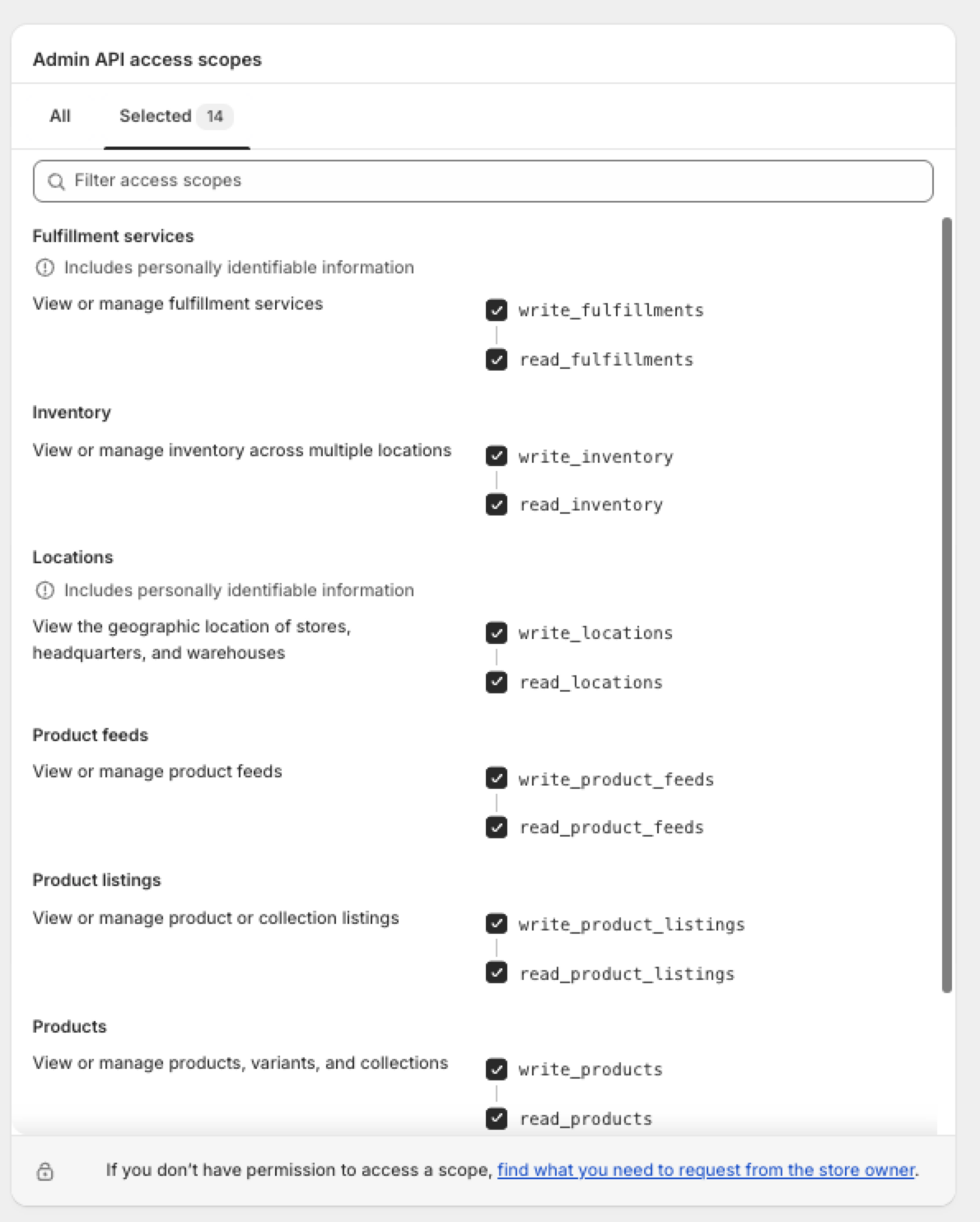
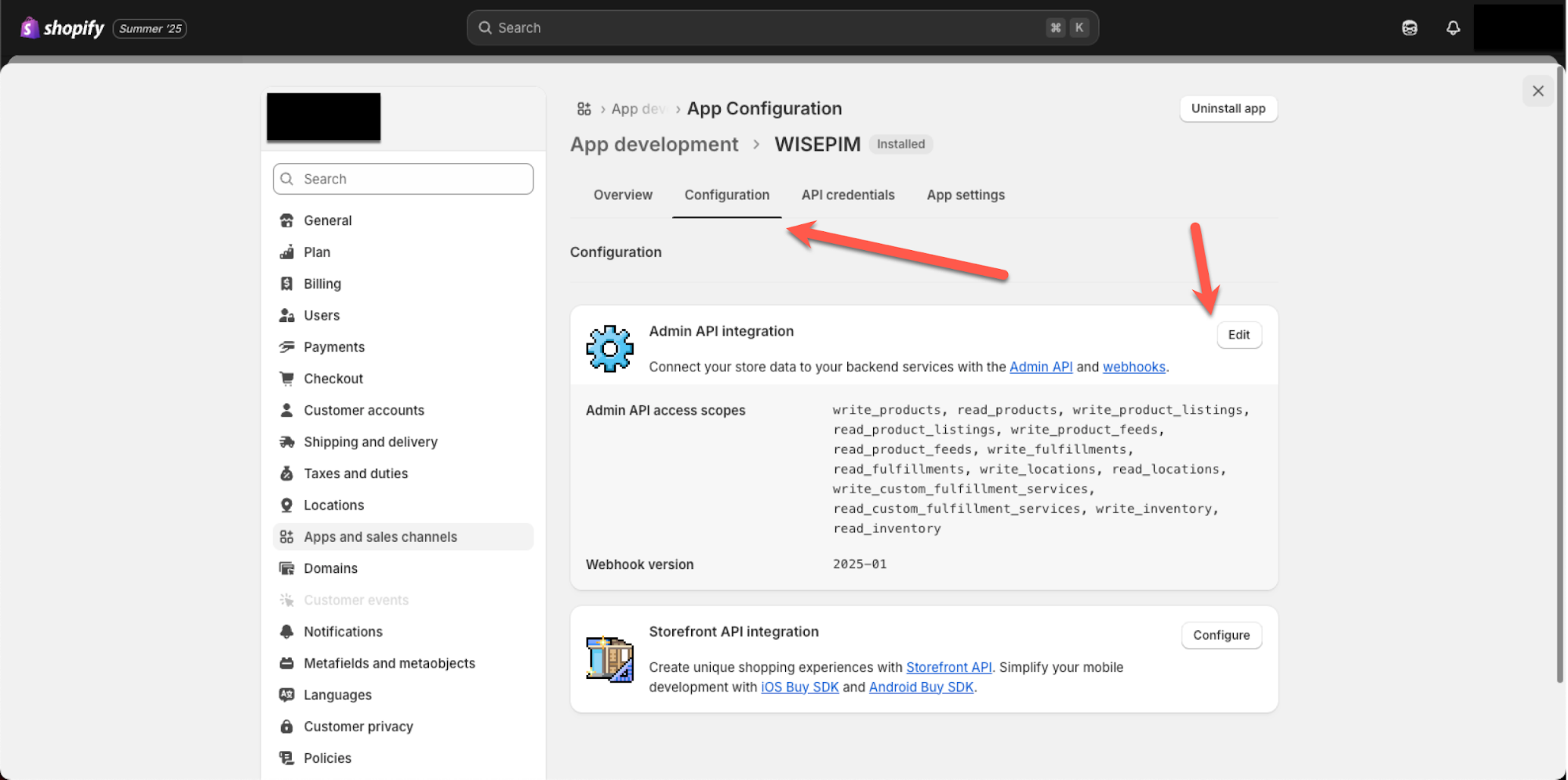 Füge die unten gezeigten Zugriffsrechte hinzu, damit WISEPIM deine Produktdaten abrufen kann, und speichere deine Änderungen.
 ## Shopify mit WISEPIM verbinden
Kopiere danach deine Zugangsdaten aus Shopify nach WISEPIM.
Suche in deiner Shopify-App den **API-Schlüssel** und den **API-Secret-Schlüssel**. Lass diesen Tab geöffnet, damit du beide Werte kopieren kannst.
Öffne in WISEPIM deine Shopify-Integration und füge den API-Schlüssel und das Secret ein. Speichere, um deinen Shop zu verbinden.
## Shopify mit WISEPIM verbinden
Kopiere danach deine Zugangsdaten aus Shopify nach WISEPIM.
Suche in deiner Shopify-App den **API-Schlüssel** und den **API-Secret-Schlüssel**. Lass diesen Tab geöffnet, damit du beide Werte kopieren kannst.
Öffne in WISEPIM deine Shopify-Integration und füge den API-Schlüssel und das Secret ein. Speichere, um deinen Shop zu verbinden.
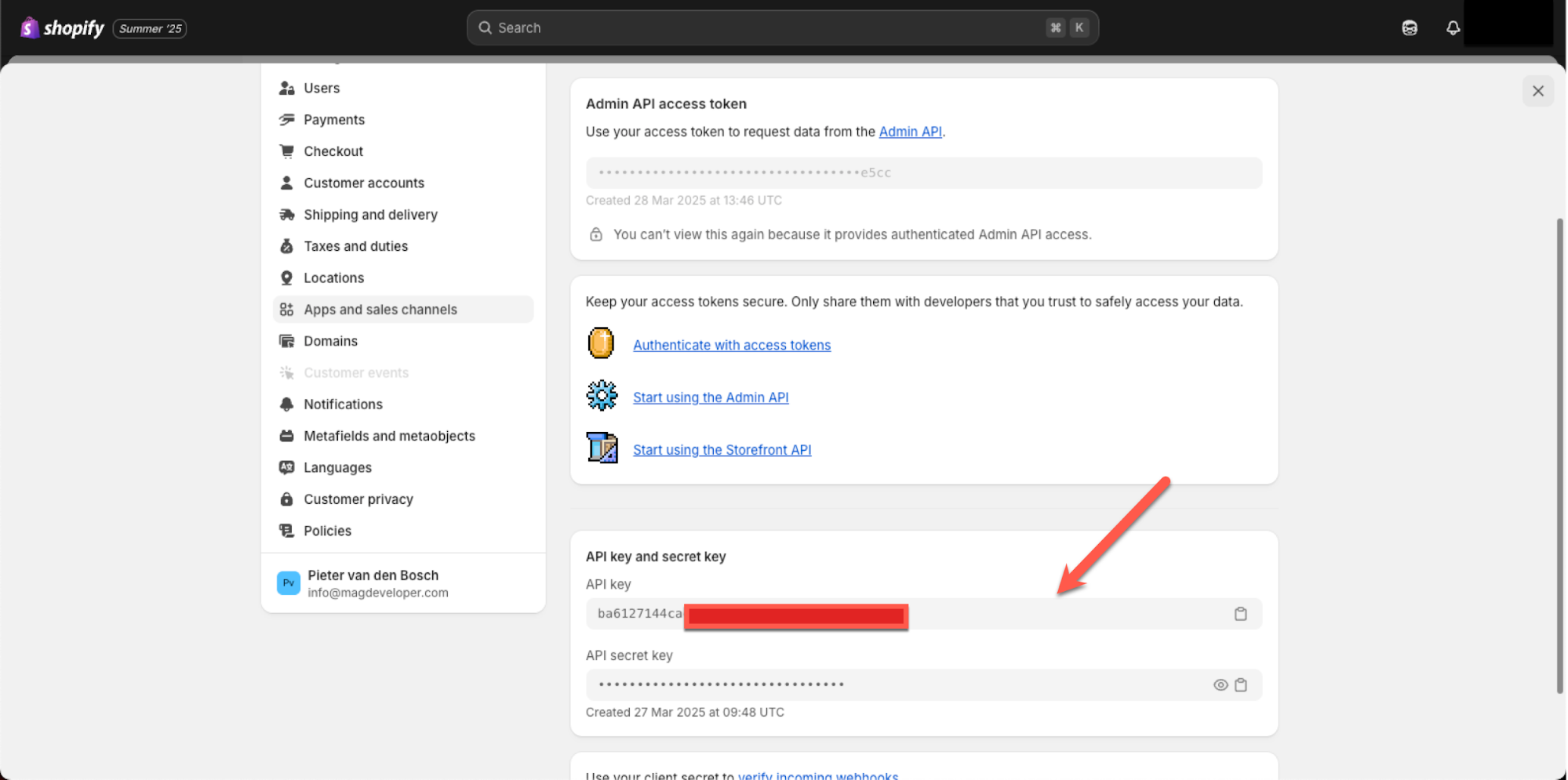 Dein API-Secret gewährt vollen Zugriff auf deine Shop-Daten. Teile es niemals öffentlich und füge es nicht in die Version Control ein. Wenn ein Secret offengelegt wurde, widerrufe die App in Shopify und erstelle eine neue.
## Produkte importieren und verbessern
Dein Shop ist jetzt verbunden. Du kannst deine Shopify-Produkte in WISEPIM abrufen und sie anschließend verbessern und in deine Zielsprache übersetzen.
## Verwandt
Hole deinen Shopify-Katalog in WISEPIM.
Verbessere Titel, Beschreibungen und SEO mit AI.
Schicke verbesserte Inhalte zurück an deinen Shop.
Sieh dir jede Plattform an, mit der WISEPIM sich verbindet.
Dein API-Secret gewährt vollen Zugriff auf deine Shop-Daten. Teile es niemals öffentlich und füge es nicht in die Version Control ein. Wenn ein Secret offengelegt wurde, widerrufe die App in Shopify und erstelle eine neue.
## Produkte importieren und verbessern
Dein Shop ist jetzt verbunden. Du kannst deine Shopify-Produkte in WISEPIM abrufen und sie anschließend verbessern und in deine Zielsprache übersetzen.
## Verwandt
Hole deinen Shopify-Katalog in WISEPIM.
Verbessere Titel, Beschreibungen und SEO mit AI.
Schicke verbesserte Inhalte zurück an deinen Shop.
Sieh dir jede Plattform an, mit der WISEPIM sich verbindet.